
Home Lab Build Order
How this page is organized: sections are listed in the order you’d build a home lab, starting with the hypervisor that everything else runs on. Each phase relies on the ones before it, so working top to bottom avoids redoing things later.
- Foundation: Hypervisor (Proxmox), Networking, Static IPs, MAC Addresses. Install the host and give every machine a predictable address.
- Base server setup: Core Services (SSH, keys, CLI tools, Docker, Tailscale), Security Hardening. The tools almost every server needs, then lock it down.
- Network services: DNS, Pi-hole, NTP, Windows Server. Name resolution, ad blocking, time and directory services the rest of the lab uses.
- Storage: RAID, NAS, Samba. Redundant disks and shared folders for media and backups.
- Reverse proxy and apps: Nginx Proxy Manager, Vaultwarden, Plex, Home Assistant, AMP. HTTPS and friendly names first, then the self-hosted apps behind them.
- Scale and automate: Containerization, Kubernetes, Automation, Scripting, Bash, PowerShell.
- Monitor and protect: Central Logging, Alerting, Backups, GPG.
- Extras and reference: SQL, Deploy an HTML Site, HTML, Troubleshoots, Command Dictionary.
Hypervisors
What it is: A hypervisor is software that runs several virtual machines (VMs) on one physical computer, giving each VM its own share of CPU, memory and storage. Type 1 (bare-metal) hypervisors such as Proxmox, VMware ESXi and Hyper-V run directly on the hardware, which makes them the foundation of most home labs and data centers.
Proxmox
What it is: Proxmox VE (Virtual Environment) is a free, open-source Type 1 hypervisor built on Debian Linux. It runs full virtual machines (KVM) and lightweight Linux containers (LXC) side by side, all managed from a web interface with built-in backups, snapshots and clustering.
Video Tutorial: https://www.youtube.com/watch?v=_u8qTN3cCnQ
Visit https://www.proxmox.com/en/ go to downloads page and download the "Virtual Environment" ISO.
Next you need a boot loader to properly load the ISO onto a flash drive. I prefer Rufus: https://rufus.ie/en/
Select flash drive device and ISO image and start.
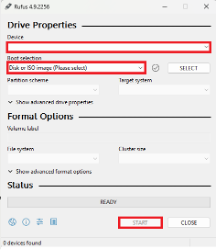
Rufus 49.2256 Interface
Once image is finished…
- Plug ethernet into soon to be Hypervisor Machine.
- Attach flasher drive into Hypervisor Machine.
- Boot to bios.
- Change boot option #1 to the flash drive.
- Reboot
- Follow through with installation
- Host name and static IP are of important note
- Once installation finishes. Set machine to the side. You can now log in using the web UI
Log into web server by typing in URL: https://(static IP):8006
Login and select PVE and then Shell.
# I like to install tailscale on the host that way I can remote/connect to into the machine outside of the network.
sudo apt update && sudo apt install -y curl
curl -fsSL https://tailscale.com/install.sh | sh

# This installs the latest version for your OS automatically.
# Start Tailscale service:
sudo tailscale up
You will see an authentication URL: "To authenticate, visit: https://login.tailscale.com/a/xxxxxx"
Copy the URL from SSH output and open it on your local browser.
Log in with your preferred identity provider (Google, GitHub, Microsoft, etc.)
Once authenticated, the machine will appear in your Tailscale admin dashboard.
Check Tailscale status:
tailscale statusOn the left hand side select local(PVE). Here ISO images can be uploaded and container images can be uploaded and downloaded.
Networking
What it is: Networking covers how devices connect and communicate: IP addressing and subnets, routing between networks, switches, VLANs that split one physical network into separate virtual ones, and the firewall and NAT rules at the network edge. A solid network layout is what keeps a home lab both reachable and secure.
Static IP
What it is: A static IP address is one you set manually so it never changes, unlike a dynamic address that your router hands out through DHCP and may change after a reboot. Servers need a static IP so that port forwarding, DNS records, bookmarks and other devices can always find them at the same address.
Linux (Ubuntu Netplan)
What it is: On Ubuntu Server, network settings live in Netplan YAML files under /etc/netplan/. You set the static address, gateway and DNS servers in that file, then apply it with netplan apply.
- Find your interface name:
bash
ip -c aOr in some cases:
baship addrLook for names like
eth0orenp0s3 - Note the IP route addresses:
bash
ip route - Locate and edit the config file:
bash
cd /etc/netplan ls sudo nano 50-cloud-init.yaml - Insert the configuration:
"addresses:" will be the static IP. "via" will be the IP route
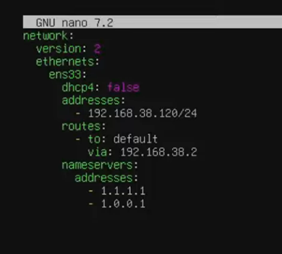
- Apply changes:
bash
sudo netplan apply
ip -c a
Verify the change with the last command.
METHOD 2: DEBIAN INTERFACES
- Find interface and route:
bash
ip -c a ip r - Locate the config file:
bash
sudo nano /etc/network/interfaces - Apply configuration:
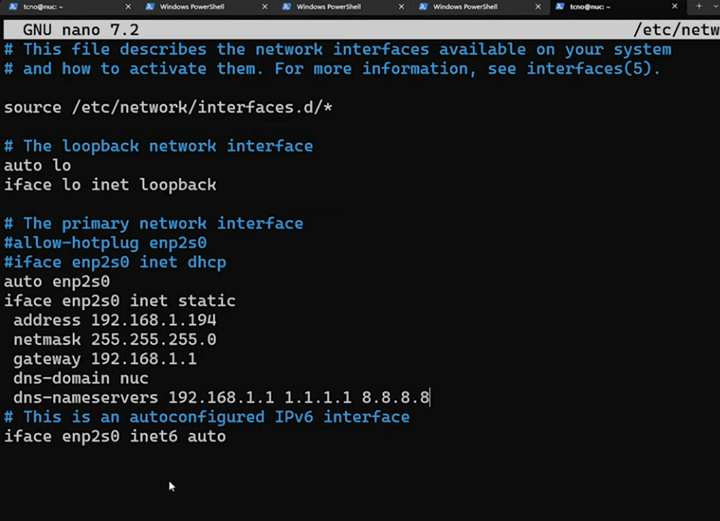
- Restart service and verify:
bash
sudo systemctl restart networking.service
ip -c a
Windows
What it is: On Windows, a static IP is set in the network adapter’s IPv4 properties: instead of obtaining an address automatically, you enter the IP address, subnet mask, default gateway and DNS servers yourself.
- Go to Control Panel.
- Select Network and Internet.
- Go to Network and Sharing Center.
- Click on your active connection (e.g., Connections: Ethernet).
- Select Properties.
- Click on Internet Protocol Version 4 (TCP/IPv4) and select Properties.
- Here a static IP, Subnet mask, and Default gateway can be manually set.
MAC addresses
What it is: A MAC (Media Access Control) address is the unique hardware identifier of a network interface, written as six pairs of hexadecimal characters (for example 3C:52:82:1A:4F:9B). Switches use MAC addresses to deliver traffic on the local network, and routers use them for DHCP reservations and device filtering.
Core Services
What it is: Core services are the basic tools installed on almost every Linux server before anything else: secure remote access (SSH and key-based login), everyday command-line utilities for editing configuration files, watching performance, troubleshooting the network and downloading files, a way to run applications (Docker and Docker Compose), and Tailscale for reaching the lab from anywhere. They’re listed in the order you’d normally set them up.
SSH
What it is: SSH (Secure Shell) is the standard way to log in to and manage a Linux machine from another computer. Everything you type and see is encrypted, so you can run commands on a server as if you were sitting in front of it.
Install OpenSSH Server:
sudo apt update
sudo apt upgrade
sudo apt install openssh-server -y
Verify it is running:
sudo systemctl status sshAllow through the Firewall:
sudo ufw allow sshKey-Based Authentication
What it is: Key-based authentication replaces SSH passwords with a key pair: a private key that never leaves your computer and a public key you copy to the server. It is far harder to crack than a password and lets you log in without typing one.
Windows Video: https://www.youtube.com/watch?v=rf1J8XSEiO0
Windows
On your machine in command line:
ssh-keygen -t ed25519Note file save path location!
If you want login username & password enter it. If not just enter enter enter…
On host machine:
mkdir -p ~/.ssh
nano ~/.ssh/authorized_keys
Paste contents of .pub file into nano authorized_keys
Ctrl+o (Then Enter to Save)
Ctrl+x (To Exit)sudo nano /etc/ssh/sshd_configSet password authentication to "no". Delete the # in its front.
Ctrl+o
Ctrl+x
sudo systemctl restart ssh
Mac
Mac Guide: https://www.youtube.com/watch?v=vpk_1gldOAE&list=LL&index=2
On your machine in command line:
ssh-keygen -t ed25519Or
ssh-keygen rsa -b 4096Note file save path location!
If you want login username & password enter it. If not just enter enter enter…
On host machine:
scp ~/.ssh/id_rsa.pub user@ipaddress:/home/user/.ssh/name_key.pub
cat ~/.ssh/name_key.pub >> ~/.ssh/authorized_keys
chmod 700 ~/.ssh/
chmod 600 ~/.ssh/*
nano ~/.ssh/authorized_keys
Paste contents of .pub file into nano authorized_keys
Ctrl+o
Ctrl+x
sudo nano /etc/ssh/sshd_config
Set password authentication to "no". Delete the # in its front.
Ctrl+o
Ctrl+x
sudo systemctl restart ssh
Vim/Nano
What it is: Vim and Nano are text editors that run in the terminal, used to edit configuration files directly on a server. Nano is simple, with its shortcuts listed at the bottom of the screen; Vim is more powerful and keyboard-driven, with a steeper learning curve.
Installation Steps
For Ubuntu, Debian, or Raspberry Pi OS:
sudo apt update
sudo apt install nano vim
For CentOS, RHEL, or Rocky Linux:
sudo dnf install nano vim-enhancedFor Arch Linux:
sudo pacman -S nano vimHow to use them
Using Nano:
- To open a file:
nano filename.txt - Save: Press Ctrl + O then Enter.
- Exit: Press Ctrl + X.
- Search: Press Ctrl + W.
Using Vim:
- To open a file:
vim filename.txt - Type Text: Press
ito enter Insert Mode. - Stop Typing: Press
Escto return to Normal Mode. - Save & Exit: In Normal Mode, type
:wqand hit Enter. - Exit without Saving: In Normal Mode, type
:q!and hit Enter.
Htop
What it is: htop is an interactive, color-coded process viewer for the terminal. It shows live CPU, memory and swap usage alongside every running process, and lets you sort, search and stop processes. It is the quickest way to see what is slowing a server down.
Depending on your Linux distribution, use the corresponding command below:
For Ubuntu, Debian, Linux Mint, or Kali:
sudo apt update
sudo apt install htop
For CentOS, RHEL, or Rocky Linux:
# First, enable the EPEL repository
sudo dnf install epel-release
# Then install htop
sudo dnf install htop
For Fedora:
sudo dnf install htopFor Arch Linux:
sudo pacman -S htopHow to use htop
Once installed, simply type htop in your terminal to launch it.
Quick Cheat Sheet for htop:
Once the interface is open, you can use these keyboard shortcuts to navigate:
- F2 (Setup): Customize the colors, meters, and columns.
- F3 (Search): Find a specific process by name.
- F4 (Filter): Hide everything except processes matching your keyword.
- F5 (Tree): See the parent-child relationship between processes.
- F6 (Sort): Choose to sort by CPU%, Memory%, PID, etc.
- F9 (Kill): Send a signal (like SIGKILL) to stop a process safely.
- F10 (Quit): Exit the program.
Net-tools
What it is: Net-tools is a package of classic Linux networking commands such as ifconfig, netstat, route and arp. They show network interfaces and IP addresses, open ports and connections, and the routing table, which makes them handy for troubleshooting connectivity.
Installation Steps
For Ubuntu, Debian, Linux Mint, or Kali:
sudo apt update
sudo apt install net-tools
For CentOS, RHEL, Fedora, or Rocky Linux:
sudo dnf install net-toolsFor Arch Linux:
sudo pacman -S net-toolsWhat's inside net-tools
| Command | What it does | Modern Replacement (iproute2) |
|---|---|---|
ifconfig |
View/Configure network interfaces | ip addr |
netstat -tuln |
See active ports and connections | ss -tuln |
route -n |
View the routing table | ip route |
arp -a |
View the ARP table (IP-to-MAC mapping) | ip neigh |
Quick Examples
Check your IP address: shows each network interface with its hardware (MAC) address, local IP address (inet) and packet statistics.
ifconfigCheck listening ports: shows which programs are listening on which ports (for example, port 80 for HTTP).
sudo netstat -plntCheck your default gateway: shows the routing table; the line with destination 0.0.0.0 is your default gateway (usually your router).
route -nCURL
What it is: curl is a command-line tool for sending and receiving data over URLs. It is used to download files and install scripts, test websites and APIs, and check whether a service is responding.
sudo apt install ca-certificates curlDocker
What it is: Docker runs applications in containers: lightweight, isolated packages that bundle an app with everything it needs. A container runs the same way on any machine, so installing, updating or removing a service is one command and never clutters the host system.
Documentation: https://docs.docker.com/engine/install
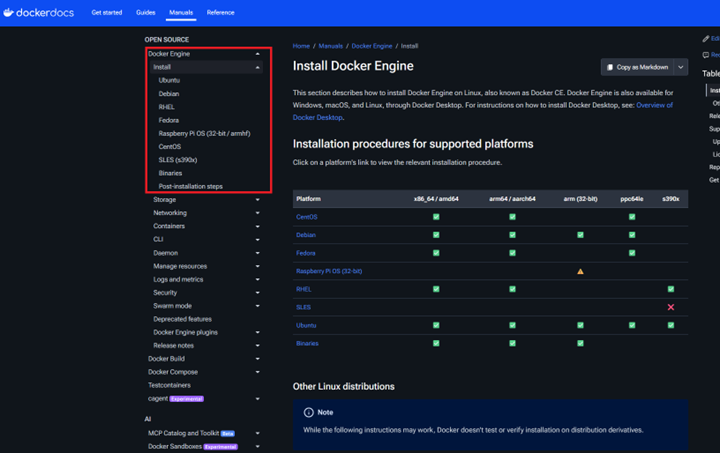
# Add Docker's official GPG key:
sudo apt update
sudo apt install ca-certificates curl
sudo install -m 0755 -d /etc/apt/keyrings
sudo curl -fsSL https://download.docker.com/linux/ubuntu/gpg -o /etc/apt/keyrings/docker.asc
sudo chmod a+r /etc/apt/keyrings/docker.asc
# Add the repository to Apt sources:
sudo tee /etc/apt/sources.list.d/docker.sources <<EOF
Types: deb
URIs: https://download.docker.com/linux/ubuntu
Suites: $(. /etc/os-release && echo "${UBUNTU_CODENAME:-$VERSION_CODENAME}")
Components: stable
Signed-By: /etc/apt/keyrings/docker.asc
EOF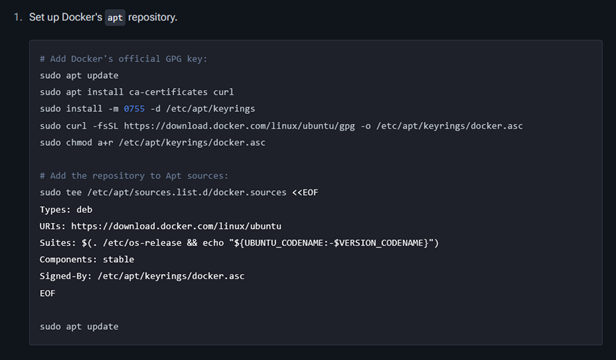
Install the Docker packages:
sudo apt install docker-ce docker-ce-cli containerd.io docker-buildx-plugin docker-compose-plugin
sudo apt update
sudo systemctl status docker
sudo systemctl start docker
sudo docker run hello-world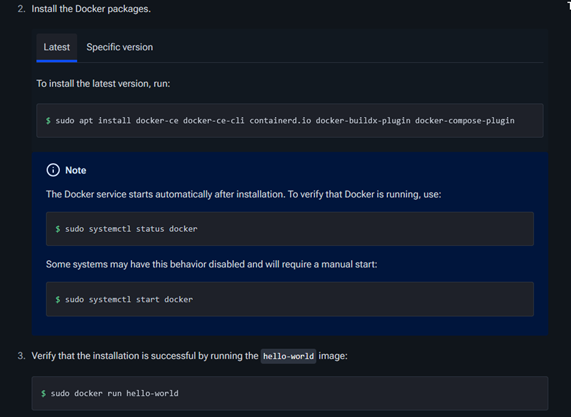
Docker Compose
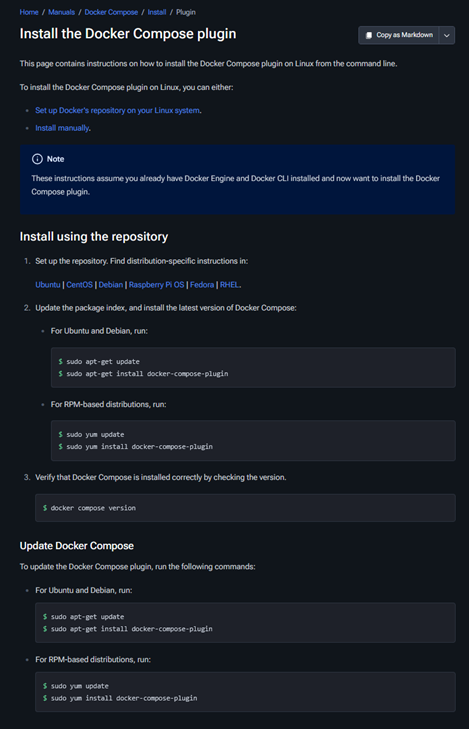
What it is: Docker Compose describes one or more containers (their images, ports, volumes and settings) in a single docker-compose.yml file, then starts or stops the whole stack with one command. It is how most of the self-hosted apps on this page are deployed.
Documentation: https://docs.docker.com/compose/install/
Tailscale
What it is: Tailscale is a mesh VPN built on WireGuard. It links your computers, servers and phones into one private network (a “tailnet”), so they can reach each other securely from anywhere without opening ports on your router.
Connect to your remote server via SSH:
ssh user@your_server_ipEnsure you have sudo privileges on the target machine.
Install Tailscale
Update package list (Debian/Ubuntu):
sudo apt update && sudo apt install -y curlDownload & install Tailscale:
curl -fsSL https://tailscale.com/install.sh | shThis installs the latest version for your OS automatically.
Authenticate Server
Start Tailscale service:
sudo tailscale upYou will see an authentication URL: "To authenticate, visit: https://login.tailscale.com/a/xxxxxx"
Copy the URL from SSH output and open it on your local browser.
- Log in with your preferred identity provider (Google, GitHub, Microsoft, etc.)
- Once authenticated, the machine will appear in your Tailscale admin dashboard.
Security Hardening
What it is: Security hardening reduces a system’s attack surface: closing unused ports, removing unneeded software, enforcing strong authentication and keeping everything patched. It works in layers: a firewall to control traffic, intrusion detection to spot attacks, and regular vulnerability scans to find weaknesses before attackers do.
Firewall configuration
What it is: A firewall controls which network traffic may enter or leave a machine, using rules based on port, protocol and source address. On Ubuntu, UFW (Uncomplicated Firewall) is a simple front end to the firewall built into the Linux kernel.
Intrusion Detection/Prevention System (IDS/IPS)
What it is: An Intrusion Detection System (IDS) watches network traffic or system activity for signs of an attack and raises alerts; an Intrusion Prevention System (IPS) can also block that traffic automatically. Snort and Suricata are widely used open-source options.
Vulnerability scanning
What it is: Vulnerability scanning automatically checks systems for known weaknesses such as missing patches, outdated software, open ports and weak settings. Tools like Nessus and OpenVAS produce a report ranked by severity, so the most serious issues can be fixed first.
DNS
What it is: DNS (Domain Name System) is the internet’s phone book. People use names like ryanpgray.com; computers connect using IP addresses like 185.199.108.153. DNS translates one into the other, every time you open a website, send an email or connect to a server by name. Records at your DNS provider decide where a domain and each of its subdomains point.
What DNS Is and Why It Exists
▶ Watch this in the tutorial (15:37)
- IP address: every device on a network (your PC, your phone, a web server) has an IP address, like a phone number for the internet. IPv4 looks like
192.168.1.10; IPv6 looks like2606:50c0:8000::153and exists because the world is running out of IPv4 numbers. - Domain name: a human-friendly name that is easy to remember and doesn’t change when the server behind it moves to a new address.
- DNS: a worldwide, distributed database that maps names to addresses (and other information, such as which servers handle email). No single server holds everything; each domain’s records live with that domain’s DNS provider.
Without DNS you would have to type an IP address for every site. With it, a site can move to a new server and only its DNS record changes; everyone keeps using the same name.
How a DNS Lookup Works
When you type www.example.com into a browser, this happens in a fraction of a second:
- Local cache: your browser and operating system first check whether they looked the name up recently. If so, they reuse the answer.
- Recursive resolver: if not, the computer asks its configured DNS server, usually your router, your ISP, or a public resolver such as
1.1.1.1(Cloudflare) or8.8.8.8(Google). The resolver does the legwork. - Root servers: the resolver asks a root server, “Who handles
.com?” - TLD servers: the
.comservers answer, “example.comis handled by these nameservers” (the domain’s NS records, set at the registrar). - Authoritative nameserver: the domain’s own DNS provider returns the actual record, for example the A record with the IP address.
- Answer and caching: the resolver returns the IP to your computer, and every step caches the answer for the record’s TTL. The browser then connects to that IP and asks the web server for the page.
DNS Record Types
▶ Watch this in the tutorial (20:25)
Every record has the same four parts: Type, Host (name), Value and TTL.
| Type | What it does | Example |
|---|---|---|
A | Points a name to an IPv4 address. | @ → 185.199.108.153 |
AAAA | Points a name to an IPv6 address. | @ → 2606:50c0:8000::153 |
CNAME | Makes a name an alias of another name; the lookup continues with that name. Only allowed on subdomains, not the bare domain. | www → username.github.io |
MX | Says which mail servers receive email for the domain, with a priority (lower number is tried first). | @ → 10 mail.example.com |
TXT | Free text, used to prove domain ownership (Google, Microsoft 365, GitHub) and for email security (SPF, DKIM, DMARC). | @ → "v=spf1 include:_spf.google.com ~all" |
NS | Names the authoritative nameservers for the domain (which DNS host answers for it). | @ → dns1.registrar-servers.com |
SOA | Start of Authority: administrative details for the zone (primary nameserver, serial number, refresh timers). Created automatically. | — |
PTR | Reverse lookup: maps an IP address back to a name. Common on mail servers and internal networks. | 10 → server1.lab.local |
SRV | Points to the host and port for a specific service. Active Directory uses SRV records to find domain controllers. | _ldap._tcp → 0 100 389 dc1.lab.local |
CAA | Lists which certificate authorities may issue SSL certificates for the domain. | @ → 0 issue "letsencrypt.org" |
Host / name field
@means the bare (root) domain itself, e.g.example.com. Some providers leave the field blank instead.- Anything else is a subdomain in front of the domain:
www→www.example.com,studio→studio.example.com. Subdomains let one domain host several separate sites. *is a wildcard that matches any subdomain without its own record, e.g.*.tail.example.com.
TTL and propagation
TTL (time to live) is how many seconds resolvers may cache a record. A short TTL such as 300 (5 minutes) means changes take effect quickly; a long TTL such as 3600 or 86400 means fewer lookups but slower changes. Lower the TTL a day before a planned move, then raise it again afterwards. “Propagation” is simply old cached answers expiring around the world, which is why new records can take anywhere from minutes to 24–48 hours to work everywhere.
How DNS Is Used
- Websites: A/AAAA and CNAME records point a domain at a web host, such as GitHub Pages (see the worked example below and Deploy an HTML Site).
- Email: MX records route incoming mail; TXT records hold SPF, DKIM and DMARC so other servers trust mail sent from the domain.
- Proving ownership: services ask you to add a TXT record (or CNAME) to verify a domain, and Let’s Encrypt can issue certificates through a DNS challenge, as in the wildcard certificate steps.
- Internal networks: companies run their own DNS (for example on Windows Server) so PCs find file servers, printers and domain controllers by name; Active Directory depends on it.
- Home lab: a local DNS server such as Pi-hole answers for your devices, can create local names like
nas.home, and blocks ads by refusing to resolve ad domains. - Load balancing and failover: several A records for one name spread visitors across servers, as GitHub Pages does with its four addresses.
Worked Example: Point a Domain at GitHub Pages
From the Deploy an HTML Site tutorial: link a domain bought at Namecheap to a website hosted on GitHub Pages.
Step 1: Open the domain’s DNS settings
▶ Watch this in the tutorial (18:51)
Namecheap: Account → Domain List → Manage → Advanced DNS → Host Records. Other registrars have a similar DNS records or Manage DNS page.
Step 2: Look up GitHub Pages’ IP addresses
▶ Watch this in the tutorial (21:56)
Use MxToolbox DNS Lookup on YOUR-USERNAME.github.io, or:
nslookup YOUR-USERNAME.github.ioStep 3: Add the records
▶ Watch this in the tutorial (22:20)
| Type | Host | Value | TTL | Why |
|---|---|---|---|---|
| A | @ | 185.199.108.153 | 5 min | Bare domain → GitHub (IPv4) |
| A | @ | 185.199.109.153 | 5 min | Second GitHub server |
| A | @ | 185.199.110.153 | 5 min | Third GitHub server |
| A | @ | 185.199.111.153 | 5 min | Fourth GitHub server |
| CNAME | www | YOUR-USERNAME.github.io | 5 min | www. follows GitHub’s name, so it keeps working if GitHub changes IPs |
www can use a CNAME. Optionally add GitHub’s IPv6 addresses as AAAA records. Then set the Custom domain in the repository’s Settings → Pages and turn on Enforce HTTPS (see Part 4 and Part 5 of the deploy guide).Checking DNS from the Command Line
Look up a domain’s A records (works on Windows, macOS and Linux):
nslookup example.comAsk a specific DNS server, to compare answers or bypass your local cache:
nslookup example.com 1.1.1.1Look up a specific record type:
nslookup -type=MX example.com
nslookup -type=TXT example.com
nslookup -type=NS example.com
Linux/macOS: dig gives more detail, including the TTL left on each answer:
dig example.com A +noall +answer
dig www.example.com CNAME +short
dig example.com MX +short
dig @1.1.1.1 example.com +short
Windows PowerShell:
Resolve-DnsName example.com -Type A
Resolve-DnsName example.com -Type MX -Server 1.1.1.1
Clear your computer’s DNS cache after changing records:
# Windows
ipconfig /flushdns# Ubuntu / systemd-resolved
sudo resolvectl flush-caches
# macOS
sudo dscacheutil -flushcache; sudo killall -HUP mDNSResponderTroubleshooting
| Symptom | Likely cause and fix |
|---|---|
| New domain or record doesn’t work yet | Propagation: cached answers haven’t expired. Check with nslookup example.com 1.1.1.1; if the public resolver has the new value, it’s only your cache, so flush it and wait. |
NXDOMAIN / “non-existent domain” | No record exists for that name. Check the spelling of the Host field (@ vs www) and that the record was saved. |
| Old IP still returned | The previous record is still cached until its TTL expires. Use a short TTL before making changes. |
| Records saved but nothing changes | You may be editing DNS at the wrong place. Check nslookup -type=NS example.com: whichever provider is listed is where records must be edited. |
| Can’t add a CNAME on the bare domain | Not allowed by DNS. Use A/AAAA records for @, or your provider’s ALIAS/flattening feature. |
| Email not arriving or going to spam | Missing or wrong MX, SPF, DKIM or DMARC records. Check them with nslookup -type=MX and -type=TXT. |
| Works on Wi-Fi but not elsewhere (or vice versa) | Different resolvers: a local DNS (Pi-hole, router or corporate DNS) may be overriding or blocking the name. |
Pi-Hole
What it is: Pi-hole is a network-wide ad blocker that works as your network’s DNS server. Devices ask Pi-hole to look up names like google.com; Pi-hole forwards normal lookups to a real (upstream) DNS server such as 1.1.1.1, but when a device asks for a known ad or tracking domain, Pi-hole answers with nothing (0.0.0.0), so the ad never loads. Because it works at the DNS level, it covers every device on the network (phones, smart TVs, game consoles) without installing anything on them.
These notes follow the video tutorial below, which installs Pi-hole on Debian on a repurposed old Mac mini, then sets up ad blocking and local DNS names. Extra notes cover newer Pi-hole versions, Docker, and day-to-day management.
Video Tutorial: https://youtu.be/Zbg1M-u_l3w
Example Values Used in the Commands
The commands below use one consistent example setup so you can see exactly what goes where. The video doesn’t show its Pi-hole’s IP or username, so these are example values; change only these before pasting:
| Value in the commands | What it is | Where you get yours |
|---|---|---|
haven | Username on the Pi-hole server | The account you created when installing Debian (run whoami to see it) |
192.168.1.53 | The Pi-hole server’s IP address | Found with ip a in Step 1, then kept fixed in Step 2 |
192.168.1.93 | Another home-lab machine (the video’s Ubuntu server) | Any device you want a local name for |
ssh and nslookup commands are typed on your own computer. Once you’re connected over SSH, every other command runs on the Pi-hole server.What Pi-hole Does
- Network-wide ad and tracker blocking: blocklists (“adlists”) contain hundreds of thousands of ad, tracking and malware domains. Lookups for them are blocked for every device that uses Pi-hole as its DNS server.
- DNS caching: answers are remembered, so repeat lookups are instant and browsing feels a little faster.
- Local DNS records: give home-lab machines easy names, e.g.
ubuntu-server.home.arpainstead of192.168.1.93. - Query log and dashboard: see which devices look up what, how many queries were blocked, and the top domains.
- Optional DHCP server: Pi-hole can hand out IP addresses if your router can’t point clients at a custom DNS server.
Choosing Hardware
Pi-hole needs very little: about 512 MB of RAM and a few gigabytes of disk. It must be always on, because if it goes down, devices that rely on it can’t look up names.
| Option | Pros | Cons |
|---|---|---|
| Raspberry Pi | Tiny, silent, about 2–5 W | Costs more than it used to; SD cards can wear out (use a good card or USB SSD) |
| Old PC or laptop (the video uses a 2006 Mac mini with a Core Duo and 2 GB RAM) | Free if you already own it; reuses old hardware | Draws more power (the Mac mini idles at about 20 W) |
| VM or container on a home server (e.g. Proxmox) | No extra hardware; easy snapshots and backups | Goes down whenever the host is rebooted |
| Docker container | Quick to install, update and move | Needs port 53 free on the host (see the Docker notes below) |
Step 1: Prepare the Server (Debian)
- Download a Debian netinst image (the video uses Debian 11 32-bit because the old Mac’s CPU is 32-bit; use 64-bit
amd64on any modern PC), and flash it to a USB drive with balenaEtcher or Rufus. - Boot from the USB drive and install Debian. At Software selection, untick every desktop environment (a server doesn’t need one) and tick “SSH server” so you can manage it remotely.
- Remove the USB drive and reboot.
Update the system and install the basics
Log in at the console, switch to root, update everything and install sudo, net-tools and curl:
su -
apt update && apt upgrade -y
apt install -y sudo net-tools curl
Find the server’s IP address (look for inet 192.168.x.x):
ifconfig
# or, without net-tools:
ip a
Give your user sudo rights and switch to SSH
Now you can unplug the monitor and keyboard and connect from another computer over SSH. The example user is haven and the server is 192.168.1.53; use your own values from the table above:
ssh haven@192.168.1.53
su -
usermod -aG sudo haven
exit
Log out and back in, then confirm sudo works (it should print root):
sudo whoamiStep 2: Give the Server a Fixed IP Address
Every device will be told “your DNS server is this IP”, so the IP must never change. Choose one:
- DHCP reservation (easiest, used in the video): in your router’s admin page, find the DHCP / LAN settings and reserve the server’s current IP for its MAC address (see MAC Addresses).
- Static IP on the server: set the address on the server itself. See Static IP (Ubuntu uses Netplan; Debian uses
/etc/network/interfaces). Pick an address outside the router’s DHCP range.
Step 3: Install Pi-hole
Run the official one-line installer from pi-hole.net:
curl -sSL https://install.pi-hole.net | bashcurl -sSL https://install.pi-hole.net -o basic-install.sh then sudo bash basic-install.sh.The installer is a text menu (use arrow keys, Space to select, Enter to confirm):
| Prompt | Choose | Why |
|---|---|---|
| Static IP needed | Continue | You already set a reservation or static IP in Step 2. |
| Upstream DNS provider | Cloudflare (as in the video), Quad9 or Google | Where Pi-hole sends lookups it doesn’t block. |
| Third-party blocklists | Yes | Installs the default StevenBlack list, a good starting adlist. |
| Admin web interface | Yes | The dashboard you’ll use to manage everything. |
| Query logging | Yes | Needed to see what’s being blocked; turn it off later if you prefer privacy. |
| Privacy mode (FTL) | Show everything (0) | Shows device and domain names in the logs; choose a higher level to hide them. |
When it finishes, it shows the admin address (http://192.168.1.53/admin) and a random password.
Set your own admin password
# Pi-hole v6 (current)
sudo pihole setpassword

# Pi-hole v5 (older installs, as shown in the video)
sudo pihole -a -ppihole -v.Alternative: Run Pi-hole in Docker
If you already run Docker on a home server, Pi-hole runs well as a container. Create a folder (e.g. ~/docker/pihole) with this docker-compose.yml:
services:
  pihole:
    image: pihole/pihole:latest
    container_name: pihole
    ports:
      - "53:53/tcp"
      - "53:53/udp"
      - "8080:80/tcp"      # admin page at http://192.168.1.53:8080/admin
    environment:
      TZ: "America/New_York"
      FTLCONF_webserver_api_password: "CHANGE-ME"
      FTLCONF_dns_listeningMode: "all"
    volumes:
      - ./etc-pihole:/etc/pihole
restart: unless-stoppedcd ~/docker/pihole
sudo docker compose up -d
sudo docker logs -f piholesystemd-resolved listens on port 53. Free it with:sudo sed -i 's/#DNSStubListener=yes/DNSStubListener=no/' /etc/systemd/resolved.conf && sudo systemctl restart systemd-resolvedThe admin page is mapped to port 8080 here so it doesn’t clash with a reverse proxy like NGINX on port 80.
Step 4: Tour the Admin Page
Open http://192.168.1.53/admin and sign in.
| Page | What it’s for |
|---|---|
| Dashboard | Total queries, how many were blocked, top blocked domains and top clients. |
| Query Log | Every lookup in real time: which device asked, what it asked for, and whether it was blocked. Click a domain to allow or deny it. |
| Lists (v5: Adlists) | The blocklists Pi-hole downloads. Add list URLs here, then update “gravity”. |
| Domains | Your own allowlist (never block) and denylist (always block) entries, including regex rules. |
| Local DNS → DNS Records | Custom names for your own devices (Step 7). |
| Settings → DNS | Upstream DNS servers and which network interfaces Pi-hole answers on. |
| Settings → DHCP | Turn Pi-hole into the network’s DHCP server (Step 6, option C). |
Step 5: Test It on One Computer
Before switching the whole network, point a single PC at Pi-hole:
- Windows: Settings → Network & Internet → your adapter → DNS server assignment → Edit → Manual → IPv4 on → Preferred DNS = the Pi-hole IP → Save.
- Open an ad-heavy web page, then hard-refresh (Ctrl+F5). Many of the ads should be gone.
- Open Query Log in the admin page to watch the blocked requests appear.
Confirm from a terminal: a blocked domain returns 0.0.0.0, a normal one returns a real IP.
nslookup doubleclick.net 192.168.1.53
nslookup google.com 192.168.1.53
Step 6: Use Pi-hole for the Whole Network
Your router tells every device which DNS server to use when it hands out IP addresses (DHCP). Change that setting once and every device follows:
Option A: router DHCP DNS setting (recommended). In the router’s admin page, find the DHCP / LAN settings and set the DNS server to the Pi-hole’s IP. Devices pick it up when they renew their address. Reconnect them or wait for their lease to renew.
1.1.1.1) as the second DNS server in case Pi-hole goes down. That keeps the internet working, but devices often use the second server even when Pi-hole is fine, so some ads will get through. The cleaner fix is a second Pi-hole as the backup DNS.Option B: router WAN/Internet DNS. Some routers only let you change their own upstream DNS. Setting it to Pi-hole works, but every query then shows up as coming from the router, so you lose per-device stats.
Option C: Pi-hole as the DHCP server. If the router can’t change DNS at all, turn off DHCP on the router, then enable it in Pi-hole under Settings → DHCP (set the address range and the router’s IP as the gateway). Only ever run one DHCP server on a network.
Once devices switch over, their IP addresses start appearing in the Query Log.
Step 7: Local DNS Records for Your Home Lab
Stop memorizing IP addresses: Local DNS → DNS Records, enter a Domain and the device’s IP, and click Add.
| Domain | IP |
|---|---|
ubuntu-server.home.arpa | 192.168.1.93 |
pihole.home.arpa | 192.168.1.53 |
nas.home.arpa | 192.168.1.51 |
# from any device that uses Pi-hole
ping ubuntu-server.home.arpa
ssh haven@ubuntu-server.home.arpa.local names. That works, but .local is reserved for mDNS (Bonjour/Avahi), so Apple devices and some Linux machines may resolve it differently. home.arpa is the officially reserved suffix for home networks; .lan is also common. Use CNAME Records (same menu) to give one machine several names, e.g. jellyfin.home.arpa → ubuntu-server.home.arpa.Managing Blocklists, Allowlists and Updates
- Add a blocklist: Lists (v5: Adlists) → paste the list URL → Add, then update gravity so it downloads. Start with the default list; adding many aggressive lists blocks more but breaks more sites.
- A site broke? Open the Query Log, find the blocked domain from your device around that time, and click Allow. Or add it under Domains.
- Block one extra domain: Domains → add it to the denylist.
- Pause blocking for troubleshooting from the dashboard menu, or from the command line below.
| Command | What it does |
|---|---|
pihole status | Is Pi-hole running and blocking? |
pihole -v | Show installed versions. |
sudo pihole -up | Update Pi-hole (bare-metal installs; for Docker, pull a new image). |
sudo pihole -g | Update gravity: re-download all blocklists. |
pihole -t | Watch queries live in the terminal (Ctrl+C to stop). |
pihole disable 5m / pihole enable | Pause blocking for 5 minutes, then turn it back on. |
pihole -q example.com | Which list (if any) blocks this domain? |
pihole restartdns | Restart the DNS service after changes. |
pihole -d | Generate a debug log to share when asking for help. |
Update Debian itself regularly too:
sudo apt update && sudo apt upgrade -ySecurity and Optional Extras
- Never expose port 53 to the internet. An open DNS resolver gets abused in DDoS attacks. Keep Pi-hole on your LAN, or reach it remotely over a VPN such as Tailscale, which can push Pi-hole as the DNS server for all your devices away from home.
- Back up your settings: Settings → Teleporter exports and import all lists and records. For Docker, back up the
etc-piholefolder. - Redundancy: run a second Pi-hole on another device and set it as the secondary DNS, so blocking keeps working if one goes down.
- Unbound (optional): instead of forwarding to Cloudflare or Google, Pi-hole can use a local Unbound recursive resolver that asks the root servers directly, so no single upstream provider sees all your lookups. See the official “Pi-hole as All-Around DNS Solution” guide.
Troubleshooting
| Problem | Fix |
|---|---|
| No internet names resolve after switching | Pi-hole is down or unreachable. Check pihole status, ping its IP, and confirm the IP didn’t change (Step 2). |
| Ads still show up | The device may be using a backup DNS, Private DNS or DNS-over-HTTPS; same-domain ads (YouTube) can’t be blocked by DNS. Flush the device’s DNS cache (ipconfig /flushdns) and hard-refresh. |
| A website or app stopped working | Find the blocked domain in the Query Log and allow it, or pause blocking briefly to confirm Pi-hole is the cause. |
| Query Log only shows the router | The router is forwarding all DNS (Option B). Set Pi-hole as the DNS in the router’s DHCP settings instead. |
| Docker: “address already in use” on port 53 | Disable the systemd-resolved stub listener (see the Docker notes). |
| Can’t open the admin page | Use http://192.168.1.53/admin (or port 8080 for the Docker example). Reset the password with sudo pihole setpassword. |
| Local names don’t resolve | The device isn’t using Pi-hole for DNS, or you’re using .local; try .home.arpa instead. |
Network Time Protocol (NTP) Server
What it is: NTP (Network Time Protocol) keeps the clocks of every computer on a network in sync. Accurate time matters more than it seems: logins (Kerberos), security certificates, scheduled jobs and log timestamps all break or become misleading when clocks drift apart. A local NTP server syncs with public time sources and serves the correct time to every device.
Windows Server
What it is: Windows Server is Microsoft’s operating system for servers. It runs core business network services such as Active Directory (central user and computer accounts), DNS, DHCP, file sharing and Group Policy, and is the backbone of most corporate Windows networks.
Section 1: Initial Server Setup & Role Installation
Before beginning, ensure your server has a static IP address configured (e.g., 192.168.49.5)
- Open Server Manager: Click Manage > Add Roles and Features
- Select Installation Type: Choose Role-based or feature-based installation and select your server
- Select Server Roles: Check the boxes for:
- Active Directory Domain Services (AD DS)
- DHCP Server
- DNS Server
- Note: Click "Add Features" whenever prompted for management tools.
- Install: Follow the prompts and click Install
- Promote to Domain Controller: Once installed, click the notification flag and select Promote this server to a domain controller
- Deployment: Select Add a new forest and enter your Root domain name (e.g.,
mylab.local) - Configuration: Set a Directory Services Restore Mode (DSRM) password and complete the wizard
- The server will automatically reboot after installation.
Section 2: DNS - Configuring Lookup Zones
Active Directory creates Forward Lookup Zones automatically, but you must manually configure the Reverse Lookup Zone.
Configuring Reverse Lookup Zones:
- Open DNS Manager: Go to Tools > DNS
- Create New Zone: Right-click Reverse Lookup Zones > New Zone
- Select Primary Zone and check "Store the zone in Active Directory"
- Replication Scope: Select "To all DNS servers running on domain controllers in this domain"
- Select IPv4 Reverse Lookup Zone
- Network ID: Enter the first three octets of your network (e.g.,
192.168.49). - Dynamic Updates: Choose Allow only secure dynamic updates
- Add Pointer (PTR) Record:
- Right-click your new zone > New Pointer (PTR)
- Browse to find your Host (A) record in the Forward Lookup Zone to map the IP to the Hostname
- Final DNS Tweak: In your Ethernet adapter settings, change the Preferred DNS server from
127.0.0.1to the server's actual static IP (192.168.49.5)
Section 3: DHCP - Post-Install & Scope Configuration
- Post-Deployment: Click the notification flag in Server Manager and select Complete DHCP configuration
- This creates security groups and authorizes the server in Active Directory
- Open DHCP Manager: Go to Tools > DHCP
- Create New Scope: Right-click IPv4 > New Scope
- Name: Provide a name (e.g.,
Scope1) - IP Range: Enter Start (e.g.,
.20) and End (e.g.,.250) addresses - Lease Duration: Set to desired time (e.g.,
8 hours) - Configure DHCP Options:
- Router (Default Gateway): Add your gateway IP (e.g.,
192.168.49.1) - DNS Server: Ensure your Domain Controller IP is listed
- Router (Default Gateway): Add your gateway IP (e.g.,
- Activate: Select Yes, I want to activate this scope now
Section 4: Joining a Client to the Domain
- Client Network Check: On a Windows 10 PC, ensure the adapter is set to "Obtain IP address automatically"
- Run
ipconfig /allto verify it received an IP from the new DHCP server - Join Domain:
- Go to Settings > System > About > Join a domain
- Enter the domain name (
mylab.local) and provide Domain Administrator credentials - Restart the client computer
- Verify: In Server Manager, go to Active Directory Users and Computers > Computers to see the newly joined client listed
RAID
What it is: RAID (Redundant Array of Independent Disks) combines several physical drives into one logical drive for more speed, more redundancy, or both. These notes use software RAID with mdadm, so no hardware RAID card is needed: first the homelab build, a mirror owned by the Proxmox host and shared to a VM with Samba, then a standalone Ubuntu server set up over SSH.
Choosing a RAID Level
| Level | Min. disks | Usable space | Survives | Best for |
|---|---|---|---|---|
| RAID 0 (stripe) | 2 | 100% of all disks | No disk failures | Scratch space, speed only. Losing one disk loses everything. |
| RAID 1 (mirror) | 2 | Size of one disk | All but one disk | Boot/OS data, small home servers. Simple and safe. |
| RAID 5 (parity) | 3 | Total − 1 disk | 1 disk | Media and file storage with a good balance of space and safety. |
| RAID 6 (double parity) | 4 | Total − 2 disks | 2 disks | Large arrays of big drives, where rebuilds take a long time. |
| RAID 10 (mirror + stripe) | 4 | 50% of all disks | 1 disk per mirror pair | VMs and databases that need speed and redundancy. |
Use disks of the same size. The array treats every member as the size of the smallest one.
Homelab Build: A Host-Owned Mirror on Proxmox
This is the setup running in the homelab. The Proxmox host owns the RAID: it assembles the mdadm mirror, formats it ext4 and mounts it at /mnt/raid. VM 100 (Ubuntu) receives that folder through virtiofs and shares it on the network with Samba. Proxmox writes its backups straight to the RAID, so backups no longer depend on VM 100 being up.
The steps start from two blank 20 TB drives and an existing Ubuntu VM (VM 100). Part 1 builds the RAID and Part 2 shares it; backing up to it and email alerts are in the Backups section. If you’re running Ubuntu directly on the hardware with no Proxmox, use Standalone Server below instead.
Golden rules (each one comes from a real problem in Troubleshooting):
- One owner per disk. Each disk or array is assembled and mounted by exactly one system: here, the host.
- Never give a VM a RAID’s member disks. If a VM sees the raw drives, it can assemble its own copy of the array, and two RAID drivers end up managing the same disks.
- Never mount one filesystem in two places at once. Share folders with virtiofs or Samba instead.
- Refer to disks by
/dev/disk/by-id/..., never/dev/sdX, which can change between boots. - Run long commands in
tmuxand paste one code block at a time. - Never put a password inside a command you paste into a chat, ticket or screenshot. Use the
read -sprompt shown in Email Notifications, run on its own line.
Before You Start
About an hour of hands-on work; the new mirror then syncs in the background for about a day while it is already usable.
- ☐ Two identical 20 TB drives installed in the server. Everything on them will be erased.
- ☐ Proxmox VE 8.4 or newer (check with
pveversion); virtiofs needs it. - ☐ VM 100 running Ubuntu 24.04, with a DHCP reservation in your router so its LAN IP never changes.
- ☐ Work from the local network or the console, not over Tailscale through VM 100.
- ☐ tmux and gdisk installed on the host:
apt install -y tmux gdisk, then start a session withtmux(reattach later withtmux attach).
| Example value | What it is |
|---|---|
ata-ST20000NE000-3G5101_SERIAL01 | RAID drive 1 (yours has your drive’s model and serial) |
ata-ST20000NE000-3G5101_SERIAL02 | RAID drive 2 |
/mnt/raid | Mount point on the host (and in VM 100) |
192.168.1.51 | VM 100’s LAN IP (the Samba server) |
haven, alex | Samba users in VM 100 |
[RAID], group raidusers | Samba share name and the group allowed to use it |
Identify the two drives
lsblk -d -o NAME,SIZE,MODEL,SERIAL
ls -l /dev/disk/by-id/ | grep -E "ata-.*sd[a-z]$"
Match each 18.2T drive to its ata-... name, then save both names in variables. Re-run these two lines in every new shell:
D1=/dev/disk/by-id/ata-ST20000NE000-3G5101_SERIAL01
D2=/dev/disk/by-id/ata-ST20000NE000-3G5101_SERIAL02lsblk again.Part 1: Build the RAID on the Proxmox Host
The host wipes both drives, creates one partition on each, mirrors them as /dev/md0, formats it ext4 and mounts it at /mnt/raid. Run everything as root on the Proxmox host, inside tmux, with D1 and D2 set.
1. Confirm the drives are the right ones and unused
lsblk -o NAME,SIZE,FSTYPE,MOUNTPOINT $D1 $D2
wipefs -n $D1 $D2
Both should be 18.2T with nothing mounted. wipefs -n only lists old signatures; it changes nothing.
2. Erase and partition both drives
wipefs -a $D1 $D2
sgdisk --zap-all $D1
sgdisk --zap-all $D2
sgdisk -n 1:0:-100M -t 1:FD00 -c 1:raid $D1
sgdisk -n 1:0:-100M -t 1:FD00 -c 1:raid $D2
partprobe; udevadm settle
ls -l ${D1}-part1 ${D2}-part13. Create the mirror
mdadm --create /dev/md0 --level=1 --raid-devices=2 --metadata=1.2 \
  --bitmap=internal --name=raid ${D1}-part1 ${D2}-part1
cat /proc/mdstat
/proc/mdstat shows resync with a progress bar. It takes about a day on 20 TB drives; you can use the array right away. The internal bitmap makes a resync after a crash or a briefly missing disk take minutes instead of a day.
4. Format it
mkfs.ext4 -L raid -m 0 /dev/md0-m 0 skips the 5% root reserve, which would waste about 900 GB on a data-only disk.
5. Make the host assemble it at every boot
sed -i -e '/^AUTO -all/d' -e '/^ARRAY/d' /etc/mdadm/mdadm.conf
mdadm --detail --scan >> /etc/mdadm/mdadm.conf
grep -E "^(ARRAY|AUTO)" /etc/mdadm/mdadm.conf
update-initramfs -u -k all
grep should show one ARRAY /dev/md0 ... name=...:raid line and no AUTO -all. Wait for update-initramfs to return to the prompt before doing anything else; do not reboot while it runs.
6. Mount it permanently
mkdir -p /mnt/raid
chattr +i /mnt/raid
echo "UUID=$(blkid -s UUID -o value /dev/md0) /mnt/raid ext4 defaults,nofail 0 2" >> /etc/fstab
systemctl daemon-reload
mount -a
findmnt /mnt/raid
df -h /mnt/raid
chattr +i locks the empty mount folder, so nothing can write to the boot disk if the RAID ever fails to mount. findmnt should show /dev/md0 as ext4, and df about 18T.
/dev/md0 anywhere else, and never attach $D1 or $D2 to a VM.Verification
Run these after the build and again after the first host reboot; every row should match. Backup and email checks are in Backups → Verification.
| Where | Command | Expected |
|---|---|---|
| Host | cat /proc/mdstat | md0 : active raid1 ... [UU] (a resync bar is fine on day one) |
| Host | findmnt /mnt/raid | /dev/md0, ext4 |
| Host | grep -E "^(ARRAY|AUTO)" /etc/mdadm/mdadm.conf | One ARRAY line, no AUTO -all |
| Host | qm config 100 | grep -E "^(scsi|virtio)" | No RAID drives listed |
| VM 100 | cat /proc/mdstat | No arrays at all |
| VM 100 | findmnt /mnt/raid | Source raid, type virtiofs |
| PC | \\192.168.1.51\RAID | Share opens and accepts a test file |
Standalone Server: Setting Up a RAID Array over SSH
Use this when Ubuntu runs directly on the hardware with no Proxmox. On Proxmox, follow the Homelab Build above instead.
The examples below use the disks /dev/sdb, /dev/sdc, /dev/sdd and /dev/sde, the array name /dev/md0, and the mount point /mnt/raid. Replace the disk names with your own from Step 3.
Step 1: Connect to the server
From your computer, open a terminal (PowerShell on Windows) and connect:
ssh username@server-ipcat /proc/mdstat.Step 2: Update the system and install mdadm
sudo apt update
sudo apt upgrade -y
sudo apt install mdadm -y
If the installer shows a mail configuration screen (Postfix), choose No configuration unless you already run a mail server.
Step 3: Identify the disks
List every disk with its size and whether it is already in use:
lsblk -o NAME,SIZE,FSTYPE,TYPE,MOUNTPOINTSFor more detail, including the model of each disk:
sudo fdisk -lThe new, empty disks usually show no partitions and no mount point. Write down their names (for example sdb, sdc).
/ or /boot, usually sda or nvme0n1.Step 4: Wipe old data from the disks
Remove any old partition tables or filesystem signatures (list every disk you will use):
sudo wipefs -a /dev/sdb /dev/sdcIf a disk was ever part of another RAID array, also clear its old RAID metadata. An error saying “Unrecognised md component device” just means there was nothing to clear.
sudo mdadm --zero-superblock /dev/sdb /dev/sdcStep 5: Create the array
Run only the one command for the RAID level you chose. When asked Continue creating array?, type y and press Enter.
RAID 1 (2 disks):
sudo mdadm --create --verbose /dev/md0 --level=1 --raid-devices=2 /dev/sdb /dev/sdcRAID 5 (3 disks):
sudo mdadm --create --verbose /dev/md0 --level=5 --raid-devices=3 /dev/sdb /dev/sdc /dev/sddRAID 6 (4 disks):
sudo mdadm --create --verbose /dev/md0 --level=6 --raid-devices=4 /dev/sdb /dev/sdc /dev/sdd /dev/sdeRAID 10 (4 disks):
sudo mdadm --create --verbose /dev/md0 --level=10 --raid-devices=4 /dev/sdb /dev/sdc /dev/sdd /dev/sdeRAID 0 (2 disks, no redundancy):
sudo mdadm --create --verbose /dev/md0 --level=0 --raid-devices=2 /dev/sdb /dev/sdcStep 6: Watch the initial sync
RAID 1, 5, 6 and 10 now sync the disks in the background. This can take hours on large drives. Check progress:
cat /proc/mdstatOr refresh it every 5 seconds (press Ctrl + C to stop watching):
watch -n 5 cat /proc/mdstatYou can keep going with the next steps while it syncs. The array is usable right away, just slower until the sync finishes.
Step 7: Create a filesystem
sudo mkfs.ext4 -F /dev/md0Step 8: Mount the array
sudo mkdir -p /mnt/raid
sudo mount /dev/md0 /mnt/raid
Confirm it is mounted and shows the expected size:
df -h /mnt/raidStep 9: Make the array survive a reboot
Save the array layout so Ubuntu reassembles it at boot:
sudo mdadm --detail --scan | sudo tee -a /etc/mdadm/mdadm.conf
sudo update-initramfs -utee -a command above only once. Running it twice adds a duplicate ARRAY line. If that happens, open the file with sudo nano /etc/mdadm/mdadm.conf and delete the extra line.Add the array to /etc/fstab by its UUID so it mounts automatically. nofail lets the server still boot if the array has a problem:
echo "UUID=$(sudo blkid -s UUID -o value /dev/md0) /mnt/raid ext4 defaults,nofail 0 2" | sudo tee -a /etc/fstabTest the fstab entry without rebooting. No output from mount -a means it worked:
sudo umount /mnt/raid
sudo mount -a
findmnt /mnt/raid
Step 10: Give your user access
The new filesystem is owned by root. Let your own account read and write to it:
sudo chown -R $USER:$USER /mnt/raidStep 11: Reboot and verify
sudo rebootWait a minute, reconnect with SSH, then check the array:
ssh username@server-ipcat /proc/mdstat
sudo mdadm --detail /dev/md0
df -h /mnt/raidIn the mdadm --detail output, look for State : clean (or active) and every disk listed as active sync.
Checking Health and Replacing a Failed Disk
...-part1), not whole disks. Use the by-id names and the partition in the --fail/--remove commands below, and before --add copy the partition layout to the new disk: sgdisk -R NEW $D1 (replace NEW with the new disk’s /dev/disk/by-id/... name and keep $D1 as the surviving disk), then sgdisk -G NEW and mdadm /dev/md0 --add NEW-part1. mdadm emails you when a disk drops out if notifications are set up.Check array health
cat /proc/mdstat
sudo mdadm --detail /dev/md0
In /proc/mdstat, [UU] means every disk is up. An underscore, such as [U_], means a disk has failed or is missing and the array is running degraded.
Check a single disk’s own health report (install the tools first):
sudo apt install smartmontools -y
sudo smartctl -H /dev/sdb
Replace a failed disk
1. Find which disk failed (it is marked faulty or removed):
sudo mdadm --detail /dev/md02. Mark the disk as failed and remove it from the array (replace /dev/sdc with the failed disk):
sudo mdadm /dev/md0 --fail /dev/sdc
sudo mdadm /dev/md0 --remove /dev/sdc
3. Note the failed disk’s serial number so you pull the right physical drive, then shut down and swap it:
sudo smartctl -i /dev/sdc | grep -i serial
sudo shutdown now
4. After booting back up and reconnecting over SSH, find the new disk’s name with lsblk, then add it to the array (here the new disk is /dev/sdf):
lsblk -o NAME,SIZE,FSTYPE,TYPE,MOUNTPOINTS
sudo wipefs -a /dev/sdf
sudo mdadm /dev/md0 --add /dev/sdf
5. Watch the rebuild until it reaches 100%:
watch -n 5 cat /proc/mdstatTroubleshooting
For how the original homelab setup differed from this build and why it failed, see Troubleshoots → What Was Wrong with the Original Homelab Setup.
Problems hit during the homelab build
| Problem | Cause | Fix |
|---|---|---|
| Host and VM each assembled their own md0 from the same drives | VM 100 was given the array and the raw member drives | One owner only: follow Parts 1 and 2; never pass RAID drives to a VM |
Drives referenced as /dev/sda, /dev/sdb | Those names can swap between boots | Always use /dev/disk/by-id/ata-... |
| Lost the SSH session mid-command | A long update-initramfs over a remote link timed out | Reconnect, rerun the command until it returns to the prompt; never reboot before it finishes. Use tmux next time |
tmux: command not found | Not installed on Proxmox by default | apt install -y tmux |
grep AUTO printed nothing | The line was never written (session dropped) | Re-add the line, then update-initramfs -u -k all |
-bash: VM-IP: No such file or directory | <...> placeholders typed literally | Replace them with real values; never type the angle brackets |
NT_STATUS_LOGON_FAILURE | The Samba password is separate from the Linux login | sudo smbpasswd -a haven, then test with smbclient before using it elsewhere |
Storage pointed at a 100.x.x.x address | That is the VM’s Tailscale address | Use the LAN IP (e.g. 192.168.1.51) with a DHCP reservation |
General mdadm problems
The array shows up as /dev/md127 after a reboot
The layout was not saved in Step 9. Stop the array, reassemble it under the right name, and save the config:
sudo umount /mnt/raid
sudo mdadm --stop /dev/md127
sudo mdadm --assemble --scan
sudo mdadm --detail --scan | sudo tee -a /etc/mdadm/mdadm.conf
sudo update-initramfs -u
sudo mount -a
The array is inactive or not mounted after a reboot
sudo mdadm --assemble --scan
sudo mount -a
cat /proc/mdstat
“Device or resource busy” when creating or stopping the array
Something is still using the disk. Check for mount points, then unmount before trying again:
lsblk -o NAME,MOUNTPOINTS
sudo umount /dev/sdb1
Deleting an array completely
sudo umount /mnt/raid
sudo mdadm --stop /dev/md0
sudo mdadm --zero-superblock /dev/sdb /dev/sdc
Then remove the /dev/md0 line from /etc/mdadm/mdadm.conf and the /mnt/raid line from /etc/fstab (sudo nano each file), and run sudo update-initramfs -u.
NAS (Network Storage)
What it is: A NAS (network-attached storage) is a computer on your network whose job is to store files and share them with every other device: PCs, laptops, phones and TVs. Any always-on machine can be one. This guide turns a cheap old desktop running Ubuntu into a home server that shares a folder over the network with Samba, then uses the same box for Plex and Home Assistant.
These notes follow the video tutorial below. Each step links to the matching point in the video.
Video Tutorial: https://youtu.be/72D3MvPk3Xs
Example Values Used in the Commands
Every command on this page uses the same example setup as the video, so you can see exactly what goes where. If yours are different, change only these values before pasting:
| Value in the commands | What it is | Where you get yours |
|---|---|---|
haven | Username on the server | The username you created when installing Ubuntu (run whoami on the server to see it) |
192.168.1.51 | The server’s IP address | The static IP you set in Step 2 |
haven-share | Name of the shared folder | Any name you like (no spaces) |
/home/haven | The user’s home folder (shortcut: ~) | /home/ followed by your username |
America/Chicago | Time zone for Home Assistant | Your zone from the time zone list, e.g. America/New_York |
sudo ask for your server password; nothing appears while you type it, which is normal.Choosing the Hardware
The video uses a 2013 HP Pavilion 500-a60 bought for about $15: a quad-core AMD A6-5200 (2 GHz), 8 GB RAM and a 65 W external power supply. Its 128 GB SSD was swapped for a used 2 TB hard drive (about $15–20) for more storage.
- Low power draw matters most for a machine that runs 24/7. Look for small or “low-power” desktops, laptops or mini PCs.
- RAM: 4 GB is enough for file sharing; 8 GB+ if you’ll also run Plex, Home Assistant and Docker containers.
- Storage: boot from a small SSD if you can, and store data on larger hard drives. Speed matters little for a home server.
- Network: use wired gigabit Ethernet. The Pavilion’s built-in port was only 100 Mb/s, so the video switched to a cheap USB 3 gigabit adapter.
| Workload (video’s measurements) | Power draw | Approx. cost per year |
|---|---|---|
| Idle, file sharing, Plex or Home Assistant | about 20 W | about $21 |
| Running a Minecraft server | about 30 W (spikes 35–40 W) | about $37 |
Step 1: Install Ubuntu
- Download the LTS (long-term support) release of Ubuntu from ubuntu.com. The video uses Ubuntu Desktop to keep things simple; Ubuntu Server (no desktop) is lighter and better once you’re comfortable with the command line.
- Create a bootable USB drive with Rufus (Windows): select the USB drive, select the Ubuntu
.iso, click Start, and accept the prompts. The default settings are fine. - Boot the server from the USB drive and choose Install Ubuntu.
- Skip Wi-Fi (use wired Ethernet), choose Minimal installation, and tick download updates and install third-party drivers (set a Secure Boot password if asked).
- On Installation type, choose Erase disk and install Ubuntu (this wipes the drive), then set your time zone, computer name, username and password.
Step 2: Static IP and SSH
Give the server a fixed address so the share, Plex and Home Assistant are always in the same place. In Ubuntu Desktop: Settings → Network → (gear icon) → IPv4 → Manual, then enter an unused address (the video uses 192.168.1.51), netmask 255.255.255.0, your router as the gateway (often 192.168.1.1) and a DNS server. Turn the connection off and on to apply it. On Ubuntu Server use Netplan; see Static IP. A DHCP reservation on your router works too.
Install the SSH server so you can manage the machine from another computer and put it away without a monitor (see SSH):
sudo apt update
sudo apt install -y openssh-server
sudo systemctl status ssh
Now connect from your Windows PC. Open PowerShell and type ssh, then your username, @ and the server’s IP. Type yes the first time, then your password. From now on you can paste every “on the server” command into this window:
ssh haven@192.168.1.51Step 4: Connect from Your Computers
Windows: File Explorer → This PC → Map network drive, pick a drive letter, enter the folder path below, tick Connect using different credentials and click Finish. When asked, sign in with username haven and the Samba password from Step 3. The share now shows up under This PC like any other drive.
\\192.168.1.51\haven-sharemacOS: Finder → Go → Connect to Server, enter smb://192.168.1.51/haven-share, click Connect and sign in the same way.
Linux: there are two ways to connect; see Linux: Two Ways to Connect below.
Phones and TVs: most file-manager and media apps have an “SMB” or “network share” option. Use the same IP, share name, username and password.
Linux: Two Ways to Connect
Both routes do the same thing in the end: the haven-share folder on the server shows up as a folder on your Linux computer, and you log in with the same username (haven) and the same Samba password. The difference is who types the password, and when.
First, it helps to know the two password pieces involved, because they’re easy to mix up:
| Piece | Where | What it does |
|---|---|---|
sudo smbpasswd -a haven | On the server | Sets the password the share will accept. Every route needs this. Like setting the combination on a lock. |
~/.smbcredentials | A file on the Linux computer | Stores a copy of that same password so the computer can log in by itself, with nobody there to type it. Like a note of the combination kept by the door. |
smbpasswd alone can’t log it in automatically. Something on the client has to supply the password: you (Route A) or the credentials file (Route B). In both cases it must match the password you set with smbpasswd.| Route A: Sign in with your Samba password (recommended) | Route B: Auto-mount at boot with fstab | |
|---|---|---|
| How you log in | You type the password when you connect (the desktop can remember it for you). | The computer reads the password from ~/.smbcredentials and connects on its own. |
| When it connects | When you open it (usually after you sign in). | Every time the computer starts, before anyone signs in. |
| What you set up | smbpasswd on the server, then a few clicks or one command. | smbpasswd on the server, plus a credentials file, a mount folder and an /etc/fstab line. |
| Password stored | Only in your desktop’s encrypted keyring, if you choose “remember”. | In a plain-text file (protected with chmod 600). |
| If you make a mistake | It just won’t connect; try again. | A bad fstab line can slow or interrupt startup (the nofail option protects against this). |
| Best for | Desktops and laptops you sit at. | Always-on machines that need the share without anyone logging in (another server, a Plex box, backup jobs). |
Route A: Sign In with Your Samba Password (Recommended)
1. Make sure the Samba password is set. You already did this in Step 3; run it again any time to reset the password:
sudo smbpasswd -a haven2. Connect from the Linux computer. Open Files → Other Locations, type the address below in Connect to Server and click Connect. Choose Registered User, enter username haven and the Samba password, and pick Remember forever so next time it’s one click. Right-click the share in the sidebar and Add Bookmark to keep it handy.
smb://192.168.1.51/haven-sharePrefer the terminal? This mounts the share at /mnt/haven-share and asks for the Samba password (nothing shows while you type). It stays connected until you restart the computer:
sudo apt install -y cifs-utils
sudo mkdir -p /mnt/haven-share
sudo mount -t cifs //192.168.1.51/haven-share /mnt/haven-share -o username=haven,uid=$(id -u),gid=$(id -g)
To disconnect: sudo umount /mnt/haven-share.
Route B: Auto-Mount at Boot with fstab
Use this on a Linux computer (not the server) that should always have the share at /mnt/haven-share, even before anyone signs in. On Windows, ticking Reconnect at sign-in in Map network drive is the equivalent. The example assumes your username on that computer is also haven, and that the Samba password is already set on the server with sudo smbpasswd -a haven.
1. Install the tools for mounting Windows/Samba shares:
sudo apt install -y cifs-utils2. Create the folder the share will appear in (the “mount point”):
sudo mkdir -p /mnt/haven-share3. Save a copy of the Samba password on this computer in ~/.smbcredentials. This is the “note by the door”: the same password you set with smbpasswd, kept here so the computer can log in at startup. Pick either way:
Option 1 (easiest): one command. It asks for the password and hides it as you type, then writes the file and makes it readable only by you:
read -rsp "Samba password for haven: " SMBPASS; echo
printf 'username=haven\npassword=%s\n' "$SMBPASS" > ~/.smbcredentials
unset SMBPASS
chmod 600 ~/.smbcredentials
Option 2: write it in a text editor. Open a new file:
nano ~/.smbcredentialsPaste these two lines, replacing the password with your Samba password, then save with Ctrl+X, Y, Enter:
username=haven
password=YourSambaPassword
Make the file readable only by you:
chmod 600 ~/.smbcredentialsEither way, check it with cat ~/.smbcredentials. If you ever change the password with smbpasswd on the server, update this file too.
4. Find your user and group ID numbers (so the files show up as yours). On most single-user systems both are 1000:
id -u
id -g
5. Add the share to /etc/fstab, the file Linux reads at startup to know what to mount:
sudo nano /etc/fstabGo to the bottom of the file and paste this as one line. If step 4 showed numbers other than 1000, change them. Save and exit:
//192.168.1.51/haven-share /mnt/haven-share cifs credentials=/home/haven/.smbcredentials,uid=1000,gid=1000,_netdev,nofail 0 0| Part of the line | Meaning |
|---|---|
//192.168.1.51/haven-share | The share to connect to: the server’s IP and share name. |
/mnt/haven-share | The folder on this computer where the share appears (from step 2). |
cifs | The type of share (Windows/Samba file sharing). |
credentials=/home/haven/.smbcredentials | Where to read the username and password (from step 3). |
uid=1000,gid=1000 | Make the files owned by your user and group (from step 4), so you can edit them. |
_netdev | Wait until the network is up before mounting. |
nofail | If the server is off, keep booting normally instead of stopping with an error. |
0 0 | Skip the old “dump” backup and the startup disk check (always 0 0 for network shares). |
6. Test it without rebooting. mount -a mounts everything in /etc/fstab; if it prints no errors and ls shows your files, it will also work at boot:
sudo systemctl daemon-reload
sudo mount -a
ls /mnt/haven-share/etc/fstab can cause boot problems, which is why the line uses nofail and why you test with sudo mount -a first. If something goes wrong, open the file again and delete or fix the line. Error 13 (permission denied) means the username or password in ~/.smbcredentials is wrong.Storage, Protection and Next Steps
- One drive means no redundancy. The video stores everything on a single 2 TB disk; if it fails, the data is gone. Add a second drive and mirror them with RAID 1, or use a NAS OS that handles redundancy for you.
- RAID is not a backup. Follow the 3-2-1 rule: 3 copies of important data, on 2 different types of storage, with 1 copy off-site (see Backups).
- Folder layout: keep media in one place, e.g.
~/haven-share/plex/moviesand~/haven-share/plex/shows, so Plex and the share use the same folders. - Keep it on the LAN: don’t forward Samba (port 445) through your router. For access away from home, use a VPN such as Tailscale.
- Check disk health now and then:
sudo apt install smartmontools, thensudo smartctl -H /dev/sda. - Dedicated NAS systems: if you’d rather click than type, TrueNAS, OpenMediaVault and Unraid are operating systems built just for NAS boxes, with web dashboards, RAID and app support.
Troubleshooting
| Problem | Fix |
|---|---|
Windows can’t find \\192.168.1.51\haven-share | Check the server is on by running ping 192.168.1.51 on your PC. On the server, make sure sudo ufw allow samba was run and that the name in [haven-share] matches what you typed. |
| Login is rejected | Use username haven and the Samba password (not always the same as the login password). Reset it with sudo smbpasswd -a haven. |
| Files can be read but not saved | Make sure read only = no is in smb.conf and that your user owns the folder: sudo chown -R haven:haven /home/haven/haven-share. |
Changes to smb.conf do nothing | Run testparm to find errors, then sudo systemctl restart smbd. |
| Transfers are slow (about 11 MB/s) | The network port is only 100 Mb/s. Use a gigabit port or USB gigabit adapter. |
Samba
What it is: Samba lets a Linux machine share folders with Windows, macOS and other Linux computers using SMB, the same file-sharing protocol Windows uses. Shared folders show up in File Explorer like any other network drive, which makes Samba the usual way to turn a Linux server into a home file server or NAS.
Step 1: Install Samba
For Ubuntu/Debian:
sudo apt update
sudo apt install samba
Step 2: Create the Shared Directory
sudo mkdir -p /samba/public
sudo chmod -R 0777 /samba/public
sudo chown -R nobody:nogroup /samba/public
Step 3: Configure the Samba Share
sudo cp /etc/samba/smb.conf /etc/samba/smb.conf.bak
sudo nano /etc/samba/smb.conf
Add your share details at the bottom:
[PublicShare]
comment = Samba on Ubuntu
path = /samba/public
browsable = yes
read only = no
guest ok = yes
force user = nobody
Step 4: Setup User Accounts (Optional but Recommended)
If you want a private share instead of a guest one, you must create a Samba password for your user.
sudo smbpasswd -a your_username
sudo smbpasswd -e your_username
Step 5: Restart Samba
sudo systemctl restart smbd nmbd
sudo ufw allow samba
Step 6: How to Access the Share
From Windows:
- Open File Explorer
- In the address bar, type:
\\<YOUR_STATIC_IP>\PublicShare(e.g.,\\192.168.38.120\PublicShare) - Press Enter
From Linux:
- Open your file manager (Nautilus, Thunar, etc.)
- Select "Other Locations" or "Connect to Server"
- Enter:
smb://192.168.38.120/PublicShare
Summary of smb.conf Parameters
| Parameter | Meaning |
|---|---|
| path | The actual directory on your Linux disk |
| browsable | Whether the share shows up when browsing the network |
| read only | Set to no if you want to be able to upload/delete files |
| guest ok | Set to yes to allow access without a username/password |
NGINX
What it is: NGINX is a web server most often used as a reverse proxy: it receives every request on ports 80/443, handles HTTPS, and forwards each request to the right app based on its domain name (for example vault.tail.example.com → Vaultwarden on port 1776). This guide uses Nginx Proxy Manager (NPM), which runs NGINX in Docker with an easy web interface and free Let’s Encrypt certificates.
These steps follow the first half of the video tutorial in the Vault Warden section, where NPM is the reverse proxy for a private, Tailscale-only Vaultwarden server.
Video Tutorial: https://youtu.be/AwJXizTdth0
Before You Start
- An Ubuntu server you can reach over SSH (see SSH). The video starts from a freshly cloned Ubuntu VM.
- Docker Engine installed from Docker’s official apt repository (see Docker).
- A domain name whose DNS is managed by Cloudflare (other DNS providers work too; the steps are similar).
Confirm Docker and the Compose plugin are installed:
sudo docker --version
sudo docker compose version
Install Nginx Proxy Manager
Step 1: Create a folder for your Docker apps
Keep every app in its own folder under ~/docker:
mkdir -p ~/docker/npm
cd ~/docker/npm
Step 2: Create the Compose file
nano docker-compose.ymlPaste the following. NPM runs in host network mode, so it listens directly on the server’s ports 80, 443 and 81 and can reach other apps at 127.0.0.1:
services:
  npm:
    image: 'jc21/nginx-proxy-manager:latest'
    container_name: npm
    restart: unless-stopped
    network_mode: host
    volumes:
      - ./data:/data
      - ./letsencrypt:/etc/letsencrypt
Save with Ctrl + O, Enter, and exit with Ctrl + X.
services: (indented two spaces, like npm:) and open http://192.168.1.51:7880 (your server’s IP) afterwards. goaccess:
image: xavierh/goaccess-for-nginxproxymanager:latest
container_name: goaccess
restart: unless-stopped
ports:
- '7880:7880'
environment:
- TZ=America/New_York
- SKIP_ARCHIVED_LOGS=False
- LOG_TYPE=NPM
volumes:
- ./data/logs:/opt/logStep 3: Start it
sudo docker compose up -d
sudo docker compose ps
The first start pulls the images, then the status shows running.
Step 4: Log in and create your admin account
Open http://localhost:81 on the server, or http://192.168.1.51:81 (your server’s IP) from another computer on your network.
- Log in with the default Email:
admin@example.comand Password:changeme. - NPM immediately asks you to change the name, email and password. Use your real email and a strong password.
- Newer versions of NPM skip the default login and ask you to create the admin account on the first visit instead.
Get a Wildcard SSL Certificate (Cloudflare DNS Challenge)
Because the apps will only be reachable over Tailscale, Let’s Encrypt cannot reach the server to verify it. Instead, NPM proves you own the domain by creating a DNS record through Cloudflare’s API (a DNS challenge). One wildcard certificate for *.tail.example.com then covers every private app: vault.tail.example.com, and anything you add later.
Step 1: Create a Cloudflare API token
- Log in to dash.cloudflare.com.
- Go to My Profile → API Tokens → Create Token.
- Next to Edit zone DNS, click Use template.
- Under Zone Resources, choose Include → Specific zone → your domain.
- Click Continue to summary, then Create Token.
- Copy the token and keep it somewhere safe for the next step. Cloudflare only shows it once.
Step 2: Request the certificate in NPM
In NPM, go to SSL Certificates → Add SSL Certificate → Let’s Encrypt and fill in:
| Setting | Value |
|---|---|
| Domain Names | *.tail.example.com (type it, then press Enter) |
| Email Address for Let’s Encrypt | your email |
| Use a DNS Challenge | On |
| DNS Provider | Cloudflare |
| Credentials File Content | replace the example token with yours (see below) |
| I Agree to the Let’s Encrypt Terms | On |
The Credentials File Content box should contain exactly one line with your token:
dns_cloudflare_api_token = PASTE-YOUR-CLOUDFLARE-TOKEN-HEREClick Save. After a minute the certificate appears in the list with an expiry date. NPM renews it automatically.
example.com with your own domain everywhere on this page. The tail part is just a label that groups your Tailscale-only apps; you can pick another word, but keep it the same everywhere.Add a Proxy Host
Each app gets its own proxy host. The Vault Warden section shows the exact values for Vaultwarden.
- Go to Hosts → Proxy Hosts → Add Proxy Host.
- Details tab: enter the full domain (e.g.
app.tail.example.com), Schemehttp, Forward Hostname127.0.0.1(NPM is in host mode), and the port the app is published on. - SSL tab: choose the
*.tail.example.comwildcard certificate, and turn on Force SSL, HTTP/2 Support and HSTS Enabled. - Click Save.
Updating and Troubleshooting
Update Nginx Proxy Manager
cd ~/docker/npm
sudo docker compose pull
sudo docker compose up -d
sudo docker image prune -f
View the logs
Follow the logs live (press Ctrl + C to stop):
cd ~/docker/npm
sudo docker compose logs -f
NPM will not start: “address already in use”
Something else (often Apache or a regular NGINX install) is already using port 80 or 443. Find it and turn it off:
sudo ss -tulpn | grep -E ":80 |:443 "sudo systemctl disable --now apache2
sudo systemctl disable --now nginxThe certificate request fails
- Check the API token was created from the Edit zone DNS template and includes your domain.
- Check the credentials line has no extra spaces or quotes around the token.
- Wait a few minutes and try again; Let’s Encrypt limits repeated failed attempts.
502 Bad Gateway
NPM cannot reach the app. Check the app is running and published on the port you entered:
sudo docker psVault Warden
What it is: Vaultwarden is a free, lightweight, open-source server for the Bitwarden password manager. It works with all the official Bitwarden apps, including the mobile app and the Chrome extension. In this setup it gets a custom domain and a real SSL certificate, but it is never exposed to the internet: it is only reachable from devices on your Tailscale network.
Video Tutorial: https://youtu.be/AwJXizTdth0
| Piece | Used for |
|---|---|
| Server | Ubuntu with Docker |
| Reverse proxy | Nginx Proxy Manager (host mode) |
| SSL | Wildcard *.tail.example.com certificate via Cloudflare DNS challenge |
| Private network | Tailscale |
| Vault address | https://vault.tail.example.com (only works on your tailnet) |
Before You Start
- Docker installed (see Docker).
- Nginx Proxy Manager installed and the wildcard certificate issued.
Connect the Server to Tailscale
Tailscale puts your server and your devices on a private, encrypted WireGuard network (your tailnet) so you can reach the vault from anywhere without opening any ports.
- Create a free account at tailscale.com.
- In the admin console, click Add device → Linux server.
- Set the auth key expiry to 1 day (it is only used now), then click Generate install script and copy it.
- Paste the script into the server’s terminal and run it. It looks like the commands below.
curl -fsSL https://tailscale.com/install.sh | sh
sudo tailscale up
Back in the Tailscale admin console under Machines, the server now appears with a Tailscale IP address starting with 100.. You can also print it on the server:
tailscale ip -4Copy this IP. The DNS record in the next step points to it.
Point the Domain at Your Tailscale IP
This public DNS record points to a private Tailscale address, so it only leads anywhere for devices that are on your tailnet. Everyone else gets nowhere.
- In Cloudflare, open your domain and go to DNS → Records → Add record.
- Fill in the record using the table below, then click Save.
| Setting | Value |
|---|---|
| Type | A |
| Name | *.tail |
| IPv4 address | your server’s Tailscale IP (100.x.y.z) |
| Proxy status | DNS only (grey cloud, not proxied) |
Deploy Vaultwarden
Step 1: Create a folder
mkdir -p ~/docker/vault
cd ~/docker/vault
Step 2: Create the Compose file
This is the Compose example from the Vaultwarden GitHub page, with two changes: the port is mapped to 1776 (NPM already uses 80), and DOMAIN is set to your vault address.
nano docker-compose.ymlservices:
vaultwarden:
image: vaultwarden/server:latest
container_name: vaultwarden
restart: unless-stopped
environment:
DOMAIN: "https://vault.tail.example.com"
volumes:
- ./vw-data/:/data/
ports:
- 1776:80- 127.0.0.1:1776:80. Vaultwarden is then only reachable through NPM (which forwards to 127.0.0.1), not directly on port 1776 from your local network.Step 3: Start it
sudo docker compose up -d
sudo docker compose ps
Create the Proxy Host in NPM
In Nginx Proxy Manager go to Hosts → Proxy Hosts → Add Proxy Host:
| Setting | Value |
|---|---|
| Domain Names | vault.tail.example.com |
| Scheme | http |
| Forward Hostname / IP | 127.0.0.1 (NPM runs in host mode) |
| Forward Port | 1776 |
| Websockets Support | On (recommended: lets devices sync instantly) |
| SSL tab → SSL Certificate | the *.tail.example.com wildcard |
| SSL tab → options | Force SSL, HTTP/2 Support, HSTS Enabled |
Click Save, then browse to https://vault.tail.example.com from the server. You should see the Vaultwarden login page with a padlock.
Create Your Account and Turn On Two-Step Login
Step 1: Create your account
On the login page click Create account, enter your email, name and a strong master password, then log in.
Step 2: Two-step login with an authenticator app
- Go to Settings → Security → Two-step login.
- Next to Authenticator app, click Manage and enter your master password.
- Scan the QR code with an authenticator app (Microsoft Authenticator, Google Authenticator, etc.).
- Type the 6-digit code from the app and click Turn on.
- Click View recovery code, write it down, and keep it somewhere safe. It is the only way back in if you lose your phone.
Step 3: Test it from another computer
- On your PC, disconnect from Tailscale and open
https://vault.tail.example.com. It should not load. This is what anyone outside your tailnet sees. - Connect to Tailscale and reload. The login page appears.
- Log in with your master password and the authenticator code.
Using the Vault
Add a login
- Click New item → Login.
- Enter a Name (e.g. your bank), Username, and click the generate icon to create a strong Password.
- Add the website under URI (e.g.
https://www.chase.com) so the browser extension can autofill it. - Click Save. The site’s logo appears next to the item.
Set password generator rules
Go to Tools → Generator, set the length (e.g. 20) and turn on special characters. New passwords use these settings.
Organize with folders
Click New → Folder (e.g. Finance), then edit an item and choose the folder.
Share passwords with an Organization
- Click New organization and name it (e.g. Family).
- Invite family members; each needs their own account on your Vaultwarden server.
- When creating an item, set Owner to the organization. Everyone in it can see that item (e.g. a shared Netflix login), while your personal items stay private.
Mobile App and Chrome Extension
Both use the official Bitwarden apps. The device must be connected to Tailscale to reach your server.
Mobile app
- Install the Tailscale app on your phone and connect to your tailnet.
- Install Bitwarden from the App Store or Google Play.
- On the login screen, change the server (region) option to Self-hosted.
- Enter
https://vault.tail.example.comas the Server URL and tap Save. - Log in with your email, master password and authenticator code.
Chrome extension
- Install Bitwarden Password Manager from the Chrome Web Store and pin it to the toolbar.
- Choose Self-hosted, enter
https://vault.tail.example.com, and save. - Log in with your email, master password and authenticator code.
- Visit a saved site to autofill your login, or create a login on a new site and let Bitwarden offer to save it.
Enable the Server Admin Page
The admin page at /admin manages the whole server: view and delete users, and reset a user’s two-step login if they lose their phone. It is off until you give it a password.
Step 1: Generate a hashed admin token
With Vaultwarden running, run the hash tool inside the container and type a strong admin password twice:
cd ~/docker/vault
sudo docker exec -it vaultwarden /vaultwarden hash
It prints a line starting with ADMIN_TOKEN=. Copy the whole line.
Step 2: Save it in a .env file
nano .envPaste the line. It looks like this (yours will be longer), including the single quotes:
ADMIN_TOKEN='$argon2id$v=19$m=65540,t=3,p=4$PASTE-YOUR-HASH-HERE'Save, exit, and make the file private:
chmod 600 .envStep 3: Add it to the Compose file
nano docker-compose.ymlAdd the ADMIN_TOKEN line inside the environment: block, so it reads:
    environment:
      DOMAIN: "https://vault.tail.example.com"
      ADMIN_TOKEN: ${ADMIN_TOKEN}
Step 4: Restart and log in
sudo docker compose down
sudo docker compose up -d
Go to https://vault.tail.example.com/admin and enter the admin password you typed in Step 1 (the plain password, not the hash).
Backups and Updates
Back up the vault
Everything lives in vw-data. Stop the container briefly so the database is consistent, archive the folder, then start it again:
cd ~/docker/vault
sudo docker compose stop
sudo tar -czf ~/vaultwarden-backup-$(date +%F).tar.gz -C ~/docker/vault vw-data .env docker-compose.yml
sudo docker compose start
ls -lh ~/vaultwarden-backup-*.tar.gzRestore from a backup
cd ~/docker/vault
sudo docker compose down
sudo tar -xzf ~/vaultwarden-backup-YYYY-MM-DD.tar.gz -C ~/docker/vault
sudo docker compose up -d
Update Vaultwarden
cd ~/docker/vault
sudo docker compose pull
sudo docker compose up -d
sudo docker image prune -f
Troubleshooting
- The site does not load anywhere: check the device is connected to Tailscale, and that the
*.tailA record points to the server’s current Tailscale IP (tailscale ip -4). - Certificate warning in the browser: the proxy host is not using the wildcard certificate, or the domain is not under
tail.example.com. - 502 Bad Gateway: Vaultwarden is not running or not on port 1776. Run
sudo docker ps. - Admin page says the token is invalid: make sure the whole
ADMIN_TOKEN='...'line is in.envwith its single quotes, then runsudo docker compose downandsudo docker compose up -d. - Devices do not sync instantly: turn on Websockets Support on the proxy host in NPM.
Plex
What it is: Plex is a media server that organizes your own movies, TV shows, music and photos and streams them to phones, TVs and browsers, at home or remotely, like your own Netflix. It downloads artwork and details automatically and can convert video on the fly for devices that can’t play the original format.
These steps continue the home-server video from the NAS section and assume Ubuntu, a static IP, SSH and a Samba share are already set up. Plex runs in Docker (the same way as on the homelab server), so Docker and Docker Compose need to be installed first.
Video Tutorial: https://youtu.be/72D3MvPk3Xs (embedded in the NAS section)
Step 1: Install Plex in Docker
The video installs Plex directly on Ubuntu; on the homelab server it runs in a Docker container instead, using the linuxserver.io Plex image. The Compose file below is the one the server actually runs: media comes straight from the RAID, an NVIDIA GPU does the transcoding, and transcodes are written to RAM.
sudo systemctl disable --now plexmediaserver. The Compose file reuses its data folder (/var/lib/plexmediaserver), so your libraries, watch history and settings carry over.1. Make the media folders and the Plex folder
Media lives on the RAID, which is also the RAID Samba share, so you can drag files into \\192.168.1.51\RAID\Plex from any PC. Create the folders (if they don’t exist yet) and a folder for the Compose file:
mkdir -p /mnt/raid/Plex/movies /mnt/raid/Plex/shows
mkdir -p ~/docker/plex
cd ~/docker/plex
id
id shows your user and group numbers, usually uid=1000 and gid=1000. Plex runs as that user, which is in the raidusers group, so it can read the RAID without any extra permissions.
2. GPU prerequisites (NVIDIA)
runtime: nvidia needs the NVIDIA driver and the NVIDIA Container Toolkit on the machine running Docker (for a VM, pass the GPU through to it in Proxmox first; see Troubleshoots → Plex Crashes: NVIDIA GPU Passthrough for the full steps and why it matters). Check the driver, then register the runtime with Docker:
nvidia-smi
sudo nvidia-ctk runtime configure --runtime=docker
sudo systemctl restart docker
nvidia-smi should list the GPU. If nvidia-ctk isn’t found, install the toolkit by following NVIDIA’s install guide. Hardware transcoding also needs Plex Pass. No NVIDIA GPU? Delete the runtime line and the two NVIDIA_ lines.
3. Create the Compose file
nano docker-compose.ymlPaste this, changing PUID/PGID if id showed different numbers and the memory limits to suit your machine. Save with Ctrl+O, Enter, Ctrl+X.
services:
  plex:
    image: lscr.io/linuxserver/plex:latest
    container_name: plex
    network_mode: host

    mem_limit: 16g
    mem_reservation: 12g

    runtime: nvidia
    environment:
      - PUID=1000
      - PGID=1000
      - NVIDIA_VISIBLE_DEVICES=all
      - NVIDIA_DRIVER_CAPABILITIES=compute,video,utility

    volumes:
      - /var/lib/plexmediaserver:/config
      - /mnt/raid:/mnt/raid
      - /dev/shm/plex-transcode:/transcode

    security_opt:
      - apparmor:unconfined

restart: unless-stopped| Line | What it does |
|---|---|
network_mode: host | Plex uses the server’s network directly, so devices on your network discover it automatically and port 32400 needs no mapping. |
mem_limit: 16g / mem_reservation: 12g | Caps Plex at 16 GB of RAM and asks Docker to keep about 12 GB available for it, so a busy transcode can’t starve the other containers. |
runtime: nvidia + NVIDIA_ lines | Gives the container the GPU, with the video encode/decode (video) and CUDA (compute) features Plex uses for hardware transcoding. |
PUID / PGID | The user Plex runs as inside the container (your own user), so it can read the RAID. |
/var/lib/plexmediaserver:/config | Plex’s database, settings and artwork. This is the same folder a non-Docker Plex uses, so an existing install carries over. Back it up. |
/mnt/raid:/mnt/raid | The whole RAID, at the same path inside the container, so library paths match what you see on the server (e.g. /mnt/raid/Plex/movies). |
/dev/shm/plex-transcode:/transcode | /dev/shm is RAM, so temporary transcode files never wear out or fill a disk. Point Plex at it in Step 2. |
security_opt: apparmor:unconfined | Turns off Ubuntu’s AppArmor restrictions for this container, which can otherwise block Plex from the GPU or shared memory. Leave it out if Plex works without it. |
- PLEX_CLAIM=claim-… under environment: with a code from plex.tv/claim. It expires after 4 minutes, so get it just before starting Plex, and remove the line once the server appears in your account. Older Compose files start with version: "3.9"; current Docker ignores it and warns it’s obsolete, so it can be deleted.4. Start Plex
sudo docker compose up -d
sudo docker compose ps
sudo docker compose logs --tail 30 plex
ps should show plex as running. If the firewall is on, allow Plex’s port:
sudo ufw allow 32400/tcpStep 2: First-Time Setup
- From a computer on the same network, open
http://192.168.1.51:32400/webin a browser (the address must end in/web). - Sign in or create a free Plex account. A server you moved from a non-Docker install, or claimed with
PLEX_CLAIM, is already linked to your account; otherwise this step “claims” it. - Give the server a name. Leave Allow me to access my media outside my home on if you want remote streaming.
- Skip adding libraries for now; you’ll add them in Step 4 once the folders exist.
- Under Settings → Transcoder, set Transcoder temporary directory to
/transcodeand, with Plex Pass, tick Use hardware acceleration when available (and hardware-accelerated video encoding). Save.
Step 3: Add Media and Name Files Correctly
Copy media into Plex\movies and Plex\shows on the RAID share from any PC (or into /mnt/raid/Plex/... on the server). Because Plex runs as your own user, no extra permissions are needed.
Copy media into the folders over the network share. Plex identifies movies and episodes from their names, so follow its naming scheme:
plex/
├── movies/
│   └── Over the Hedge (2006)/
│       └── Over the Hedge (2006).mkv
└── shows/
    └── The Office (US) (2005)/
        └── Season 03/
            ├── The Office (US) (2005) - s03e01 - Gay Witch Hunt.mkv
└── The Office (US) (2005) - s03e02 - The Convention.mkv(US) when there are several versions) so Plex picks the right title. The video’s Office episodes matched the wrong show because only a few episodes were copied; if that happens, use ⋯ → Fix Match on the show in Plex.Step 4: Add Libraries
- In Plex, open Settings → Manage → Libraries → Add Library (or the + next to your server in the sidebar).
- Choose Movies, click Browse for media folder and pick
/mnt/raid/Plex/movies. Click Add Library. - Repeat with TV Shows and
/mnt/raid/Plex/shows. - Plex scans the folders and downloads posters and descriptions. New files you copy in are picked up automatically, or use ⋯ → Scan Library Files.
volumes:. Because the whole RAID is mapped to the same path, any folder on it (e.g. /mnt/raid/Plex/music) can be added as a library without changing the Compose file.Step 5: Watch Anywhere
- Apps: Plex has apps for smart TVs, Roku, Fire TV, Apple TV, game consoles, phones and tablets, or use
app.plex.tvin a browser. - Remote access: Settings → Remote Access. If it can’t connect automatically, forward TCP port 32400 on your router to the server, or skip port forwarding and watch over a VPN like Tailscale.
- Transcoding: if a device can’t play a file, Plex converts it on the fly, which is CPU-heavy on an old machine. Files in common formats (H.264 MP4/MKV) stream without converting. Hardware-accelerated transcoding requires Plex Pass; the homelab uses the NVIDIA GPU set up in Step 1.
- Share with family: Settings → Manage Library Access to invite other Plex accounts.
Updating Plex
In Docker, Plex is updated by pulling the newest image and recreating the container. Your settings and libraries stay in /var/lib/plexmediaserver:
cd ~/docker/plex
sudo docker compose pull
sudo docker compose up -d
sudo docker image prune -f
pull downloads the new image, up -d recreates the container only if the image changed, and image prune deletes the old image to free space. Check the version afterwards under Settings → General. Plex may show “update available” banners in its web app; ignore them and use these commands instead.
Troubleshooting
| Problem | Fix |
|---|---|
| Web page won’t load | Use http://192.168.1.51:32400/web (with /web at the end). Check the container with cd ~/docker/plex && sudo docker compose ps and sudo docker compose logs --tail 50 plex, and run sudo ufw allow 32400/tcp. |
| Container restarts or won’t start: “address already in use” | An old non-Docker Plex is still running. sudo systemctl disable --now plexmediaserver, then sudo docker compose up -d. |
| Folders are empty when browsing in Plex | Browse to /mnt/raid/Plex/.... If the RAID looks empty in Plex, check it’s mounted on the server (findmnt /mnt/raid), that PUID/PGID match id, then sudo docker compose up -d and rescan. |
| Server doesn’t appear in your account | Claim it from a browser on the same network, or add a fresh PLEX_CLAIM code (it expires after 4 minutes) and run sudo docker compose up -d. |
| “could not select device driver "nvidia"” when starting | The NVIDIA Container Toolkit isn’t installed or registered. Install it, run sudo nvidia-ctk runtime configure --runtime=docker and sudo systemctl restart docker. Without a GPU, remove the runtime and NVIDIA_ lines. |
| Database errors or “permission denied” in the logs after moving from a non-Docker Plex | The old files belong to the plex user. Stop the container, run sudo chown -R 1000:1000 /var/lib/plexmediaserver (your PUID/PGID), then sudo docker compose up -d. |
| Plex Media Server keeps crashing during playback | Software transcoding on the CPU is exhausting the VM’s CPU and RAM. Pass the NVIDIA GPU through and enable hardware transcoding: see Troubleshoots → Plex Crashes: NVIDIA GPU Passthrough Fix. |
| Container is killed during heavy transcodes | It hit mem_limit. Raise the limit, or lower the number of simultaneous transcodes in Settings → Transcoder. Transcodes in /dev/shm count towards RAM. |
| Wrong movie or show matched | Rename files to the naming scheme and use Fix Match; then Refresh Metadata. |
| Video buffers or stutters | The CPU is transcoding. Lower the quality on the player, use a format the device plays directly, or check hardware transcoding: nvidia-smi on the server should list a Plex process while a video transcodes (Plex Pass, Step 2 settings). |
| Still on the old version after updating | Run the commands from ~/docker/plex and check sudo docker compose pull downloaded something; a restart alone doesn’t update. |
Home Assistant
What it is: Home Assistant is a free, open-source smart-home platform that runs on your own hardware. It brings thousands of devices and services (lights, sensors, thermostats, cameras) into one dashboard and runs automations locally, without depending on a big tech company’s cloud.
These steps continue the home-server video from the NAS section and run Home Assistant as a Docker container on the same Ubuntu server.
Video Tutorial: https://youtu.be/72D3MvPk3Xs (embedded in the NAS section)
Ways to Install Home Assistant
| Method | Best for | Notes |
|---|---|---|
| Home Assistant OS | A dedicated device (Raspberry Pi, mini PC) or a VM on Proxmox | Full experience, including the Add-on store and one-click backups. Recommended if the machine only runs Home Assistant. |
| Container (Docker), used in the video | A server that already runs other things (Plex, file sharing) | Lightweight and shares the machine. No Add-on store; run extra tools as separate containers. |
Step 1: Install Docker
Install Docker Engine from Docker’s official repository (see Docker for the full steps), then confirm it works:
sudo docker run hello-worldStep 2: Run the Home Assistant Container
Create a folder to hold Home Assistant’s configuration, so it survives container updates:
mkdir ~/hassRun the official image. Before pasting, change TZ to your time zone (the video uses America/Chicago) and haven to your username if yours is different. Everything else stays as is:
sudo docker run -d \
  --name homeassistant \
  --privileged \
  --restart=unless-stopped \
  -e TZ=America/Chicago \
  -v /home/haven/hass:/config \
  -v /run/dbus:/run/dbus:ro \
  --network=host \
ghcr.io/home-assistant/home-assistant:stable| Option | What it does |
|---|---|
--restart=unless-stopped | Starts Home Assistant again after a reboot or crash. |
-e TZ=… | Time zone, so automations run at the right time. |
-v /home/haven/hass:/config | Keeps all settings in the ~/hass folder on the server. |
--network=host | Lets Home Assistant discover devices on your network automatically. |
--privileged, /run/dbus | Access to Bluetooth and USB devices (e.g. Zigbee/Z-Wave sticks). |
Check it’s running:
sudo docker psPrefer Docker Compose? Save this as ~/docker/homeassistant/docker-compose.yml and run sudo docker compose up -d in that folder:
services:
  homeassistant:
    image: ghcr.io/home-assistant/home-assistant:stable
    container_name: homeassistant
    privileged: true
    restart: unless-stopped
    network_mode: host
    environment:
      TZ: America/Chicago
    volumes:
      - /home/haven/hass:/config
      - /run/dbus:/run/dbus:ro
Step 3: First-Time Setup
- In a browser on any computer at home, open
http://192.168.1.51:8123(the server’s IP, port 8123). The first start can take a few minutes. - Create your owner account (name, username, password).
- Set your home location, time zone and units. These drive sunrise/sunset automations and weather.
- Choose whether to share analytics, then finish. You land on the dashboard.
- Optional: your profile (bottom-left) → Theme → Dark.
Step 4: Add Devices (Integrations)
Home Assistant automatically finds many devices on your network. Go to Settings → Devices & Services:
- Discovered devices appear at the top. Click Configure to add one, or Ignore to hide it.
- To add something not discovered, click + Add Integration and search for the brand.
The video adds LIFX smart bulbs: click Configure, pick the bulbs, and they appear on the dashboard, where you can change brightness and color.
Step 5: Your First Automation
Automations are “when this happens, if conditions are met, do that”. Example: turn the living-room lamp on at sunset.
- Settings → Automations & Scenes → + Create Automation → Create new automation.
- When (trigger): + Add Trigger → Sun → Sunset.
- And if (optional condition): e.g. only when someone is home.
- Then do (action): + Add Action → Light → Turn on and pick the lamp.
- Click Save and give it a name. Use ⋯ → Run actions to test it.
Other popular ideas: lights on when motion is detected, notifications to your phone (install the Home Assistant Companion app), or turning everything off when the last person leaves.
Updates, Backups and Remote Access
Update the container by pulling the new image and recreating it (your settings in ~/hass are kept):
sudo docker pull ghcr.io/home-assistant/home-assistant:stable
sudo docker stop homeassistant
sudo docker rm homeassistant
# then run the same docker run command from Step 2 again
With Docker Compose: sudo docker compose pull && sudo docker compose up -d.
Back up by copying the config folder (stop the container first for a clean copy):
sudo docker stop homeassistant
sudo tar -czf ~/hass-backup-$(date +%F).tar.gz -C ~ hass
sudo docker start homeassistant
Remote access: don’t forward port 8123 straight to the internet. Use a VPN such as Tailscale, a reverse proxy with HTTPS (see NGINX), or the paid Home Assistant Cloud (Nabu Casa).
Troubleshooting
| Problem | Fix |
|---|---|
| Page at :8123 won’t load | Give it a few minutes on first start, then check sudo docker ps and sudo docker logs homeassistant. If the firewall is on: sudo ufw allow 8123/tcp. |
| Devices aren’t discovered | Make sure the container uses --network=host and the devices are on the same network/VLAN as the server. |
| Automations run at the wrong time | Wrong TZ value or home location. Fix the container’s time zone and Settings → System → General. |
| Settings lost after an update | The /config folder wasn’t mapped to the server. Always include -v /home/haven/hass:/config. |
AMP (Game Server Panel)
What it is: AMP (Application Management Panel) by CubeCoders is a web panel for hosting game servers such as Minecraft, Valheim, Terraria and Satisfactory. From a browser you can create servers, start and stop them, edit settings, install mods, schedule restarts and backups, and give friends limited access. It needs a paid licence.
How It’s Set Up & Example Values
These notes follow the Hardware Haven AMP server guide, using CubeCoders’ own installer with Docker for the game servers, which is how the homelab runs it:
- The AMP panel (called ADS, normally the instance
ADS01) is installed directly on the server and runs as a system user namedamp. - Each game server (an AMP “instance”) runs in its own Docker container built from CubeCoders’
cubecoders/ampbaseimage, namedAMP_<instance name>. For example, a Minecraft server calledCobblemon01shows up indocker psasAMP_Cobblemon01usingcubecoders/ampbase:java. - Containers keep game servers isolated from each other and from the rest of the server, while AMP creates, starts, updates and removes them for you. You never write a Compose file for AMP.
| Value in the commands | What it is |
|---|---|
192.168.1.51 | The server’s IP address |
8080 | AMP panel port (the installer shows the actual address when it finishes) |
ADS01 | The AMP panel instance |
Minecraft01 → AMP_Minecraft01 | An example game server and its Docker container |
25565 | Minecraft Java port (each game has its own) |
/home/amp/.ampdata | Where AMP keeps every instance, world, save and setting |
Before you start: an Ubuntu or Debian server with a static IP and SSH, Docker installed, and an AMP licence key. The guide installs Debian first; Ubuntu Server works the same way.
Step 1: Install AMP
Install curl, then run CubeCoders’ installer as root:
sudo apt update && sudo apt install -y curl
sudo su -
bash <(curl -fsSL getamp.sh)
Answer the installer’s questions:
| Prompt | Answer |
|---|---|
| Username and password | The login for the AMP web panel. Use a strong password and save it in Vaultwarden. |
| Use Docker for instances? | y. Each game server then runs in its own container. |
| Enable HTTPS? | n, unless you have a domain and want to expose the panel with HTTPS (not needed here; use Nginx Proxy Manager or Tailscale instead). |
When it finishes it prints the panel address (e.g. http://192.168.1.51:8080). Don’t press Ctrl+C while it’s still running, as that can stop the install part-way. Then leave the root shell:
exitStep 2: Sign In and Activate
If the firewall is on, open the panel port first:
sudo ufw allow 8080/tcp- Open
http://192.168.1.51:8080in a browser on your network. - Sign in with the username and password you chose in the installer.
- Paste your licence key and choose Standalone when asked how to set up.
Step 3: Create a Game Server
- In AMP, open Instances → Create Instance, pick the game (e.g. Minecraft Java Edition) and give it a name such as
Minecraft01. - AMP downloads the right
cubecoders/ampbaseimage the first time and creates the container. Start the instance and accept the game’s EULA if asked. - Open the game’s port in the firewall, then connect from a PC on your network to
192.168.1.51:25565.
sudo ufw allow 25565
sudo docker ps --filter name=AMP_
docker ps should list AMP_Minecraft01 as Up. The instance’s ports are set in AMP (the instance’s Configuration → Network page) and AMP publishes them from the container for you.
docker stop or docker rm: AMP tracks its containers and recreates them when needed.Step 4: Let Friends Join with Playit (No Port Forwarding)
playit.gg gives your server a public address without opening ports on your router. Install it from Playit’s repository (check playit.gg/download/linux for the current commands):
curl -SsL https://playit-cloud.github.io/ppa/key.gpg | gpg --dearmor | sudo tee /etc/apt/trusted.gpg.d/playit.gpg >/dev/null
echo "deb [signed-by=/etc/apt/trusted.gpg.d/playit.gpg] https://playit-cloud.github.io/ppa/data ./" | sudo tee /etc/apt/sources.list.d/playit-cloud.list
sudo apt update
sudo apt install -y playit
Run playit once and follow the link it prints to set up the agent in your Playit account. Create a tunnel for the game (e.g. Minecraft Java) pointing at 127.0.0.1:25565. Then run it in the background and start it at boot:
sudo systemctl enable --now playit
sudo systemctl status playit
sudo tail -f /var/log/playit/playit.log
Share the address Playit gives you (e.g. something.joinmc.link) with your friends.
Useful Commands
AMP is managed with ampinstmgr, run as the amp user (sudo -iu amp does that from your own account):
| Task | Command |
|---|---|
| List instances and their status | sudo -iu amp ampinstmgr list |
| Start / stop one instance | sudo -iu amp ampinstmgr start Minecraft01 / stop Minecraft01 |
| Stop / start everything | sudo -iu amp ampinstmgr stopall / startall |
| See the game-server containers | sudo docker ps --filter name=AMP_ |
| A game server’s console output | sudo docker logs --tail 50 AMP_Minecraft01 (or the instance’s Console in AMP) |
Updating
| What | How |
|---|---|
| AMP and every instance | sudo apt update && sudo apt upgrade (updates AMP’s tools from CubeCoders’ repository), then sudo -iu amp ampinstmgr upgradeall. This shuts each instance down, upgrades it, and pulls the newest cubecoders/ampbase images. The panel also shows a notice when an update is available. |
| Game servers | In AMP, open the instance and use Update (stop the server first for most games). Many games can be set to update on start in the instance’s settings. |
| Playit | Updates with the system: sudo apt update && sudo apt upgrade, then sudo systemctl restart playit. |
Back up, then update
Stop the servers, copy AMP’s data to the RAID (see Backups), update, then start them again:
sudo -iu amp ampinstmgr stopall
sudo mkdir -p /mnt/raid/amp-backups
sudo tar czf /mnt/raid/amp-backups/ampdata-$(date +%F).tar.gz -C /home/amp .ampdata
sudo apt update && sudo apt upgrade -y
sudo -iu amp ampinstmgr upgradeall
sudo -iu amp ampinstmgr startall
startall starts every instance; stop any you don’t want running from the panel afterwards. AMP also has its own scheduled backups per instance (the instance’s Backups tab), which are handy for rolling back a world.
/home/amp/.ampdata or remove AMP’s containers by hand; that is every world, save and setting.Troubleshooting
| Problem | Fix |
|---|---|
| Panel won’t load | Check the panel is running: sudo -iu amp ampinstmgr list; start it with sudo -iu amp ampinstmgr start ADS01. Check sudo ufw allow 8080/tcp and use the address the installer printed. |
| Installer stopped part-way (Ctrl+C or a dropped SSH session) | Run bash <(curl -fsSL getamp.sh) again as root; it picks up where it left off. Use tmux for long installs. |
| A game server won’t start | Read its console in AMP or sudo docker logs --tail 50 AMP_<name>. If the error mentions Docker permissions, the amp user needs Docker access: sudo usermod -aG docker amp, then restart the server. |
| Players can’t connect | The port in the instance’s network settings, the firewall (sudo ufw allow 25565) and the address all need to match. Check sudo docker ps --filter name=AMP_ shows the container Up with the port listed. |
| Update fails or “ADS version does not match AMP version” | Update the tools first, then upgrade as the amp user: sudo apt update && sudo apt upgrade, then sudo -iu amp ampinstmgr upgradeall. |
| Friends can’t join through Playit | sudo systemctl status playit and sudo tail -f /var/log/playit/playit.log; check the tunnel points at 127.0.0.1 and the same port the game uses. |
Containerization
What it is: Containerization packages an application with its libraries and settings into an isolated container that runs the same way on any machine. Docker runs containers on a single host; orchestration platforms such as Kubernetes run and manage many containers across several machines, restarting failed ones and scaling them automatically.
On this homelab, single services (Plex, Vaultwarden, Home Assistant, AMP’s game servers) run in Docker with Docker Compose on one machine. When you want containers spread across several machines, with automatic restarts on another node and rolling updates, that’s where Kubernetes comes in.
Kubernetes
What it is: Kubernetes (K8s) is the industry-standard platform for running containers across a group of machines. You describe what you want (for example “3 copies of this web app, reachable on port 80”) and Kubernetes keeps it that way: it places containers on nodes, restarts or moves them when something fails, scales them up and down, and rolls out updates without downtime. It’s what most companies use to run containers in production, and the skills (kubectl, YAML manifests, Helm) carry over to every cloud.
How Kubernetes Works
A cluster has a control plane that decides where containers (grouped into pods) run, and worker nodes that run them. Kubernetes keeps the cluster in the state you describe: it restarts crashed containers, spreads the load and rolls out updates without downtime.
| Docker Compose | Kubernetes | |
|---|---|---|
| Runs on | One machine | A cluster of machines (one or more nodes) |
| If a container dies | Restarted on the same machine (restart:) | Restarted, or moved to another healthy node |
| If the machine dies | Everything on it is down | Pods are rescheduled onto the remaining nodes |
| Scaling | One copy per service (by hand otherwise) | replicas: 5, spread across nodes |
| Updates | Stop, pull, start | Rolling updates with automatic rollback |
| Config | One docker-compose.yml | Several YAML “manifests” (or Helm charts) |
| Best for | Home services on one server | Learning, high availability, many services across machines |
The pieces of a cluster:
| Part | Where | What it does |
|---|---|---|
API server (kube-apiserver) | Control plane | The front door: kubectl and every component talk to it. |
| etcd | Control plane | The database holding the whole cluster’s desired and current state. |
| Scheduler | Control plane | Picks which node each new pod runs on. |
| Controller manager | Control plane | Keeps reality matching what you asked for (e.g. recreates missing pods). |
| kubelet | Every node | Starts and watches the containers the control plane assigns to its node. |
| Container runtime (containerd) | Every node | Actually runs the containers. |
| kube-proxy + CNI plugin | Every node | Pod networking, so pods and services can reach each other across nodes. |
The objects you’ll use:
| Object | What it is |
|---|---|
| Pod | The smallest unit: one or more containers that share an IP and storage. Pods are disposable. |
| Deployment | Keeps a set number of identical pods running and handles rolling updates. What you normally create for an app. |
| Service | A stable name and IP in front of a set of pods. ClusterIP (inside the cluster), NodePort (a port on every node, 30000–32767) or LoadBalancer. |
| Ingress | Routes web traffic by hostname/path to services (like Nginx Proxy Manager for the cluster). |
| ConfigMap / Secret | Settings and passwords given to pods as environment variables or files. |
| PersistentVolumeClaim (PVC) | A request for storage that survives pod restarts; a StorageClass provides the actual disk. |
| Namespace | A folder for objects, to keep apps (or people) separate. |
| StatefulSet, DaemonSet, Job/CronJob | Pods with stable identities (databases), one pod per node (agents), and run-to-completion or scheduled tasks. |
Choosing a Distribution
| Option | Nodes | Best for | Effort |
|---|---|---|---|
| Minikube | 1 (on your PC or a VM) | Learning kubectl and YAML; throwaway clusters | Minutes |
| MicroK8s | 1 or more | A small always-on cluster with add-ons switched on by one command | Minutes |
| k3s | 1 or more | Lightweight homelab clusters and Raspberry Pis (single binary from Rancher) | Minutes |
| Kubeadm | 1 control plane + workers | Learning how a “real” cluster is built; closest to certification exams (CKA) | An hour |
| Managed (EKS, AKS, GKE) | Cloud | Production, where the cloud runs the control plane | Paid |
A good path: start with Minikube to learn the commands, then build a 3-VM kubeadm cluster on Proxmox to understand every part. All three options below end with the same first deployment.
| Example value | What it is |
|---|---|
k8s-cp · 192.168.1.61 | Control-plane VM (kubeadm) |
k8s-w1 · 192.168.1.62, k8s-w2 · 192.168.1.63 | Worker VMs |
haven | Your Linux user on each VM |
10.244.0.0/16 | Pod network range (Flannel’s default) |
Option A: Minikube (Single Node)
What it is: Minikube runs a complete single-node Kubernetes cluster on one computer, inside a VM or container. It is built for learning and local testing rather than production.
Needs Docker installed (see Docker), 2 CPUs and 2 GB of free RAM. Minikube won’t run as root with the Docker driver, so add your user to the docker group first:
sudo usermod -aG docker $USER && newgrp docker
curl -LO https://storage.googleapis.com/minikube/releases/latest/minikube-linux-amd64
sudo install minikube-linux-amd64 /usr/local/bin/minikube && rm minikube-linux-amd64
minikube start --driver=docker
Minikube downloads a matching kubectl for you; make kubectl point at it and check the cluster:
echo 'alias kubectl="minikube kubectl --"' >> ~/.bashrc && source ~/.bashrc
kubectl get nodes
kubectl get pods -A| Task | Command |
|---|---|
| Web dashboard | minikube dashboard |
| Open a NodePort service | minikube service hello --url |
| Pause / resume the cluster | minikube stop / minikube start |
| Start over | minikube delete |
Option B: MicroK8s
What it is: MicroK8s is a lightweight Kubernetes distribution from Canonical, installed as a single snap package. It runs well on small servers and Raspberry Pis, can form multi-node clusters, and turns on common add-ons (DNS, dashboard, storage) with one command.
sudo snap install microk8s --classic
sudo usermod -aG microk8s $USER
mkdir -p ~/.kube && sudo chown -f -R $USER ~/.kube
newgrp microk8s
microk8s status --wait-ready
microk8s enable dns hostpath-storage
echo "alias kubectl='microk8s kubectl'" >> ~/.bashrc && source ~/.bashrc
kubectl get nodes
hostpath-storage gives the cluster a default StorageClass so PVCs work. Other useful add-ons: microk8s enable ingress, metrics-server, dashboard, and metallb (real LAN IPs for LoadBalancer services).
Add more nodes: on the first node run microk8s add-node; it prints a microk8s join ... command to run on the new node (add --worker to make it a worker only). Check with kubectl get nodes.
Option C: Kubeadm (Multi-Node Cluster on Proxmox)
What it is: Kubeadm is the official tool for building a real multi-node Kubernetes cluster from scratch. It sets up the control plane and joins the worker nodes, which gives hands-on experience with how production clusters are put together.
Before you start: three Ubuntu 24.04 VMs on Proxmox (one control plane, two workers), each with at least 2 vCPUs and 2 GB RAM, a static IP and a unique hostname. If you clone them from one template, give each a new machine ID (sudo rm /etc/machine-id && sudo systemd-machine-id-setup) and set the hostname (sudo hostnamectl set-hostname k8s-w1) before going on.
1. Prepare every node (control plane and workers)
Kubernetes needs swap off, two kernel modules, and IP forwarding:
sudo swapoff -a
sudo sed -i '/ swap / s/^/#/' /etc/fstab
cat <<EOF | sudo tee /etc/modules-load.d/k8s.conf
overlay
br_netfilter
EOF
sudo modprobe overlay
sudo modprobe br_netfilter
cat <<EOF | sudo tee /etc/sysctl.d/k8s.conf
net.bridge.bridge-nf-call-iptables  = 1
net.bridge.bridge-nf-call-ip6tables = 1
net.ipv4.ip_forward                 = 1
EOF
sudo sysctl --system
2. Install containerd (every node)
sudo apt update && sudo apt install -y containerd
sudo mkdir -p /etc/containerd
containerd config default | sudo tee /etc/containerd/config.toml > /dev/null
sudo sed -i 's/SystemdCgroup = false/SystemdCgroup = true/' /etc/containerd/config.toml
sudo systemctl restart containerd
SystemdCgroup = true makes containerd and the kubelet manage resources the same way; without it pods restart randomly. Check with grep SystemdCgroup /etc/containerd/config.toml.
3. Install kubeadm, kubelet and kubectl (every node)
Set K8S to the current minor version from kubernetes.io/releases (the example uses v1.34):
K8S=v1.34
sudo apt install -y apt-transport-https ca-certificates curl gpg
sudo mkdir -p -m 755 /etc/apt/keyrings
curl -fsSL https://pkgs.k8s.io/core:/stable:/$K8S/deb/Release.key | sudo gpg --dearmor -o /etc/apt/keyrings/kubernetes-apt-keyring.gpg
echo "deb [signed-by=/etc/apt/keyrings/kubernetes-apt-keyring.gpg] https://pkgs.k8s.io/core:/stable:/$K8S/deb/ /" | sudo tee /etc/apt/sources.list.d/kubernetes.list
sudo apt update
sudo apt install -y kubelet kubeadm kubectl
sudo apt-mark hold kubelet kubeadm kubectl
apt-mark hold stops a routine apt upgrade from changing the Kubernetes version under a running cluster (see Upgrading).
4. Create the cluster (control plane only)
sudo kubeadm init --pod-network-cidr=10.244.0.0/16 --apiserver-advertise-address=192.168.1.61
mkdir -p $HOME/.kube
sudo cp -i /etc/kubernetes/admin.conf $HOME/.kube/config
sudo chown $(id -u):$(id -g) $HOME/.kube/config
kubeadm init ends by printing a kubeadm join ... command. Copy it; the workers need it in step 6. The .kube/config lines let your user run kubectl.
5. Install the pod network (control plane only)
Nodes stay NotReady until a CNI plugin is installed. Flannel is the simplest and matches the 10.244.0.0/16 range above:
kubectl apply -f https://github.com/flannel-io/flannel/releases/latest/download/kube-flannel.yml
kubectl get pods -n kube-flannel
kubectl get nodes
6. Join the workers (each worker)
Paste the join command from step 4 on each worker, with sudo:
sudo kubeadm join 192.168.1.61:6443 --token <token> \
  --discovery-token-ca-cert-hash sha256:<hash>
Lost it, or it’s been more than 24 hours? Make a new one on the control plane with kubeadm token create --print-join-command. Then check from the control plane:
kubectl get nodes -o wideAll three nodes should be Ready within a minute or two.
ufw is on, the control plane needs TCP 6443, 2379–2380, 10250, 10257 and 10259 open to the other nodes; workers need TCP 10250 and 30000–32767; Flannel needs UDP 8472 between all nodes. On a trusted lab LAN, many people simply leave ufw off on cluster nodes.kubectl taint nodes --all node-role.kubernetes.io/control-plane-.Your First Deployment
This works on any of the three options. Create a file describing 3 copies of a web server and a service in front of them:
nano hello.yamlapiVersion: apps/v1
kind: Deployment
metadata:
name: hello
spec:
replicas: 3
selector:
matchLabels:
app: hello
template:
metadata:
labels:
app: hello
spec:
containers:
- name: web
image: nginx:1.27
ports:
- containerPort: 80
---
apiVersion: v1
kind: Service
metadata:
name: hello
spec:
type: NodePort
selector:
app: hello
ports:
- port: 80
targetPort: 80
nodePort: 30080kubectl apply -f hello.yaml
kubectl get pods -o wide
kubectl get service helloOpen http://192.168.1.61:30080 (any node’s IP works; on Minikube use minikube service hello --url). The -o wide output shows the pods spread across the workers.
See what Kubernetes does for you:
| Try | Command | What happens |
|---|---|---|
| Self-healing | kubectl delete pod <one-pod-name> | A replacement pod appears within seconds. |
| Scaling | kubectl scale deployment hello --replicas=5 | Two more pods start. |
| Rolling update | kubectl set image deployment/hello web=nginx:1.28kubectl rollout status deployment/hello | Pods are replaced a few at a time with no downtime. |
| Roll back | kubectl rollout undo deployment/hello | Returns to the previous version. |
| Node failure | Shut down one worker VM in Proxmox | After about 5 minutes its pods are recreated on the other worker. |
| Clean up | kubectl delete -f hello.yaml | Removes the deployment and service. |
Storage, Config and Secrets
Pods are disposable, so anything that must survive (databases, uploads) goes on a PersistentVolumeClaim. Minikube and MicroK8s (hostpath-storage) include a default StorageClass. A kubeadm cluster has none; the simplest is Rancher’s local-path provisioner, which stores data in a folder on the node:
kubectl apply -f https://raw.githubusercontent.com/rancher/local-path-provisioner/master/deploy/local-path-storage.yaml
kubectl patch storageclass local-path -p '{"metadata":{"annotations":{"storageclass.kubernetes.io/is-default-class":"true"}}}'
kubectl get storageclass
A claim and a pod that uses it:
apiVersion: v1
kind: PersistentVolumeClaim
metadata:
  name: data
spec:
  accessModes: ["ReadWriteOnce"]
  resources:
    requests:
      storage: 1Gi
---
# in a Deployment's pod spec:
#   volumes:
#     - name: data
#       persistentVolumeClaim:
#         claimName: data
#   containers:
#     - name: app
#       volumeMounts:
#         - name: data
# mountPath: /dataSettings and passwords: keep them out of the YAML with ConfigMaps and Secrets:
kubectl create configmap app-config --from-literal=TZ=America/Chicago
kubectl create secret generic app-secret --from-literal=DB_PASSWORD='change-me'
kubectl get secret app-secret -o yaml
Pods read them with envFrom: [{configMapRef: {name: app-config}}, {secretRef: {name: app-secret}}]. Secrets are only base64-encoded, not encrypted, so limit who can read them and don’t commit them to Git.
Helm (Package Manager)
Helm installs whole apps (a “chart”: deployments, services, storage and config together) with one command, much like apt for Kubernetes:
curl https://raw.githubusercontent.com/helm/helm/main/scripts/get-helm-3 | bash
helm version| Task | Command |
|---|---|
| Add a chart repository | helm repo add <name> <url>, then helm repo update |
| Search | helm search repo <keyword> |
| Install | helm install <release> <repo/chart> -n <namespace> --create-namespace -f values.yaml |
| See what’s installed | helm list -A |
| Upgrade / change settings | helm upgrade <release> <repo/chart> -f values.yaml |
| Remove | helm uninstall <release> -n <namespace> |
Each chart’s page lists its settings; put your changes in a values.yaml file so upgrades are repeatable.
Upgrading a Kubeadm Cluster
Upgrade one minor version at a time (e.g. 1.34 → 1.35), control plane first, then each worker. In short:
- On every node, point the apt source at the new version (change
v1.34tov1.35in/etc/apt/sources.list.d/kubernetes.list) and runsudo apt update. - Control plane:
sudo apt-mark unhold kubeadm && sudo apt install -y kubeadm=<new version> && sudo apt-mark hold kubeadm, thensudo kubeadm upgrade planandsudo kubeadm upgrade apply v1.35.x. - Each node in turn:
kubectl drain <node> --ignore-daemonsets, upgradekubeletandkubectlthe same way (workers also runsudo kubeadm upgrade node),sudo systemctl restart kubelet, thenkubectl uncordon <node>.
Follow the official kubeadm upgrade guide for the exact package versions, and back up first (a Proxmox snapshot of each VM is the easy way in a lab).
kubectl Cheat Sheet
| Task | Command |
|---|---|
| Everything in all namespaces | kubectl get all -A |
| Nodes with IPs | kubectl get nodes -o wide |
| Pods and which node they’re on | kubectl get pods -o wide |
| Why is it broken? (events at the bottom) | kubectl describe pod <pod> |
| Logs (and the previous crash) | kubectl logs <pod> / kubectl logs <pod> --previous |
| Shell inside a pod | kubectl exec -it <pod> -- sh |
| Reach a service from your PC | kubectl port-forward svc/hello 8080:80 |
| Apply / delete a file | kubectl apply -f file.yaml / kubectl delete -f file.yaml |
| Recent events | kubectl get events --sort-by=.lastTimestamp |
| CPU and memory use (needs metrics-server) | kubectl top nodes / kubectl top pods |
| Which cluster am I talking to? | kubectl config get-contexts |
| Work in a namespace | kubectl get pods -n kube-system |
Troubleshooting
| Problem | Cause and fix |
|---|---|
The connection to the server localhost:8080 was refused | kubectl has no config. On kubeadm, repeat the ~/.kube/config lines from step 4; on Minikube/MicroK8s, use the kubectl alias. |
kubeadm init fails a preflight check (swap, ports, CPUs) | Turn swap off (step 1), give the VM 2+ vCPUs and 2 GB RAM, and make sure nothing else uses port 6443. Reset a half-finished attempt with sudo kubeadm reset -f. |
| Nodes stay NotReady | No pod network yet, or Flannel isn’t running: kubectl get pods -n kube-flannel. Check --pod-network-cidr was 10.244.0.0/16. |
| Pod stuck in Pending | kubectl describe pod: not enough CPU/RAM, no StorageClass for its PVC, or (single-node kubeadm) the control-plane taint. |
| ImagePullBackOff | Wrong image name or tag, or the node can’t reach the internet/registry. Check describe events. |
| CrashLoopBackOff | The app starts and exits. Read kubectl logs <pod> --previous; usually a missing setting, secret or volume. |
| Worker join fails: token expired | Tokens last 24 hours: kubeadm token create --print-join-command on the control plane. |
| NodePort page won’t open | Firewall on the node (TCP 30000–32767), wrong port, or the service selector doesn’t match the pod labels (kubectl get endpoints hello is empty). |
| Pods restart randomly on kubeadm | containerd and the kubelet disagree on cgroups: set SystemdCgroup = true (step 2) and restart containerd and the kubelet. |
Automation
What it is: Automation means using scripts and tools to perform repetitive IT tasks (installing software, applying settings, updating servers) the same way every time instead of by hand. It saves time, prevents mistakes, and makes an entire setup easy to rebuild.
Configuration management tool
What it is: Configuration management tools such as Ansible, Puppet and Chef describe how servers should be set up (packages, users, files and services) in text files, then apply that configuration to any number of machines. Ansible is the most common starting point because it needs no agent on the servers and works over SSH.
Scripting
What it is: Scripting is writing small programs that run commands automatically, from one-line shortcuts to complete maintenance jobs. Bash is the scripting language of Linux and PowerShell is its Windows counterpart; together they cover most day-to-day system administration.
Bash
What it is: Bash is the default command-line shell on most Linux systems. Beyond running commands one at a time, it is a scripting language with variables, loops and conditions, used to automate tasks such as backups, updates and log cleanup.
PowerShell
What it is: PowerShell is Microsoft’s command-line shell and scripting language. Unlike traditional shells, it passes structured objects rather than plain text between commands, which makes it powerful for managing Windows, Active Directory and Microsoft 365. It also runs on Linux and macOS.
Central Logging Server
What it is: A central logging server collects the logs from every machine on the network in one place, using tools such as rsyslog, Graylog or the ELK stack. It lets you search all logs at once, spot problems that span several systems, and keep a record even if a server fails or is compromised.
Alerting
What it is: Alerting sends a notification (email, text message, Discord and so on) when a monitored value crosses a threshold, such as a server going offline, a disk filling up or CPU staying high. Tools like Uptime Kuma, Prometheus with Alertmanager, and Grafana watch systems around the clock so problems are caught before users notice.
Backups
What it is: Backups are copies of data kept so it can be restored after hardware failure, accidental deletion or ransomware. A common rule is 3-2-1: three copies of the data, on two different types of storage, with one copy off-site. A backup is only reliable if restoring it is tested regularly.
The homelab backs up every VM nightly to the host-owned RAID, archives app data such as Vaultwarden, and emails the results along with any RAID or disk-health warning.
How the Homelab Backups Work
Proxmox writes nightly backups of every VM straight to /mnt/raid/proxmox-backups on the host-owned mirror built in RAID → Homelab Build. It keeps 7 daily, 4 weekly and 3 monthly copies and deletes older ones automatically. Because the host reads and writes the RAID directly, backups and restores work even when VM 100 is off or broken.
| What | Where it goes | How often |
|---|---|---|
| Every VM (snapshot, zstd) | /mnt/raid/proxmox-backups (storage raid-backups) | Nightly at 02:00 |
| App data, e.g. Vaultwarden | /mnt/raid/vaultwarden-backups | When you run the archive commands |
| Results and warnings | Email (Gmail) | After every backup run, and on any RAID or disk problem |
1. Add the Backup Storage
mkdir -p /mnt/raid/proxmox-backups
chmod 700 /mnt/raid/proxmox-backups
pvesm add dir raid-backups --path /mnt/raid/proxmox-backups \
  --content backup --is_mountpoint /mnt/raid
pvesm status
raid-backups should show active with about 18 TB free. --is_mountpoint makes Proxmox refuse to write if the RAID is not mounted, instead of filling the boot disk.
2. Keep Physical Disks Out of VM Backups
Any real disk passed through to a VM is included in its backup by default. For example, VM 100’s 1 TB drive:
qm set 100 --scsi3 /dev/disk/by-id/ata-ST1000DM010-2DM162_SERIAL03,aio=native,cache=none,backup=0
qm config 100 | grep -E "^(scsi|virtio)"
Use your own drive’s by-id name and the same scsiN slot it already uses. Every passed-through disk should show backup=0. virtiofs folders are never included, so the RAID itself is not copied into its own backups.
3. Install the Guest Agent (Consistent Snapshots)
In VM 100 (and any other Linux VM):
sudo apt install -y qemu-guest-agentThen on the host:
qm set 100 --agent enabled=1
qm shutdown 100 --timeout 300 && qm start 100
The agent lets Proxmox briefly pause writes inside the VM so each snapshot is clean. It only takes effect after a full shutdown and start, not a reboot from inside the VM.
4. Create the Nightly Job
pvesh create /cluster/backup --schedule "02:00" --storage raid-backups \
  --all 1 --mode snapshot --compress zstd --enabled 1 \
  --notification-mode notification-system \
  --prune-backups "keep-daily=7,keep-weekly=4,keep-monthly=3"
pvesh get /cluster/backup --output-format yaml
Keep --mode snapshot: VMs stay running while they are backed up. Each backup is a full copy, so plan on roughly 10 times your used VM space once retention fills up. In the web UI the job is under Datacenter → Backup.
5. Test a Backup and a Restore
A backup you’ve never restored isn’t a backup yet. Use a small VM (here VM 105, 32 GB):
vzdump 105 --storage raid-backups --mode snapshot --compress zstd
pvesm list raid-backups
lvs
qmrestore raid-backups:backup/<file-from-the-list> 999 --storage local-lvm
qm start 999
Replace <file-from-the-list> with the real name, without the angle brackets. Check lvs first: if local-lvm is overcommitted, restoring a large VM as a test can fill it. Once VM 999 boots, remove it with qm stop 999 && qm destroy 999.
6. Archive App Data (Vaultwarden Example)
VM backups capture whole machines. For a quick, portable copy of one app’s data, such as Vaultwarden, archive its folder onto the RAID from inside VM 100:
sudo mkdir -p /mnt/raid/vaultwarden-backups
sudo tar czf /mnt/raid/vaultwarden-backups/vault-$(date +%F).tar.gz -C /home/docker vault
ls -lh /mnt/raid/vaultwarden-backups
$(date +%F) stamps the file with today’s date (e.g. vault-2026-10-06.tar.gz), which sorts correctly. -C /home/docker vault stores clean relative paths. The archive holds every password in the vault, so encrypt it before it goes anywhere else:
sudo gpg --pinentry-mode loopback --symmetric --cipher-algo AES256 \
  /mnt/raid/vaultwarden-backups/vault-$(date +%F).tar.gz
That creates a .tar.gz.gpg next to it; delete the unencrypted .tar.gz once you’ve checked the encrypted copy opens (see GPG → Encrypt and Decrypt).
7. Email Notifications
Three senders cover everything: Proxmox reports backup results, mdadm warns when a RAID disk drops out, and smartd warns when a disk starts to fail. All three send through Gmail with an app password. This part is independent of the steps above; set it up whenever you like.
| Alert | Sent by | Test command |
|---|---|---|
| Backup finished or failed | Proxmox notification system | pvesh create /cluster/notifications/targets/gmail/test |
| RAID disk failed or array degraded | mdadm monitor | mdadm --monitor --scan --oneshot --test |
| Disk health warning (SMART) | smartd | the -M test line in step f |
a. Create a Gmail app password
Google Account → Security → turn on 2-Step Verification → search App passwords → create one named Proxmox. Copy the 16 characters without spaces. Never paste it into a chat, ticket or screenshot; if it leaks, delete it there and make a new one.
b. Add Gmail as a Proxmox target
Paste this line by itself, press Enter, then paste the app password and press Enter (nothing shows as you type):
read -s -p "App password: " APPPW; echoThen paste this block, with your own address in place of you@gmail.com. If the gmail target already exists, change create ... smtp --name gmail to set .../smtp/gmail and drop --name gmail.
pvesh create /cluster/notifications/endpoints/smtp --name gmail \
  --server smtp.gmail.com --port 587 --mode starttls \
  --username you@gmail.com --password "$APPPW" \
  --from-address you@gmail.com --mailto you@gmail.com
pvesh create /cluster/notifications/targets/gmail/test
Keep APPPW set for step d; it disappears when you close the shell.
c. Send backup results to Gmail
pvesh create /cluster/notifications/matchers --name backup-alerts \
  --target gmail --match-field exact:type=vzdump --match-severity error,warning,info
error,warning,info emails after every run; use error,warning for failures only. The nightly job already sends its results to the notification system (--notification-mode notification-system).
d. Let the host itself send mail (for mdadm and smartd)
Proxmox already runs postfix. Point it at Gmail:
apt install -y libsasl2-modules
echo "[smtp.gmail.com]:587 you@gmail.com:$APPPW" > /etc/postfix/sasl_passwd
unset APPPW
chmod 600 /etc/postfix/sasl_passwd
postmap hash:/etc/postfix/sasl_passwd
postconf -e "relayhost = [smtp.gmail.com]:587" \
  "smtp_tls_security_level = encrypt" \
  "smtp_sasl_auth_enable = yes" \
  "smtp_sasl_security_options = noanonymous" \
  "smtp_sasl_password_maps = hash:/etc/postfix/sasl_passwd" \
  "smtp_tls_CAfile = /etc/ssl/certs/ca-certificates.crt"
systemctl restart postfix
printf "Subject: Postfix test from pve\n\nIt works.\n" | sendmail you@gmail.com
If APPPW is empty because you opened a new shell, run the read -s line from step b again first. If no email arrives, journalctl -u postfix -n 30 shows why.
e. RAID failure alerts (mdadm)
sed -i '/^MAILADDR/d' /etc/mdadm/mdadm.conf
echo "MAILADDR you@gmail.com" >> /etc/mdadm/mdadm.conf
systemctl restart mdmonitor
mdadm --monitor --scan --oneshot --test
The last line sends one TestMessage email per array. This only works once the host owns the RAID (RAID → Part 1).
f. Disk health alerts (smartd)
apt install -y smartmontools
sed -i 's/^DEVICESCAN/#DEVICESCAN/' /etc/smartd.conf
echo 'DEVICESCAN -a -o on -S on -n standby,q -s (S/../.././03|L/../01/./04) -m you@gmail.com -M test' >> /etc/smartd.conf
systemctl restart smartd
This runs a short self-test nightly at 3 AM and a long test on the 1st of each month at 4 AM, and emails on any warning. You get one test email per disk right away; then remove the test flag:
sed -i 's/ -M test//' /etc/smartd.conf
systemctl restart smartd
Verification
| Where | Command | Expected |
|---|---|---|
| Host | pvesm status | raid-backups active |
| Host | qm config 100 | grep -E "^(scsi|virtio)" | Every physical disk has backup=0 |
| Host | pvesh get /cluster/backup --output-format yaml | Schedule 02:00, storage raid-backups, the prune settings |
| Host | pvesm list raid-backups | Last night’s backups listed |
| Inbox | Next morning | Backup report from Proxmox |
| Inbox | After steps e and f | One mdadm TestMessage and one smartd test email per disk |
Troubleshooting
Every row below happened during the first build. For how the original backup design differed from this one, and why it failed, see Troubleshoots → What Was Wrong with the Original Homelab Setup.
Proxmox backups
| Problem | Cause | Fix |
|---|---|---|
| Backups failed whenever VM 100 was off | Backup storage was a Samba share served by VM 100 | Host-owned RAID with local dir storage (step 1) |
| Backup of VM 100 would copy the whole RAID | Passed-through disks are backed up by default | Set backup=0 on every passed-through disk (step 2) |
A restore test could fill local-lvm | Thin pool overcommitted (about 1.1 TB of VM disks in 794 GB) | Test restores with a small VM; check lvs first |
pvesh get /cluster/backup shows only an id | The default table view shows one column | Add --output-format yaml |
Archive commands (Vaultwarden)
| Problem | Cause | Fix |
|---|---|---|
tar fails on $(10-05-26) | $( ) runs its contents as a command | Use $(date +%m-%d-%y), or $(date +%F) for sortable names |
tar: Removing leading `/' | Normal notice, not an error | Ignore it, or use -C /home/docker vault for cleaner paths |
| Archive saved inside the folder being backed up | tar ran from inside /home/docker/vault | Always write to a full path elsewhere, e.g. /mnt/raid/vaultwarden-backups/ |
Backup went to /mnt/Raid, not the RAID | Linux paths are case-sensitive; mkdir -p made a new folder on the boot disk | Use /mnt/raid; check with df -h /mnt/raid; delete the stray /mnt/Raid |
gpg passphrase prompt missing under sudo | No terminal for the pinentry program | Add --pinentry-mode loopback |
| Problem | Cause | Fix |
|---|---|---|
read -s swallowed the next command | Several lines pasted at once; read took the next line as the password | Paste the read -s line alone, press Enter, then type the password |
Gmail 535 5.7.8 Username and Password not accepted | Wrong value saved as the password (often from the problem above) | New app password, then pvesh set /cluster/notifications/endpoints/smtp/gmail --password "$APPPW" (and redo step d) |
| Passwords pasted into a chat | Typed into the prompt text or the command itself | Change them right away: sudo smbpasswd -a haven and a new Gmail app password |
| No mdadm or smartd emails | Postfix isn’t relaying | journalctl -u postfix -n 30; redo step d |
GPG
What it is: GPG (GNU Privacy Guard) is a free implementation of the OpenPGP standard for encrypting and signing files and messages. It uses a key pair: anything encrypted with your public key can only be read with your private key, and a signature proves a file or software package really came from you and was not altered.
Practical notes for creating and protecting a key, encrypting and signing files, verifying downloads and signing Git commits.
Example Values Used in the Commands
Every command below uses the same example identity so you can see what goes where. Replace these with your own:
| Value in the commands | What it is |
|---|---|
Haven Example | Your name on the key |
haven@example.com | Your email address on the key |
alice@example.com | Someone you exchange files with |
3AA5C34371567BD2 | A long key ID (the last 16 characters of the fingerprint) |
A1B2…3AA5C34371567BD2 | A full 40-character fingerprint (use your own from gpg --list-keys) |
How GPG Works
GPG uses public-key cryptography. You create a key pair: a public key you hand out freely, and a private (secret) key that never leaves your control and is protected by a passphrase.
| You want to… | You use | Who can undo/check it |
|---|---|---|
| Send someone a file only they can read | Their public key to encrypt | Only their private key can decrypt it |
| Prove a file came from you and wasn’t changed | Your private key to sign | Anyone with your public key can verify it |
| Protect a file with just a password | A passphrase (symmetric encryption) | Anyone who knows the passphrase |
| Term | Meaning |
|---|---|
| Fingerprint | A 40-character hash that uniquely identifies a key, e.g. A1B2 C3D4 … 3AA5 C343 7156 7BD2. Always compare fingerprints, not names, before trusting a key. |
| Key ID | The last 16 characters of the fingerprint (long ID). Short 8-character IDs are easy to fake; don’t rely on them. |
| User ID (UID) | The name and email attached to the key. A key can have several. |
| Primary key and subkeys | The primary key certifies ([C]) and usually signs ([S]); an encryption subkey ([E]) handles encryption. Subkeys can be replaced without changing your identity. |
| Expiration | A date after which the key stops being valid unless you extend it. Acts as a safety net if you lose access. |
| Revocation certificate | A small file that tells the world “this key is no longer valid”. Make one when you create the key and store it safely. |
| Keyring | Where GPG stores keys: ~/.gnupg on Linux/macOS, %APPDATA%\gnupg on Windows. |
| Trust / Web of Trust | How sure you are a key really belongs to its owner. You raise it by verifying the fingerprint in person (or another trusted channel) and signing their key. |
apt repositories (see the Docker install).Step 1: Install GnuPG
| System | How to get it |
|---|---|
| Linux (Ubuntu/Debian) | Usually preinstalled. If not: sudo apt install gnupg |
| macOS | brew install gnupg (Homebrew), or GPG Suite for a graphical app and Mail plugin |
| Windows | Install Gpg4win. It includes the gpg command and Kleopatra, a graphical key manager. Git for Windows also ships a gpg. |
Check it works and see the version (2.2 or newer is ideal):
gpg --versionStep 2: Create Your Key Pair
The guided way asks a few questions:
gpg --full-generate-key| Prompt | Recommended answer |
|---|---|
| Kind of key | ECC (sign and encrypt) (the default in GnuPG 2.4), or RSA and RSA at 4096 bits if you need to work with very old software |
| Elliptic curve | Curve 25519 (default) |
| Key is valid for | 2y (two years). You can extend it later; an expiry protects you if the key is ever lost |
| Real name / Email | Haven Example / haven@example.com. Use the email you’ll sign with (e.g. your GitHub email for commit signing) |
| Comment | Leave blank |
| Passphrase | A long, unique passphrase. Store it in your password manager (Vaultwarden) |
Or create it in one line, with a separate encryption subkey:
gpg --quick-generate-key "Haven Example <haven@example.com>" ed25519 sign,cert 2y
# copy the fingerprint it prints, then add an encryption subkey:
gpg --quick-add-key A1B2C3D4E5F6A7B8C9D0E1F23AA5C34371567BD2 cv25519 encr 2y
List your keys (secret keys only) with long IDs:
gpg --list-secret-keys --keyid-format=longExample output and how to read it:
sec   ed25519/3AA5C34371567BD2 2026-10-05 [SC] [expires: 2028-10-05]
      A1B2C3D4E5F6A7B8C9D0E1F23AA5C34371567BD2
uid                 [ultimate] Haven Example <haven@example.com>
ssb cv25519/9F8E7D6C5B4A3921 2026-10-05 [E] [expires: 2028-10-05]sec= your secret primary key;ssb= secret subkey.ed25519/3AA5C34371567BD2= algorithm / long key ID.[SC]= sign and certify;[E]= encrypt.- The long hex line is the fingerprint;
[ultimate]means it’s your own key.
Step 3: Back Up Your Key and Revocation Certificate
Do this right after creating the key. If you lose your private key you can’t decrypt anything sent to you, and without a revocation certificate you can’t tell people to stop using it.
GnuPG 2.1+ creates a revocation certificate automatically in ~/.gnupg/openpgp-revocs.d/. To make one yourself:
gpg --output haven-revoke.asc --gen-revoke haven@example.comExport a backup of your private key (it stays protected by your passphrase):
gpg --armor --export-secret-keys haven@example.com > haven-private-key.ascRestore the backup on a new computer:
gpg --import haven-private-key.asc
gpg --edit-key haven@example.com   # then type: trust, 5 (ultimate), y, save
Keep the keyring folder private (GPG warns about “unsafe permissions” otherwise):
chmod 700 ~/.gnupg
chmod 600 ~/.gnupg/*
Step 5: Encrypt and Decrypt Files (Linux and Windows)
There are two ways to encrypt a file. Pick one based on who needs to open it:
| Method | Use it when | Who can decrypt |
|---|---|---|
Public-key (--encrypt) | Sending a file to a specific person, or encrypting for yourself with your key | Only the holders of the recipients’ private keys |
Password (--symmetric) | Backups, or sharing with someone who doesn’t use GPG | Anyone who knows the passphrase |
Linux: Encrypt a File for Someone
- Check that the recipient’s key is in your keyring:
gpg --list-keys alice@example.com- Encrypt the file. Add yourself as a second recipient so you can still open your own copy:
gpg --encrypt --recipient alice@example.com --recipient haven@example.com --output report.pdf.gpg report.pdf- Confirm the encrypted file exists, then send
report.pdf.gpg. Optionally destroy the unencrypted original:
ls -l report.pdf.gpg
shred -u report.pdf # optional: overwrite and delete the original--armor and name the output .asc: gpg --armor --encrypt --recipient alice@example.com --output notes.txt.asc notes.txtLinux: Decrypt a File
Run this on the computer that holds your private key. GPG detects which key the file was encrypted to and prompts for that key’s passphrase:
gpg --output report.pdf --decrypt report.pdf.gpgIt also prints who the file was encrypted to (and, if it was signed, a Good signature line). On a server over SSH where no passphrase box appears, enter it in the terminal instead:
export GPG_TTY=$(tty)
gpg --pinentry-mode loopback --output report.pdf --decrypt report.pdf.gpg
Linux: Encrypt and Decrypt with a Password
# encrypt (asks for a new passphrase twice) -> secrets.txt.gpg
gpg --symmetric --cipher-algo AES256 secrets.txt

# decrypt
gpg --output secrets.txt --decrypt secrets.txt.gpggpg-agent remembers the passphrase for a few minutes, so decrypting straight after encrypting may not ask for it. To test that the passphrase really works, clear the cache first with gpgconf --kill gpg-agent.Linux: Encrypt a Whole Folder
GPG encrypts single files, so pack the folder into an archive first. This does both in one step without leaving an unencrypted archive on disk:
# encrypt the folder ~/Documents/taxes
tar czf - -C ~/Documents taxes | gpg --symmetric --cipher-algo AES256 --output taxes.tar.gz.gpg

# decrypt and unpack into the current folder
gpg --decrypt taxes.tar.gz.gpg | tar xzf -
Windows: Encrypt and Decrypt with Kleopatra (No Commands)
Install Gpg4win (Step 1). It adds Kleopatra and right-click menu entries in File Explorer.
Encrypt:
- In File Explorer, right-click the file. On Windows 11, click Show more options first.
- Choose More GpgEX options → Sign and encrypt. (Or open Kleopatra and click Sign/Encrypt…, then pick the file.)
- For a person: tick Encrypt for others and choose their key. Leave Encrypt for me ticked so you can open it too. For a password instead: tick Encrypt with password and untick the others.
- Untick Sign as if you only want encryption, check the output file name (it ends in
.gpg), then click Encrypt. - Kleopatra shows “Encryption succeeded”. Send or store the
.gpgfile.
Decrypt:
- Right-click the
.gpgfile → More GpgEX options → Decrypt and verify. (Or double-click it, or use Kleopatra’s Decrypt/Verify… button.) - Enter the passphrase for your key (or the file’s password) when asked.
- Click Save All. The original file appears next to the encrypted one.
Windows: Encrypt and Decrypt in PowerShell
Gpg4win also installs the gpg command. Open a new PowerShell window after installing and check it works with gpg --version. Then cd to the folder with the file:
cd "$env:USERPROFILE\Documents"Encrypt for someone (plus yourself):
gpg --encrypt --recipient alice@example.com --recipient haven@example.com --output report.pdf.gpg report.pdfDecrypt (a passphrase window appears):
gpg --output report.pdf --decrypt report.pdf.gpgPassword-only encryption and decryption:
gpg --symmetric --cipher-algo AES256 secrets.txt
gpg --output secrets.txt --decrypt secrets.txt.gpg
A whole folder: zip it, encrypt the zip, then delete the unencrypted zip. To restore, decrypt and unzip:
# encrypt
Compress-Archive -Path .\Taxes -DestinationPath Taxes.zip
gpg --symmetric --cipher-algo AES256 --output Taxes.zip.gpg Taxes.zip
Remove-Item Taxes.zip

# decrypt and unzip
gpg --output Taxes.zip --decrypt Taxes.zip.gpg
Expand-Archive -Path Taxes.zip -DestinationPath .\Taxes-restoredgpg --output "My Report.pdf" --decrypt "My Report.pdf.gpg". Always put --output before --decrypt. In PowerShell, don’t redirect decrypted output with >; Windows PowerShell 5.1 re-encodes it and corrupts binary files like PDFs and zips.Encrypt and Sign Together
Adding --sign proves the file came from you. The recipient sees Good signature from "Haven Example" when they decrypt. This works the same on Linux and in PowerShell; in Kleopatra, leave Sign as ticked.
gpg --sign --encrypt --recipient alice@example.com --recipient haven@example.com --output contract.pdf.gpg contract.pdfEncrypt and Decrypt Problems
| Message | Cause and fix |
|---|---|
No public key / skipped: No public key when encrypting | The recipient’s key isn’t imported, or the email doesn’t match. Import it and check with gpg --list-keys. |
unusable public key | The key has expired or been revoked. Ask the owner for an updated key. |
There is no assurance this key belongs to the named user | You haven’t verified the key yet. Check its fingerprint, then gpg --lsign-key alice@example.com. |
decryption failed: No secret key | The file was encrypted to a different key, or your private key isn’t on this computer. Import your backup (Step 3). |
Bad passphrase / Bad session key | Wrong passphrase or password. Check Caps Lock and try again. |
File exists. Overwrite? (y/N) | The output file already exists. Answer y, or choose a different --output name. |
Windows: gpg is not recognized | Close and reopen PowerShell after installing Gpg4win, or reinstall it. |
Step 6: Sign and Verify
| Signature type | Command | Result |
|---|---|---|
| Detached (most common for files) | gpg --armor --detach-sign setup.zip | A separate setup.zip.asc; the original file is unchanged |
| Clear-signed text | gpg --clearsign message.txt | message.txt.asc with the readable text plus a signature block |
| Inline (signed + compressed) | gpg --sign document.txt | document.txt.gpg; needs GPG to read |
Verify a detached signature (signature first, then the file):
gpg --verify setup.zip.asc setup.zip| GPG says | Meaning |
|---|---|
Good signature from "Haven Example …" | The file is unchanged and was signed by that key. |
WARNING: This key is not certified with a trusted signature! | The signature is valid, but you haven’t verified the key’s owner yet. Check the fingerprint, then --lsign-key it. |
BAD signature | The file or signature was changed. Don’t use the file. |
Can't check signature: No public key | Import the signer’s public key first. |
Real-World Example: Verify a Downloaded ISO
Before installing an OS like Ubuntu, Debian or Proxmox, confirm the ISO is genuine. Projects publish a checksum file and a GPG signature of that file. Using Ubuntu as the example:
- Download the ISO plus
SHA256SUMSandSHA256SUMS.gpgfrom the same release folder. - Check the signature on the checksum file. The first time, it fails with “No public key” and shows the key ID it needs:
gpg --keyid-format long --verify SHA256SUMS.gpg SHA256SUMS- Fetch that key from the project’s keyserver and compare its fingerprint with the one on the project’s official website:
gpg --keyserver hkps://keyserver.ubuntu.com --recv-keys <KEY-ID-FROM-THE-MESSAGE>
gpg --fingerprint <KEY-ID-FROM-THE-MESSAGE>
gpg --keyid-format long --verify SHA256SUMS.gpg SHA256SUMS # now: Good signature- Check the ISO against the now-trusted checksum list:
sha256sum -c SHA256SUMS --ignore-missing
# ubuntu-24.04-live-server-amd64.iso: OKGet-FileHash .\ubuntu.iso -Algorithm SHA256 in PowerShell and compare it with the line in SHA256SUMS. Kleopatra can verify the .gpg signature.Real-World Example: Sign Git Commits (GitHub “Verified”)
- Find your key ID:
gpg --list-secret-keys --keyid-format=long(the part aftered25519/). - Tell Git to use it and sign every commit:
git config --global user.signingkey 3AA5C34371567BD2
git config --global commit.gpgsign true
git config --global tag.gpgsign true- Add your public key to GitHub: copy the output of the command below into Settings → SSH and GPG keys → New GPG key.
gpg --armor --export 3AA5C34371567BD2- Commit as usual. GitHub shows a Verified badge when the key’s email matches a verified email on your account. Check locally with
git log --show-signature -1.
gpg: signing failed: Inappropriate ioctl for device, add export GPG_TTY=$(tty) to ~/.bashrc (or ~/.zshrc) and open a new terminal.Managing Keys: Expiry, Editing, Revoking
Extend the expiry before it runs out (do the primary key and all subkeys), then re-share your public key:
gpg --quick-set-expire A1B2C3D4E5F6A7B8C9D0E1F23AA5C34371567BD2 2y
gpg --quick-set-expire A1B2C3D4E5F6A7B8C9D0E1F23AA5C34371567BD2 2y '*'
Interactive editing with gpg --edit-key haven@example.com, then:
| Command | Does |
|---|---|
adduid | Add another name/email (e.g. a work address) |
passwd | Change the passphrase |
expire | Change the expiry (use key 1 first to select a subkey) |
trust | Set how much you trust a key’s owner |
save / quit | Save changes / exit without saving |
Revoke a key that’s lost or compromised: import the revocation certificate, then publish the revoked key so others see it:
gpg --import haven-revoke.asc
gpg --keyserver hkps://keys.openpgp.org --send-keys A1B2C3D4E5F6A7B8C9D0E1F23AA5C34371567BD2
Delete a key from your keyring (secret part first):
gpg --delete-secret-keys alice@example.com
gpg --delete-keys alice@example.com
Passphrase caching: gpg-agent remembers your passphrase for a while. Clear it immediately with:
gpgconf --kill gpg-agentTo change how long it remembers (seconds), add to ~/.gnupg/gpg-agent.conf, then restart the agent:
default-cache-ttl 600
max-cache-ttl 7200
Command Cheat Sheet
| Task | Command |
|---|---|
| List public / secret keys | gpg -k / gpg -K (add --keyid-format=long) |
| Show a fingerprint | gpg --fingerprint haven@example.com |
| Create a key | gpg --full-generate-key |
| Export public key | gpg --armor --export haven@example.com |
| Back up private key | gpg --armor --export-secret-keys haven@example.com |
| Import a key | gpg --import key.asc |
| Encrypt for someone | gpg -e -r alice@example.com file |
| Encrypt with a password | gpg -c --cipher-algo AES256 file |
| Decrypt | gpg -o file -d file.gpg |
| Detached signature | gpg --armor --detach-sign file |
| Verify | gpg --verify file.asc file |
| Extend expiry | gpg --quick-set-expire FINGERPRINT 2y |
| Clear cached passphrase | gpgconf --kill gpg-agent |
Best Practices
- Protect the private key: strong passphrase, offline backup, never share or upload it.
- Set an expiry (1–2 years) and extend it on schedule; put a calendar reminder a month before.
- Create the revocation certificate now, not when you need it.
- Verify fingerprints through a second channel before trusting a key; never trust a key just because a keyserver returned it.
- Use modern algorithms: Ed25519/Cv25519, or RSA 4096 if compatibility requires it.
- Encrypt to yourself too (add your own
--recipient) so you can read what you sent. - Advanced: keep the primary key offline and use subkeys day-to-day, or store keys on a hardware token such as a YubiKey.
Troubleshooting
| Problem | Fix |
|---|---|
gpg: signing failed: Inappropriate ioctl for device | GPG can’t find a terminal to ask for the passphrase. Run export GPG_TTY=$(tty) (add it to ~/.bashrc). |
WARNING: unsafe permissions on homedir | chmod 700 ~/.gnupg and chmod 600 ~/.gnupg/*. |
No public key when verifying | Import the signer’s key (from their website or --recv-keys), check its fingerprint, then verify again. |
No secret key when decrypting | The file was encrypted to a different key, or your private key isn’t on this computer. Import your backup. |
This key is not certified with a trusted signature | A warning, not an error. Verify the fingerprint, then gpg --lsign-key. |
key expired | Extend it with --quick-set-expire and re-share the public key. |
| Keyserver search finds nothing | keys.openpgp.org only lists addresses the owner confirmed. Ask for the key file or fingerprint directly. |
| Passphrase prompt never appears (Git, scripts) | Restart the agent: gpgconf --kill gpg-agent, and set GPG_TTY as above. |
SQL
What it is: SQL (Structured Query Language) is the standard language for working with relational databases such as MySQL, PostgreSQL, Oracle and Microsoft SQL Server. It is used to read data (SELECT), add and change records (INSERT, UPDATE, DELETE) and define the tables that hold them.
Deploy an HTML Site
What it is: Deploying an HTML site means putting your pages on a web server that is always online, so anyone can open them in a browser. This guide uses GitHub Pages, a free service that publishes static sites (HTML, CSS, JavaScript and images) straight from a GitHub repository, then connects a custom domain such as yourname.com using DNS records and turns on free HTTPS.
These steps follow the video tutorial below (SuperSimpleDev). Each step links to the matching point in the video.
Video Tutorial: https://youtu.be/p1QU3kLFPdg
Before You Start
- A website made of HTML and CSS files on your computer. No website yet? Download the video’s sample site: open it on GitHub, click Code → Download ZIP, and unzip it.
- A free GitHub account.
- For Part 2 only: about $10–15 a year for a domain name.
Useful links:
- Namecheap: domain registrar used in the video
- MxToolbox DNS Lookup: shows which IP addresses a domain points to
- GitHub Docs: Managing a custom domain: GitHub’s own IP addresses and instructions for other registrars
Part 1: Put the Website on the Internet (GitHub Pages)
Opening an HTML file on your own computer only works for you. GitHub Pages copies your files to GitHub’s web servers so anyone can reach them.
Step 1: Sign in to GitHub
Go to github.com and sign in, or sign up for a new account and then sign in.
Step 2: Create a public repository
A repository is like a folder on GitHub that holds your website’s files.
- Click your profile icon (top right) → Your repositories → New.
- Repository name: anything that helps you recognize it, for example
super-simple-website. - Select Public. GitHub Pages is only free for public repositories.
- Leave the other options at their defaults and click Create repository.
Step 3: Upload your website’s files
- In the new repository, click uploading an existing file. If you don’t see the link, add
/uploadto the end of the repository’s URL. - On your computer, open your website’s folder, select everything inside it, and drag the files into the upload box.
- Wait for every file to finish uploading, scroll to the bottom and click Commit changes.
Step 4: Turn on GitHub Pages
- In the repository, click Settings (top tab) → Pages (left menu).
- Under Build and deployment, set the branch drop-down to main (it may say master; pick whichever isn’t None). Leave the folder as
/ (root). - Click Save.
- Wait a couple of minutes, then refresh the page. It will say Your site is live at followed by the address.
Your site’s default address always follows this pattern:
https://YOUR-USERNAME.github.io/REPOSITORY-NAME/Step 5: Open your site
Open the address in a new tab. If you see a 404 page, that’s normal at this point: add the name of one of your HTML files to the end of the address, for example …/REPOSITORY-NAME/youtube.html, and your page loads. The next step fixes the 404.
Step 6: Add an index.html so the home page loads
When an address doesn’t name a file, the web server looks for index.html. No index.html means a 404. Make your main page the home page by renaming it:
- In the repository, click your main HTML file (e.g.
youtube.html) and click the pencil (Edit this file). - Change the file name at the top to
index.html. - Click Commit changes, wait a minute or two, and refresh your site’s address. The home page now loads without a file name.
styles/general.css locally, it loads the same file from the repository, and images and other files work the same way. So the workflow is simply: build the site on your computer, upload the files, and GitHub Pages publishes them. Every new commit republishes the site within a few minutes.Part 2: Get a Domain Name
A domain name like yourname.com is easier to share than the github.io address. Domains are bought from a domain registrar, usually about $10–15 a year for a .com. Once a name is registered, no one else can take it.
Step 1: Search for an available name
- Go to Namecheap → Domains and search for a name.
- For a personal or job-search site,
firstnamelastname.comis a good choice. - If it’s taken, try another ending such as
.net, or change the front, e.g. adddev:firstnamelastnamedev.com. - Click Add to cart on the one you want.
Step 2: Check out
- Open the cart → View Cart. The defaults are fine, but make sure domain privacy is on, or your contact details become public and you’ll get spam.
- Click Confirm Order, create a Namecheap account and sign in (you need the account to manage DNS later).
- Review the checkout page and click Pay Now.
- Go to Account → Dashboard. Your new domain is listed there.
How the Browser Finds Your Site
Before linking the domain, it helps to know what’s happening behind the scenes:
- Web server: software that hands out files when a browser asks for them. Ask for
/index.htmland it returns that file; the browser displays HTML as a page. (VS Code’s Live Server is a small web server on your own computer.) - Host: the computer the web server runs on. GitHub hosts the servers for GitHub Pages.
- IP address: like a phone number for every device on the internet. IPv4 looks like
185.199.108.153; IPv6 is longer and exists because IPv4 numbers are running out. - DNS record: the link between a domain name and an address, set at your registrar. Once it points your domain at GitHub, typing your domain makes the browser contact GitHub’s servers. See also DNS.
Part 3: Point the Domain at GitHub Pages (DNS Records)
For a deeper explanation of DNS, record types and lookup tools, see the DNS section.
Step 1: Open your domain’s DNS settings
In Namecheap: Account → sign in → Domain List → Manage next to your domain → Advanced DNS. Scroll to the Host Records table.
Step 2: Understand the four values
- Type: what the record links to. An
Arecord links a name to an IPv4 address; aCNAMErecord links a name to another domain name. - Host: the subdomain, the part before your domain (like
studioinstudio.youtube.com). Use@on Namecheap for the bare domain with no subdomain; some registrars leave it blank. - Value: the IP address or domain the record points to.
- TTL (time to live): how quickly changes spread across the internet. Choose 5 min, or enter
300(seconds) if there’s no drop-down.
Step 3: Find GitHub Pages’ IP addresses
Open MxToolbox DNS Lookup, enter YOUR-USERNAME.github.io and click DNS Lookup. It lists four IPv4 addresses. Or look them up from a terminal:
nslookup YOUR-USERNAME.github.ioAt the time of writing, GitHub Pages uses these four addresses (confirm them with the lookup or GitHub’s docs):
185.199.108.153
185.199.109.153
185.199.110.153
185.199.111.153
Step 4: Add four A records
Click Add New Record once for each address:
| Type | Host | Value | TTL |
|---|---|---|---|
| A Record | @ | 185.199.108.153 | 5 min |
| A Record | @ | 185.199.109.153 | 5 min |
| A Record | @ | 185.199.110.153 | 5 min |
| A Record | @ | 185.199.111.153 | 5 min |
Step 5: Add a CNAME record for www
GitHub recommends also setting up www.yourdomain.com. Add one more record:
| Type | Host | Value | TTL |
|---|---|---|---|
| CNAME Record | www | YOUR-USERNAME.github.io | 5 min |
Click the checkmark (Save All Changes) to save.
www, never on the bare domain itself, so the bare domain uses A records.Optional: also add GitHub’s IPv6 addresses as
AAAA records (listed in GitHub’s docs). Not required today, but it future-proofs the setup.Part 4: Connect the Domain in GitHub Pages
- Go back to your repository on GitHub → Settings → Pages.
- Under Custom domain, type your domain (e.g.
yourname.com) and click Save. GitHub runs a DNS check. - Open your domain in a new tab. It now shows your site, though the browser may say Not secure until the next part.
Check whether your records are live from a terminal:
nslookup yourname.com
nslookup www.yourname.com
The first should return the four 185.199.x.153 addresses; the second should show it’s an alias of YOUR-USERNAME.github.io.
Part 5: Turn On HTTPS (Free)
HTTPS encrypts everything sent between the browser and your site, so no one can read it in transit, and removes the “Not secure” warning.
- In Settings → Pages, find Enforce HTTPS.
- If the box is greyed out, GitHub is still issuing your certificate. Wait a few minutes and refresh.
- Once it’s clickable, check Enforce HTTPS.
- Visit
https://yourname.com. A lock icon in the address bar means HTTPS is working.
Troubleshooting
| Problem | Fix |
|---|---|
| 404 on the site’s home address | There’s no index.html in the top level of the repository. Rename your main page to index.html (Part 1, Step 6). |
| Pages load but CSS or images are missing | You probably uploaded the folder instead of its contents, or file names differ in capitalization (GitHub is case-sensitive: Styles/ ≠ styles/). |
| Changes don’t show up | Publishing takes a few minutes after each commit. Wait, then hard-refresh (Ctrl+F5). |
| Custom domain doesn’t load | Check the A and CNAME records with nslookup, confirm the domain is saved under Custom domain, and allow up to 24–48 hours. |
| “Enforce HTTPS” is greyed out | The certificate isn’t ready yet; it’s issued after DNS checks pass. Wait and refresh the Pages settings. |
| “Not secure” in the browser | Enable Enforce HTTPS, then use https:// in the address. |
HTML
What it is: HTML (HyperText Markup Language) is the language that structures every web page, using tags for headings, paragraphs, links, images and more. It works together with CSS, which controls how the page looks, and JavaScript, which adds interactivity.
TROUBLESHOOTS
What it is: This section collects fixes for problems run into in the lab. The approach is the same every time: identify the symptom, check the logs, change one thing at a time, and write down what fixed it.
What Was Wrong with the Original Homelab Setup (RAID, Samba & Backups)
The first version of this homelab worked on paper but had structural problems. These are the differences between how it was set up then and the build documented in RAID → Homelab Build and Backups, and why each one mattered.
The three root causes:
- Two owners for one set of disks. The host and VM 100 could both see and assemble the mirror. Everything RAID-related that went wrong traces back to this.
- Backups that depended on what they were protecting. Backups were stored on a share served by VM 100 over its Tailscale address, so losing VM 100 (or the VPN) also lost the backups.
- Fragile working habits. Unstable disk names, long commands over a bare SSH session, and passwords pasted into commands turned small slips into real problems.
| Area | Original setup | What went wrong | Corrected setup |
|---|---|---|---|
| Who owned the RAID | VM 100 was given the assembled array (scsi2) and both raw member drives (virtio1, virtio2), while the Proxmox host could still see the same disks. | The host and the VM each assembled their own md0 from the same drives, so two RAID drivers were writing metadata and resyncing the same disks, and the filesystem could be mounted in two places at once. That’s how silent corruption and a split mirror happen. | The host is the only owner. It builds, mounts and monitors the mirror; VM 100 gets just the /mnt/raid folder through virtiofs and never sees a disk (Part 1, Part 2). |
| How disks were named | Drives were referred to as /dev/sda, /dev/sdb. | Those names are handed out at boot and can swap, so a command or a passthrough could hit the wrong disk, including one holding data. | Every command uses /dev/disk/by-id/ata-..., which follows the physical drive. |
| Where backups went | Proxmox backup storage was a Samba share served by VM 100. | Backups failed whenever VM 100 was off, and the backups depended on the very VM being backed up: if VM 100 broke, the backups needed to restore it were unreachable. | Backups are written by the host to local dir storage on /mnt/raid, with --is_mountpoint so they never fill the boot disk (Backups → step 1). |
| Network path to storage | The storage pointed at VM 100’s Tailscale address (100.x.x.x), and admin work was done over Tailscale through VM 100. | Backups and file access depended on the VPN being up, and shutting down VM 100 (required for virtiofs and the guest agent) cut off the connection being used to manage the server. | Host backups need no network at all; the Samba share uses the LAN IP with a DHCP reservation; admin work is done from the LAN or the console. |
| What went into VM backups | Physical disks were passed through to VM 100 with the default backup setting. | A backup of VM 100 would have copied the whole 20 TB RAID (and the 1 TB drive) into the backups stored on that same RAID. | Every passed-through disk has backup=0; virtiofs folders are never included (Backups → step 2). |
| Boot configuration | mdadm.conf and the initramfs were edited over a plain SSH session that dropped part-way. | The expected config line was never written and update-initramfs was interrupted, so what the host would assemble at boot didn’t match the plan. | Long commands run in tmux; mdadm.conf is rewritten with exactly one ARRAY line and no AUTO -all, checked with grep, then update-initramfs -u -k all is left to finish (Part 1, step 5). |
| Restore testing | A full-size VM was the planned restore test on local-lvm. | The thin pool was overcommitted (about 1.1 TB of VM disks in 794 GB), so a large test restore could fill it and stop running VMs. | Test with a small VM and check lvs first (Backups → step 5). |
| Samba logins | Users were expected to log in with their Linux password. | NT_STATUS_LOGON_FAILURE: Samba keeps its own password database. | smbpasswd -a for every user, then test with smbclient (Part 2, step 5). |
| App-data archives | Vaultwarden was archived with tar run from inside its own folder, a typed date in $( ), and a capitalised /mnt/Raid path. | The archive landed inside the folder being backed up, the date broke the command, and /mnt/Raid silently created a new folder on the boot disk instead of using the RAID. | Absolute destination on /mnt/raid, $(date +%F), and -C /home/docker vault (Backups → step 6). |
| Handling passwords | Several lines including read -s were pasted at once, and passwords were typed into commands and chat. | read swallowed the next command as the “password”, Gmail rejected the login (535 5.7.8), and credentials were exposed. | Paste read -s on its own line; never put a secret in a command or chat; rotate anything that leaked (Backups → step 7). |
md0 assembled (cat /proc/mdstat on both), then follow Part 1, step 5 onward and Part 2. Don’t re-create the array: that erases the data.Plex Media Server Kept Crashing: Fixed by Passing the NVIDIA GPU to the Ubuntu VM
Symptom: Plex Media Server (in Docker on VM 100) kept crashing or dropping streams, especially when a video had to be converted for the player. Fix: the server’s NVIDIA GPU was passed through from the Proxmox host to the Ubuntu VM, then given to the Plex container in its Docker Compose file (runtime: nvidia). With the GPU doing the video work, the crashes stopped.
Why it was crashing
When a phone, TV or browser can’t play a file as it is (wrong codec, too high a bitrate for the connection, 4K or HDR on a 1080p screen, or burned-in subtitles), Plex transcodes it: it decodes every frame and re-encodes it in a format the player can handle, in real time. Without a GPU, all of that ran on the VM’s CPU:
- The CPU was overloaded. Real-time video encoding is one of the heaviest jobs a CPU can do. A single 4K or HEVC (H.265) transcode can use every core a VM has; HDR-to-SDR tone mapping makes it far worse. With the vCPUs pinned at 100%, the transcoder couldn’t keep up, the Plex server stopped responding to its own health checks and apps, and streams stalled or the server process fell over.
- Memory ran out. Each software transcode uses a lot of RAM, and the Compose file caps Plex at
mem_limit: 16gwith transcode files written to RAM (/dev/shm). Two or three heavy transcodes at once could push the container past its limit, and Linux’s out-of-memory killer then ends the process, which looks like Plex crashing. - Everything else on the VM suffered too. Samba, Vaultwarden and the other containers share the same vCPUs and RAM, so a busy transcode slowed the whole server down.
The exact trigger can vary by file and device, but the pattern (crashes during playback that needed converting, fine for files played directly) points to CPU and memory exhaustion from software transcoding.
Why the GPU fixed it
- NVIDIA GPUs have dedicated video hardware, NVDEC (decode) and NVENC (encode), separate from the graphics cores. Plex hands the transcode to these chips instead of the CPU.
- A transcode that pinned every CPU core drops to a few percent of CPU, and the GPU can handle several streams at once, including 4K, HEVC and HDR tone mapping.
- Hardware transcodes use much less system RAM, so the container stays well under its memory limit.
- Because the VM’s CPU and RAM are no longer exhausted, Plex keeps responding and the other services on VM 100 stay fast.
The GPU has to be passed through because VMs can’t see the host’s hardware by default. PCI passthrough hands the physical card to VM 100 as if it were plugged straight into it, so the NVIDIA driver inside Ubuntu and then Docker can use it. The card then belongs to that VM only; the Proxmox host and other VMs can’t use it at the same time.
How to set it up
Overview: (1) turn on IOMMU on the Proxmox host, (2) reserve the GPU for passthrough, (3) attach it to VM 100, (4) install the NVIDIA driver in Ubuntu, (5) install the NVIDIA Container Toolkit, (6) give it to Plex and turn on hardware transcoding. Hardware transcoding in Plex needs Plex Pass.
1. Turn on IOMMU (Proxmox host). In the motherboard BIOS/UEFI, enable VT-d (Intel) or AMD-Vi / IOMMU (AMD), plus Above 4G Decoding if available. Then add the kernel options. On a standard install that boots with GRUB, edit the default command line:
nano /etc/default/grub
# Intel: GRUB_CMDLINE_LINUX_DEFAULT="quiet intel_iommu=on iommu=pt"
# AMD:   GRUB_CMDLINE_LINUX_DEFAULT="quiet iommu=pt"
update-grub
If Proxmox was installed on ZFS and boots with systemd-boot, add the same options to the single line in /etc/kernel/cmdline instead and run proxmox-boot-tool refresh.
2. Load the VFIO modules and reserve the GPU (Proxmox host). Find the card’s IDs. A GPU usually has two functions, video and audio:
lspci -nn | grep -i nvidiaExample output: 01:00.0 VGA compatible controller [0300]: NVIDIA ... [10de:2484] and 01:00.1 Audio device [0403]: NVIDIA ... [10de:228b]. Note the bus address (01:00) and both IDs in brackets, then bind them to the passthrough driver and stop the host from loading its own NVIDIA drivers:
printf "vfio\nvfio_iommu_type1\nvfio_pci\n" >> /etc/modules
echo "options vfio-pci ids=10de:2484,10de:228b disable_vga=1" > /etc/modprobe.d/vfio.conf
printf "blacklist nouveau\nblacklist nvidia\nblacklist nvidiafb\n" > /etc/modprobe.d/blacklist-nvidia.conf
update-initramfs -u -k all
reboot
Use your IDs, not the example ones. After the reboot, check that IOMMU is on and the card is reserved:
dmesg | grep -e DMAR -e IOMMU | head
lspci -nnk -d 10de:
Both functions should show Kernel driver in use: vfio-pci.
3. Attach the GPU to VM 100 (Proxmox host). Shut the VM down, add the card (all functions) and start it again:
qm shutdown 100 --timeout 300
qm set 100 --hostpci0 0000:01:00,pcie=1
qm start 100
pcie=1 needs the VM’s machine type to be q35 (Hardware → Machine); on the older i440fx type, leave ,pcie=1 off. In the web UI this is VM 100 → Hardware → Add → PCI Device → Raw Device, pick the GPU and tick All Functions (and PCI-Express on q35).
4. Install the NVIDIA driver (inside VM 100).
lspci | grep -i nvidia
sudo ubuntu-drivers list
sudo ubuntu-drivers install
sudo reboot
After the reboot, nvidia-smi should show the card, the driver version and no processes yet:
nvidia-smi5. Install the NVIDIA Container Toolkit (inside VM 100). This lets Docker containers use the GPU (commands from NVIDIA’s install guide):
curl -fsSL https://nvidia.github.io/libnvidia-container/gpgkey | sudo gpg --dearmor -o /usr/share/keyrings/nvidia-container-toolkit-keyring.gpg
curl -s -L https://nvidia.github.io/libnvidia-container/stable/deb/nvidia-container-toolkit.list | \
  sed 's#deb https://#deb [signed-by=/usr/share/keyrings/nvidia-container-toolkit-keyring.gpg] https://#g' | \
  sudo tee /etc/apt/sources.list.d/nvidia-container-toolkit.list
sudo apt update
sudo apt install -y nvidia-container-toolkit
sudo nvidia-ctk runtime configure --runtime=docker
sudo systemctl restart docker
sudo docker run --rm --runtime=nvidia --gpus all ubuntu nvidia-smi
The last command runs a throwaway container; it should print the same nvidia-smi table.
6. Give the GPU to Plex and turn on hardware transcoding (inside VM 100). These are the GPU lines in the Plex Compose file:
    runtime: nvidia
    environment:
      - NVIDIA_VISIBLE_DEVICES=all
- NVIDIA_DRIVER_CAPABILITIES=compute,video,utilitycd ~/docker/plex
sudo docker compose up -d
sudo docker exec plex nvidia-smiThen in Plex: Settings → Transcoder → tick Use hardware acceleration when available and Use hardware-accelerated video encoding (and HDR tone mapping if you have HDR content) → Save Changes.
Check it’s working
- Play a video and lower the quality in the player (e.g. 720p) to force a transcode.
- In Plex, open Dashboard: the stream should say Transcode (hw).
- On VM 100,
nvidia-smilists a Plex Transcoder process, andhtopshows the CPU mostly idle.
If it doesn’t work
| Problem | Fix |
|---|---|
| VM won’t start: “IOMMU not present” or “cannot reset device” | IOMMU isn’t on: check VT-d / AMD-Vi in the BIOS and the kernel options in step 1, then dmesg | grep -e DMAR -e IOMMU. |
lspci -nnk on the host shows nouveau or nvidia, not vfio-pci | The host grabbed the card. Recheck /etc/modprobe.d/vfio.conf (both IDs) and the blacklist, run update-initramfs -u -k all and reboot. |
nvidia-smi in the VM: “No devices were found” | The driver didn’t load: sudo ubuntu-drivers install again and reboot. If the VM uses UEFI with Secure Boot, approve the driver key (MOK) on the reboot screen or turn Secure Boot off. |
could not select device driver "nvidia" when starting Plex | The Container Toolkit isn’t installed or registered with Docker: repeat step 5. |
| Dashboard shows Transcode without (hw) | Hardware acceleration needs Plex Pass and the Transcoder settings in step 6. Check sudo docker exec plex nvidia-smi works. |
| Passthrough stopped working after a Proxmox update | Check lspci -nnk -d 10de: on the host still shows vfio-pci; if not, rerun update-initramfs -u -k all and reboot. |
COMMAND DICTIONARY
What it is: A quick-reference glossary of common Linux and Windows commands, with what each one does and its most useful options, for fast lookup while working in a terminal.