
AD Database
Along the top of the worksheet, you will see ten colored “buttons”, each of which has its own functionality

AD ITEM INPUT
Clicking Ad Item Input is one method of entering Ad Event data. The Input Form helps standardize user’s contribution so it can be accurately stored in the database and viewed by Marketing.
Before discussing individually each tab that resides within the Ad Item Input Form, the bulleted list below is helpful to keep in mind as it pertains to all tabs within the Ad Item Input form:
- Bold text indicates input is required.
- Try to input information in Tab order. Some selections on later tabs (like Coop) may depend on what is input on prior tabs.
- Double-clicking underlined text may be helpful sometimes to auto-populate the input fields.
- Click the Next button to move to the subsequent tab, or just click the tab you wish to go to.
- Try to use choices from dropdown boxes. If they do not contain what you need, then you may be able to type it in.
- The Refresh Dropdown Lists link will repopulate the dropdown boxes if they don’t list something you thought should be included.
- The Clear All Item Input button clears item-related input, but leaves Event and Department related data.
- The Close Form button will close the form, but preserve the data you have input; the red “X” button will close the form, AND cause the data to be cleared.
- Once you reach the Coop tab, you have the ability to click a green “Add New Item” button that updates the database with all the entered information. Upon doing so, you should receive a message stating your information was successfully saved to the database. You can then refresh the worksheet contents using the Quick View or Filtered View button to confirm your item was entered.
- The very last tab (the one with a question mark) is contact information and related links to Ad Database material.
Note that this Ad Item Input Form can also be used to edit existing records (see the section on Editing and Deleting).
"Basic" Tab
All information on the Basic tab (except for the ‘Submit by’ input) is displayed on the ‘Ad Summary Worksheet’
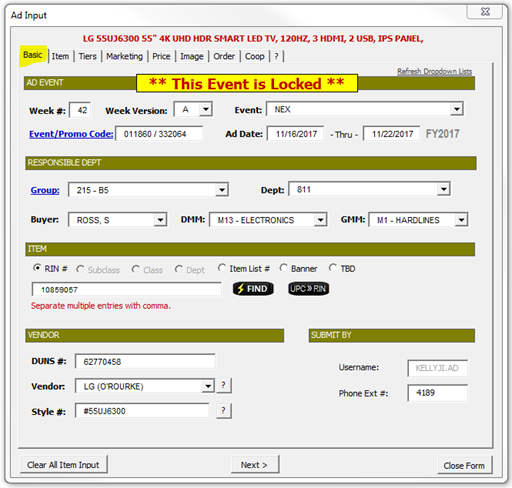
- Fill in from top-left to bottom-right. Much of the data will populate itself.
- TIP: Double-clicking the underlined “Group” header should automatically populate this section with your group information.
- If the item has been input in a previous event, you can enter the item number and click the “Find” button to populate the form.
- You can double-click the blank “RIN/Item List” box to populate the form with whatever item is currently selected in the worksheet.
- When importing data from prior events, be sure to correct any fields that changed, such as Event, Week, etc.
- Question-Mark buttons can be clicked if to signify “Various”.
- The TBD (To Be Determined) item option can be clicked if you currently do not know the Item List or RIN number.
- Advertising Items at “Subclass”, “Class” and “Dept” level is now available in addition to RIN and Item List.
- If a yellow highlighted message displays saying “This Event Is Locked”, you will not be able to successfully input your information. Contact Name Redacted and she may temporarily be able to unlock the event for you.
OR
"Item" Tab
All information on the Item tab except ‘Past Ad/Like Item’ is displayed on the ‘Ad Summary Worksheet’
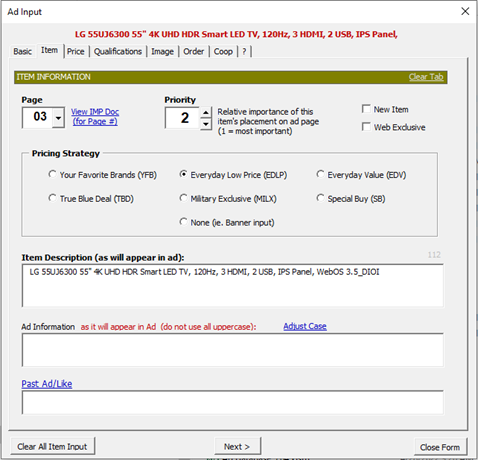
- Page: Enter page number of Ad on which this item will appear. If you don’t know, use the View IMP Doc link, but insure that you’ve entered a week on the Basic tab. This will open the IMP documents for you to see pagination information.
- Priority: Used by Marketing. Some items may have the same priorities, if they are related.
- New Item / Web Exclusive: Check the box if true.
- Pricing Strategy: Select the Strategy that fits your input. Some pricing strategies (YFB in particular) reflect a savings from MSRP as opposed to NEX retail. If selecting Banner input, you must also select Banner on the Price tab.
- Item Description: Name or short description of advertised item. You can try double-clicking the label to use the RMS Description. Do not use abbreviations. Character counts will let you know if you type in too many characters for that field. This is the gray-shaded number at the top right of each input box. It will turn red if you are approaching max characters.
- Ad Information: Detailed description of item, which usually appears underneath the Item Description line on the Ad Flyer. Do not include price points or RINs.
- Past Ad/Like Item: For reference purposes only. You can double-click and have it automatically populate based on the last Ad Like-Item, or add your own input.
"Price" Tab
All information from Pricing and Multi-Buys sections shows on the ‘Ad Summary Worksheet’.
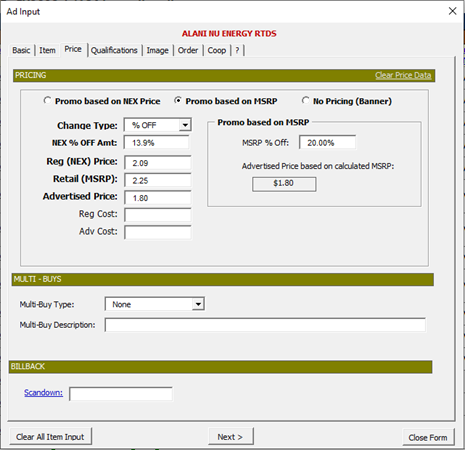
- Select type of Promo: Based on NEX Price, Based on MSPR, or Banner
- Fill in all Bolded-text input. Non-bolded input is optional.
- Select the Change Types:
$ OFF
% OFF
FIXED
NoChg - If Promo is based on MSRP, then enter the MSRP % off first. If based on NEX price, enter the NEX % off first (box below Change Type). Note, if the Change Type is “NoChg” or “FIXED”, then the Amount off will reflect the Advertised Price.
- Note: selecting No Pricing (Banner) will still allow a % Off to be input.
- If you are entering an MSRP, then mathematically the NEX and MSRP discounts should reflect the same Advertised price. If it doesn’t, a yellow “Force RPC %” button may appear and allow you to adjust the NEX amount.
- You can input price ranges or single prices in the price fields. Price Ranges must have a dash separating the range, ie. 25.99 – 79.99.
- Multi-Buys: Use the available options in the dropdown, if a multi-buy scenario is applicable. Then type the details in the Description box.
- Scandown: You can type in manually or double-click label to automatically populate.
"Qualifications" Tab
All information on the Qualifications Tab is displayed on both the ‘Ad Summary Worksheet’
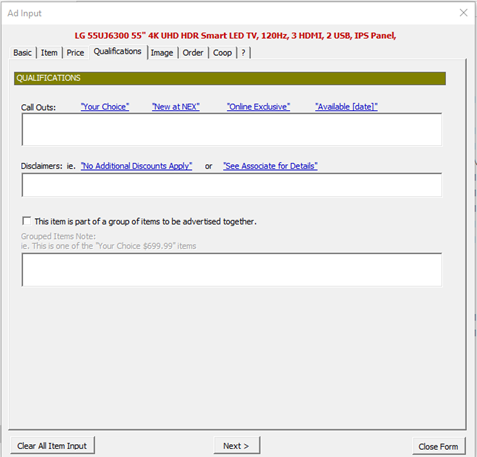
- Call Outs: Try to use Marketing’s options for populating this box. If there is no underlined option for your scenario, you can still type it.
- Disclaimers: Same process as mentioned for Call Outs.
- Grouping: For items which are to be grouped together in the Flyer, check the “This item is part of a group…” checkbox, and give the group a descriptive name in the textbox below.
"Image" Tab
Everything within the Image Requirements section is displayed on the ‘Ad Summary Worksheet’
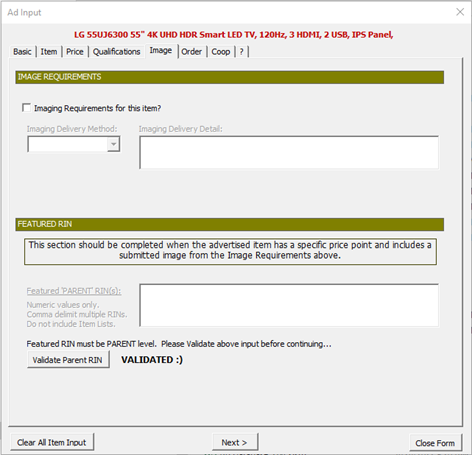
- Image Requirements: If there are imaging requirements, check the option box and describe the method for image delivery using the dropdown box and input box.
- Tip: For G-Drive, you can double-click the underlined “G-Drive Path”, and it will allow you to select a folder, instead of manually typing it in.
- Featured RIN: The section should be completed when you are advertising an item that has a specific price point and includes a submitted image (above).
- Use the Validate Parent RIN button to make sure the Parent RIN is at the Parent level.
"Order" Tab
Nothing on the ‘Order Tab” is displayed on the ‘Ad Sum worksheet. This tab is for user reference only.
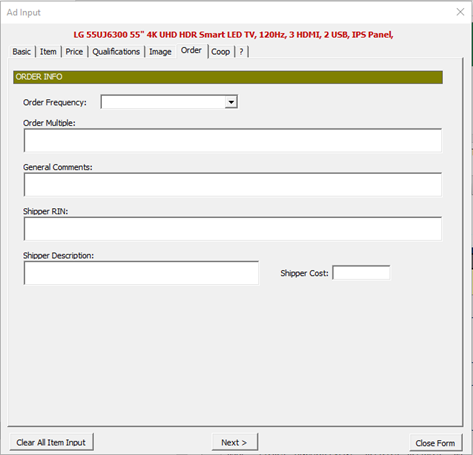
- Order Frequency: Select from
BAS (AR) – Basic Stock
BAS (QOE) – Basic Stock
OTB – One Time Buy
SEAS – Seasonal
SQOH – Stock quantities on hand
OTH – Other - Order Multiple: Case, Pack information.
- General Comments: You can type whatever notes you want here.
- Shipper RIN:
- Shipper Description:
- Shipper Cost:
"Coop" Tab
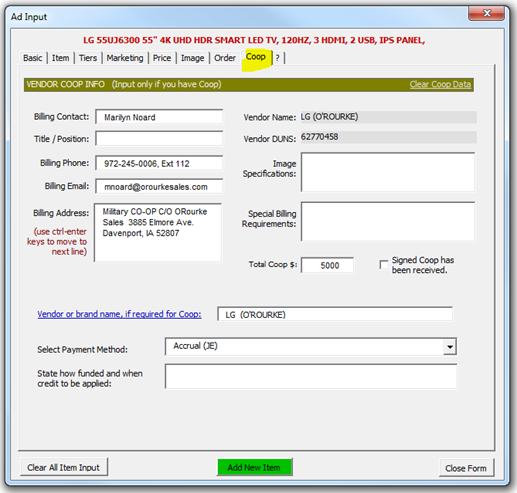
- If Coop information has previously been entered for a particular DUNS/Department combination, then this tab should update automatically. You just need to double-check the information and update the Coop amount.
REPLICATE ITEMS
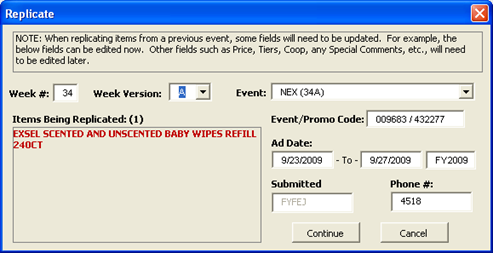
The other method of adding items is by clicking the Replicate Items button. This method allows you to duplicate one or more items that were previously input. This is helpful if you are advertising the exact same items from a previous event. To use, just highlight any cells from any number of previously entered items and then click the Replicate Items button. A form will display allowing you to enter the new week and Event information.
QUICK VIEW
Use the Quick View button to refresh the worksheet with the latest data available. Quick View will by default, refresh the worksheet based on settings from the last time Filtered View (discussed next) was used.
Once data is displayed on the worksheet, blue underlined column headings can be double-clicked to sort the data.

FILTERED VIEW
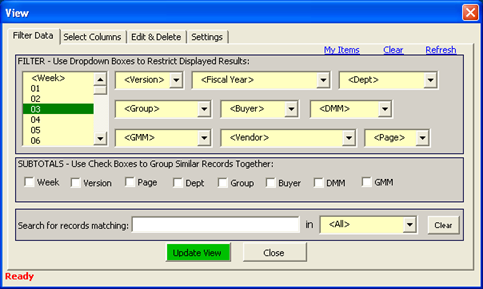
The “Filtered View” button provides options for filtering the ad information that gets displayed on the worksheet – for example, you can view subtotals, filter records by Department, DMM, GMM, etc. You can also search specific columns for items with text matching your input.
- To display all available weeks, leave the selection on “Week”.
- You can click My Items to view all items that you have input. This is useful if you can’t find something that you know was input.
- You can click Refresh to reset the dropdown boxes. This is useful, when you feel like records you think should be showing, are not.
- Tip: Do not over filter. For example, you don’t need to filter on Buyer, if you are filtering on Dept. Department is preferential to Buyer, as the buyer is likely to change.
SELECT COLUMNS
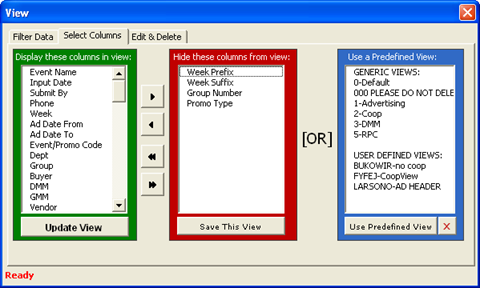
Clicking the Select Columns button allows you to customize which columns are displayed on the worksheet -- for example, Advertising may not want to hide Coop information. Arrow buttons allow you to manually add or remove columns from the view. You can also create and use Predefined Views.
EDIT & DELETE
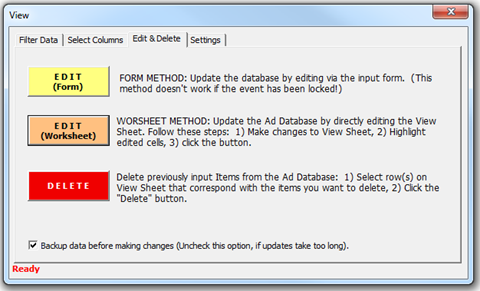
The Edit & Delete buttons allow you to make changes to the data either via the Input Form (yellow button) or, by directly editing the cells on the worksheet (orange button).
- Use the yellow Edit (Form) button to edit data via the Ad Input Form. Before clicking the button, make sure you have selected a worksheet cell from the item that you want to edit.
- Tip: after updating via the Form Method, it is recommended, in order to actually see the changes, to update the worksheet by clicking the Quick View button.
- Use the orange Edit (Worksheet) button when you want to make updates directly from the worksheet itself. Simply edit the data on the worksheet, highlight the edited cell(s), and then click this button.
- Tip: Use the Worksheet method of updating when you want to update multiple items at once. The Form method only updates one inputted item at a time.
- To delete an ad item, simply select any cell(s) or row(s) from the worksheet, and then click the Delete button.
- If you are not the originator of the item listing, it will prompt you for confirmation before deleting or editing, so as to help prevent accidentally messing up other people’s input.
- A record of updates and deletions are kept, so if you have any questions it can be researched. If you accidentally delete records, they may potentially be retrieved from a backup. Just contact Name Redacted.
- Tip: A cutoff date may prevent the item from being updated (or deleted) when using the “Form Method”. However, edits can still be made to most fields using the “Worksheet Method”. If it still won’t let you make changes, then Advertising will need to be notified so they can temporarily suspend the cutoff date while your changes are made. All final changes to the ad database must be made between 3 – 4 weeks from the start of the event. The database will be unlocked during this timeframe. Any changes after the lock date, will require filling out and submitting a Change Form request, regardless of whether you were able to input it into the Ad Database or not.
- Backups are created on the Ad Database every few hours. If you’re the lucky person who gets picked for the backup, it can take a little extra time to process your input. If you want to opt out of this possibility, then uncheck the option to create a backup, and you won’t be subject to the backup process.
COOP FORM
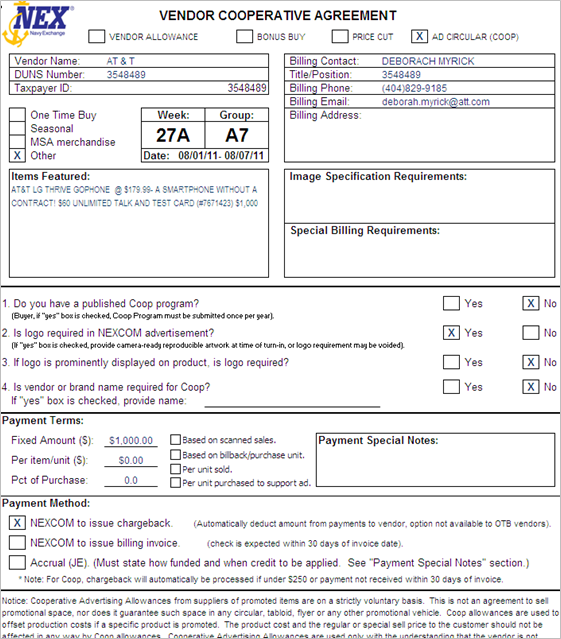
With a specific row or rows selected, you can click the Coop Form button to create a Coop Agreement form for that item. (Note, you must have inputted the Coop information earlier using the Ad Input Form.)
- The Coop image to the right was created by selecting records from the worksheet and clicking the Coop Form button.
- The Coop form is saved as a separate file to make it easier for emailing.
- If there is a change to the Coop data, please make the change in the Event Summary Worksheet and not the saved Coop file. If you make the change to the Event Summary Worksheet, a new Coop Form can easily be created and the correct data will be retained in the database.
AD SUMMARY
Clicking the Ad Summary button will create a report that contains the essential item-related information you are advertising for the event. Before clicking the button, be sure to do the following:
- Filter the data on the worksheet so it contains just the event and items you want to export.
- Sort the displayed items by the Priority column.
- Select a range of cells from the worksheet that correspond to the items you want exported.
- Now you can click the button.
If you have multiple page numbers within the items you selected, the resultant Ad Summary worksheet will have separate tabs for each distinct page number.
See Saved Settings for other factors that may affect the output of the data on the Ad Summary Worksheet.
RPC FORM
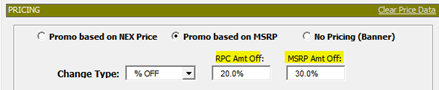
Clicking the RPC Form button will populate the Simple Promo Induction Form that can be submitted to the START group. Select a cell or cells in the View worksheet that you wish to export and then click the “RPC Form” button. If one cell is selected, all items with the same Week and Group in the current view will be included in the report. If a range of items are selected, all items in that selected range will be included.
SAVED SETTINGS
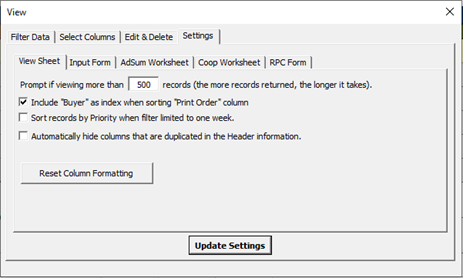
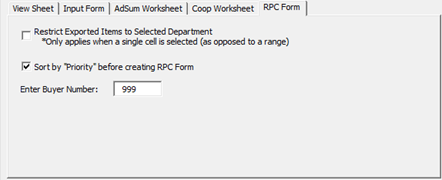
Clicking the Saved Settings button will display options you can tailor to your preference. These settings are saved in a separate file on your PC in the same folder you saved the Ad Database worksheet.
View Sheet
- “Prompt if viewing more…” Sets max number of records to view. The more records, the longer it takes.
- “Include Buyer as index…” This is a sorting preference. Check if you want the Buyer included as primary key.
- Sort records by Priority…” This option uses the Priority field as the primary sort key. Check if you want items returned in Priority order.
- “Automatically hide columns…” Hides redundant columns (such as Week and Event) to save space when printing.
- Reset Column Formatting… Occasionally formatting may get messed up (ie. dates not displaying as dates). This will correct the issue. It takes about a minute to run. Be sure to save the Ad Database file after running.
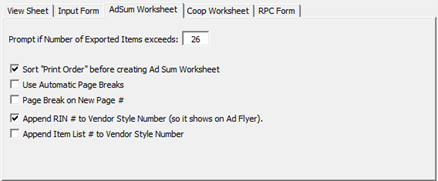
- Prompt if Number of Exported Items: Helps to prevent mistakenly retrieving too many records (which would take a long time).
- Append RNI # to Vendor Style… – An Item’s RIN will be appended to the Style number, so it shows on the Ad Flyer.
- Append Item List # to Vendor Style… – Item List #s will be appended to the Style number, so they show on the Ad Flyer.
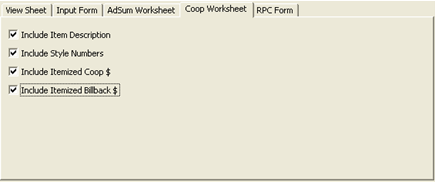
- Various options allowing you to select what to display on the Coop sheet.
- Restrict Exported Items: will cause only the currently selected department to be exported to the RPC form (as opposed to the whole Group). If a range of cells are selected, then, this option is ignored.
- Sort by Priority: self-explanatory
- Enter Buyer Number: Number will display on Simple Promo Form.
Ad Sum Worksheet
Coop Sheet
RPC Form
Asset Worksheet (Put Items on the Web)
Send worksheet to vendor so they can fill out information for columns J-U
Get link to images. Images must be named according to parent rin followed by color code.
Case Pack Change
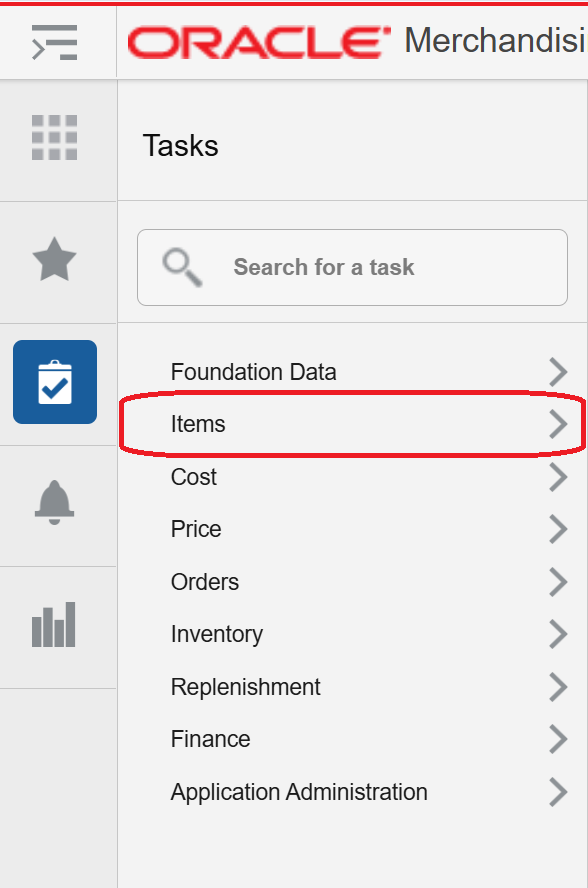
- Navigate to 'Items'
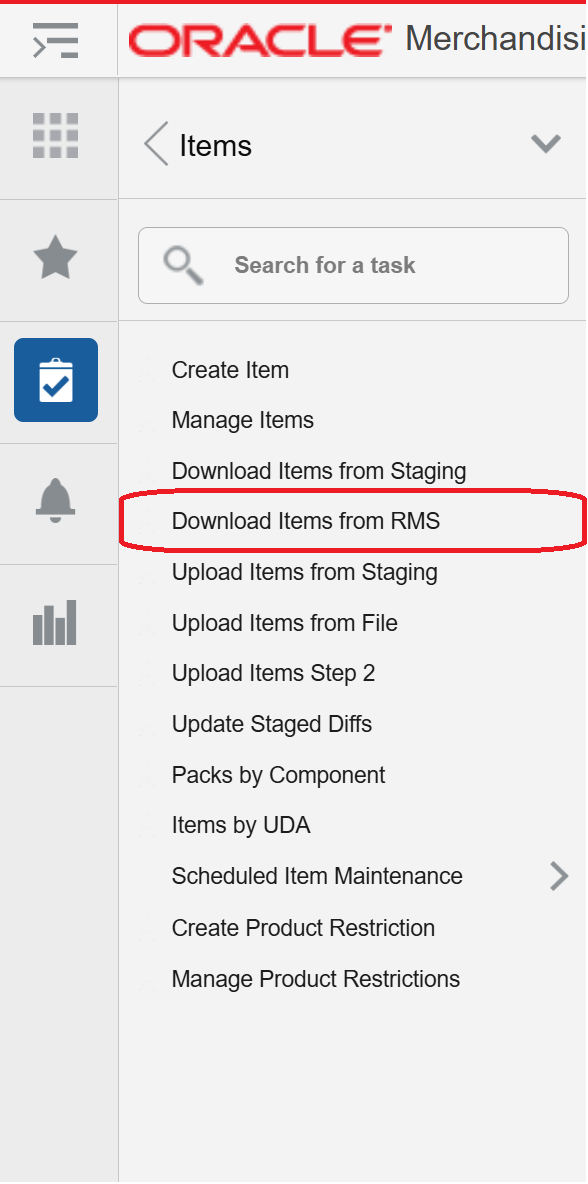
- Navigate to 'Download Items From RMS'
- Type in 'Item' or 'Item List' and download it
- Open the file and edit the following as needed:
"Item_Master" Tab
| AH |
|---|
| Store Order Multiple |
| Inner Pack |
"Item_Supplier_Countries" Tab
| H | I |
|---|---|
| Suppler Pack Size | Inner Pack Size |
| 1 | 1 |
| 1 | 1 |
Send to DST when changes are made.
Change Forms
Process:
- Enter RIN 149***** at $** OFF in the Ad Database as normal
- Generate an Ad Sum for EACH WEEK that you're submitting
- Go to "filtered view," filter to the week you're working on, select the row with the RIN, and click the "Ad Summary" button (blue)
- The filename MUST match the one attached. Advertising will it back if it doesn't
- In WORKFRONT, go to the Requests tab and click New Requests, then fill out as below:
- Request Type: Change Forms
- Subject: Change Form – WK13X Home and Wearable Technology (MUST match naming convention)
- DMM:
- Category:'Electronics - Home and Wearable Tech'
- Week: whichever week you're working on
- Event: whichever event you're working on
- Type of Change: Add Item(s)
- Description of Items to Add: Example:
AirPods Pro 2
Parent RIN: 14988183
Model #: MTJV3LL/A
Reg Price: $244
Sale Price: $164
Save $80 - Reason for Change: Promotion/Sales Opportunity
- Under Documents, attach the Ad Sum and images for item
Communication Request
Communication request
- Fill out information in form.
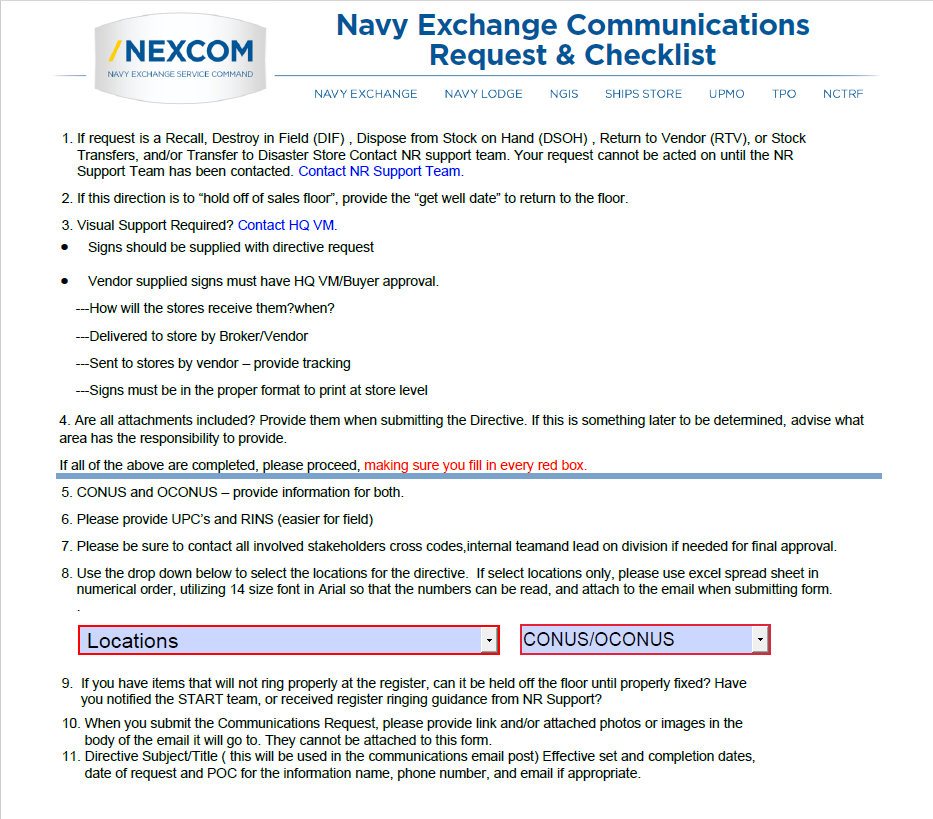
Hitting submit will pull up the email to the communications team with the form.
Cost Changes
Cost Change
- Fill out template.
- Upload template into V16.
1st tab
| Action | Cost Change | Cost Change Description | Reason | Active Date | Status | Cost Change Origin |
|---|---|---|---|---|---|---|
| Create | 85103310 | Acer Cost Update | 6 | 04-Apr-25 | Approved | By Item |
2nd tab
| Action | Cost Change | Supplier | Origin Country | Item | Cost Change | Cost Change | Recalculate | Delivery Country ID |
|---|---|---|---|---|---|---|---|---|
| Create | 85103310 | 112375758 | USA | 19198920 | Fixed Cost | 418.49 | No |
Upload cost change into V16 under:
Fact Tags
Creating New Fact Tags
Navigate to: X:\shared\folder
- Navigate to your respective teams fact tag tab
- Fill out information for new fact tags
- When finished, click the "Email Fact Tags" button in the top left. This will generate an email with the template to the sign team.
- After, go to 'Master' Tab and click 'Update Master' button
- Navigate to "Sale Master" Tab
- Fill in RINs on ItemID Column
- Information should automatically fill into other columns
- Fill in information for Start/End date columns & Reg/Sale Price columns
- Click blue 'Export To Sign Team' button
- Fill in requested information and email template will be generated
See fact tag examples below:
| Copies | Template | UPC | ItemID | Model | Name | Description | StartDate | StopDate | UserDefined | SalePriceType | RegPrice | SalePrice |
|---|---|---|---|---|---|---|---|---|---|---|---|---|
| 1 | 5X3FACT |
19513316086
Sale
$439.99
Acer Aspire 3 15.6" Laptop
15.6" FHD Display
Intel Core i5-1235U
8GB DDR4 SDRAM
512GB NVMe SSD
Intel Iris Xe Graphics
Reg. $539.99
|
14779561 | A315-59-54P3 | Acer Aspire 3 15.6" Laptop | 15.6" FHD Display//Intel Core i5-1235U//8GB DDR4 SDRAM//512GB NVMe SSD//Intel Iris Xe Graphics | 3/3/2024 | 3/9/2024 | Sale | Sale | $539.99 | $439.99 |
| Copies | Template | UPC | ItemID | Model | Name | Description | StartDate | StopDate | UserDefined | SalePriceType | RegPrice | SalePrice |
|---|---|---|---|---|---|---|---|---|---|---|---|---|
| 1 | 7X5FACT |
24052806541
Even Lower
Than Advertised $999.99
simpl by Ashley
Arroyo Sofa Chaise
Caramel faux leather upholstery
Exposed modern tapered legs
Loose cushions, reversible chaise cushion
Minor assembly (simply attach legs)
82" W x 57" D x 33.5" H
|
1.4E+07 | 89401-18 | simpl by Ashley//Arroyo Sofa Chaise | Caramel faux leather upholstery//Exposed modern tapered legs//Lo... | 3/3/2024 | 3/9/2024 | Sale | Lower Than Advertised | $999.99 | $799.99 |
| Copies | Template | UPC | ItemID | Model | Name | Description | StartDate | StopDate | UserDefined | SalePriceType | RegPrice | SalePrice |
|---|---|---|---|---|---|---|---|---|---|---|---|---|
| 1 | 5X3FACT |
81009797015
Clearance
$29.95
Nutribullet 52 oz. Magic Mini Juicer
400-watt motor extracts all the nutrition from your
favorite fruits and veggies. 52 oz pulp bin allows you to
juice more produce with fewer interruptions. Comes with a
16-oz cup with a twist on lid.
Reg. $44.99
|
1.5E+07 | NBJ10100 | Nutribullet 52 oz. Magic Mini Juicer | 400-watt motor extracts all the nutrition from your favorite fruits and... | 3/3/2024 | 3/9/2024 | Sale | Clearance | 44.99 | 29.95 |
Promotional Fact Tags
The Fact Tag hasn't been created
The Fact Tag has not been populated to the 'Master' tab
Frustrated Freights
LINK | StoreManagementUtility Download
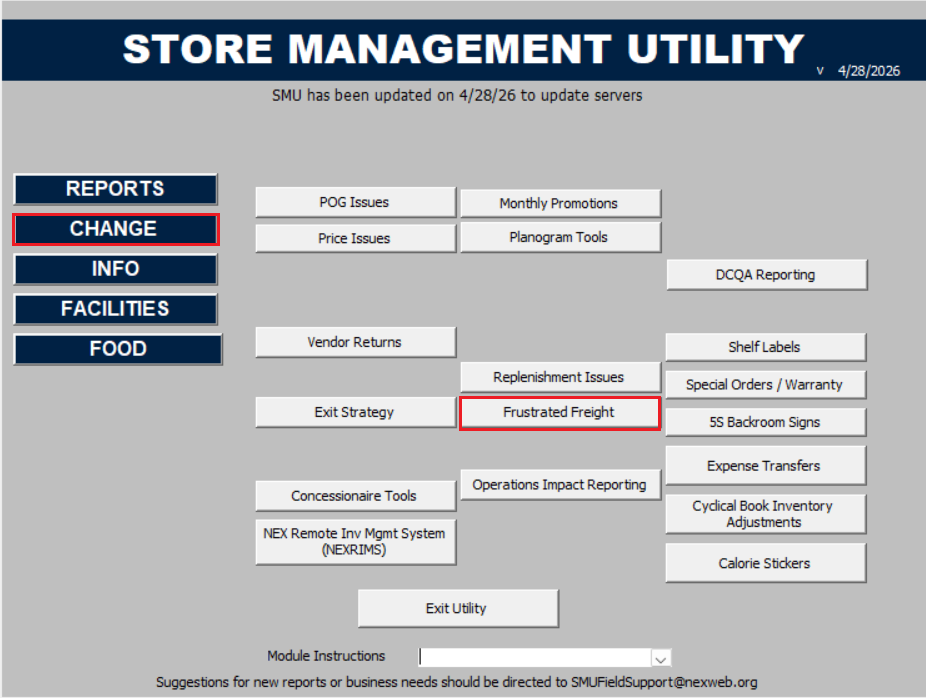
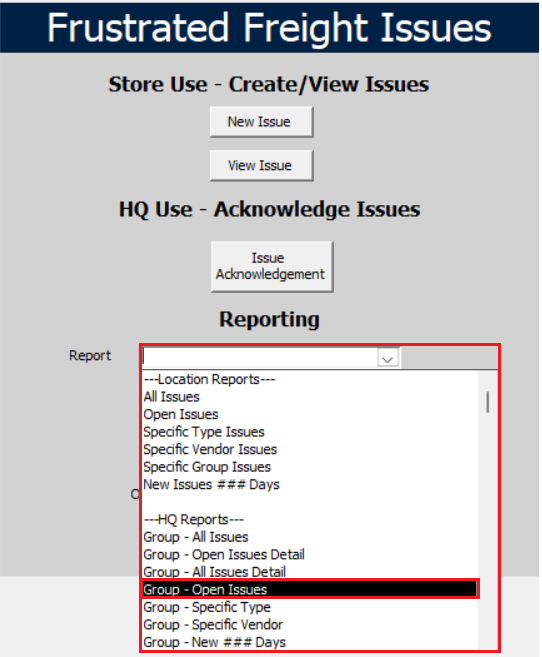
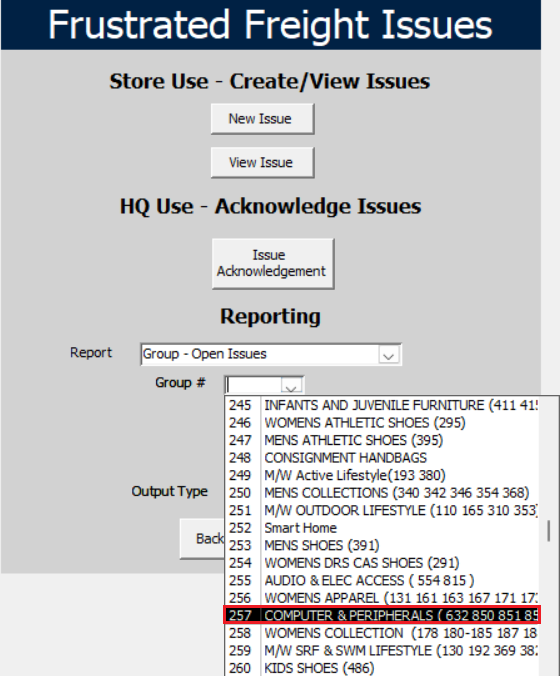
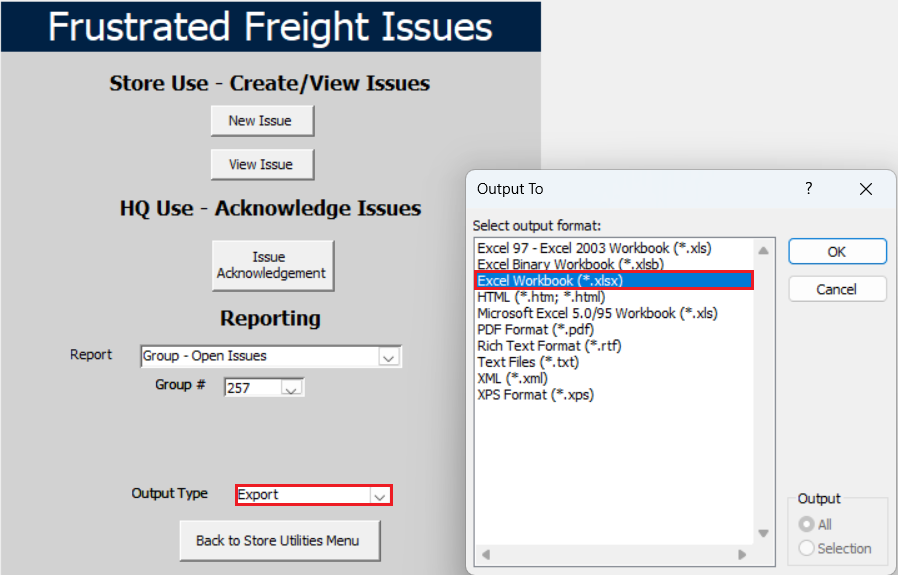
FF PO's
1 = merchandise is at a Distribution Center (DC) and needs to be allocated to a store location.
0 = merchandise is at the store's warehouse.
Example below for merchandise at the store warehouse location that needs to be received at the store
| Action | Buyer ID | PO Family ID | Vendor Order Num... | PO Type | Order Type | EDI Indicator | Pre Mark Indica... | Promo ID | Include On Orde... | Supplier Site | Item ID | Item Descripti... | Item Color Code | Size | Unit Retail $ | Unit Cost $ | Not Before Date mm/dd/yy... | Not After Date mm/dd/yy... | OTB Date mm/dd/yy... | Tot Retail $ | Tot Cost $ | Markup % | Total Qty (U) | Distributed Qty | Location Type | 34 | 393 | 10 | PO Comments |
|---|---|---|---|---|---|---|---|---|---|---|---|---|---|---|---|---|---|---|---|---|---|---|---|---|---|---|---|---|---|
| Create | 430 | 999041700 | 0 | BRB | N | N | N | 2725 | 17366460 | 000 | 0000 | 4/17/2025 | 5/16/2025 | $0 | $0 | 0.0% | 1 | 1 | Store | 1 | FF 176034 | ||||||||
| Create | 430 | 999041701 | 0 | BRB | N | N | N | 2725 | 17366275 | 000 | 0000 | 4/17/2025 | 5/16/2025 | $0 | $0 | 0.0% | 1 | 1 | Store | 1 | ff175886 | ||||||||
| Create | 430 | 999041702 | 0 | BRB | N | N | N | 89144831 | 14772629 | 000 | 0000 | 4/17/2025 | 5/16/2025 | $0 | $0 | 0.0% | 1 | 1 | Store | 1 | ff176077 |
Example below for merchandise at Distribution Center Location that needs to be allocated to store.
| Action | Buyer ID | PO Family ID | Vendor Order Num... | PO Type | Order Type | EDI Indicator | Pre Mark Indica... | Promo ID | Include On Orde... | Supplier Site | Item ID | Item Descripti... | Item Color Code | Size | Unit Retail $ | Unit Cost $ | Not Before Date mm/dd/yy... | Not After Date mm/dd/yy... | OTB Date mm/dd/yy... | Tot Retail $ | Tot Cost $ | Markup % | Total Qty (U) | Distributed Qty | Location Type | Process Type | Ship to Warehouse | 10 | PO Comments |
|---|---|---|---|---|---|---|---|---|---|---|---|---|---|---|---|---|---|---|---|---|---|---|---|---|---|---|---|---|---|
| Create | 430 | 999080600 | 0 | BRB | N | N | N | 2725 | 14988237 | 000 | 0000 | 8/6/2025 | 8/26/2025 | $0 | $0 | 0.0% | 8 | 8 | Warehouse | Cross Dock | 9840 | 8 | FF 176034 |
Save Excel file as ODS file and induct in Oracle
Returns
Item(s) need to be returned to vendor.
- Reach out to Vendor POC and ask for RA & a call tag.
- Our Warehouse is going to want call tag issued from Vendor as a part of the RA.
- Vendor will need the following information:
- Item information (NAME, UPC, VPN QTY, Serial number if item was serialized)
- Contact Name (Warehouse/Store)
- Company Name (NEXCOM)
- Address where the product is (# street, city, state, zip)
- Contact phone
See the following for Store Locations information
Item not on PO
In some capacity an item arrived at a warehouse and the item is not on the PO.
- In V16 under orders › manage orders › search the PO
- In the PO click "details"
- Check if the item is listed under the PO
Item may not be fully received — check ordered qty and check received qty.
If items are not fully received. Simply reinstate PO and have the warehouse/store receive the items under the original PO.
If everything is received and there is an overage. Cut new order for overage item.
If item exists in system, is active, & not an obsurd quantity/value.
Cut PO for item allocating item to store.
Item may not exist in system — if so, return to vendor.
PO Not in System
- Look up PO in V16 — more than likely it is expired and needs to be reinstated and re-approved.
- If it cannot be reinstated, *reach out to INV Planner for advise depending on the issue*, most likely will have to cut new PO with the items that need to be received and allocate to store.
Over Shipment
- Check details under PO.
- If overage was over received under original PO, then an Inventory planner needs to create manual transfer.
- If overage was not received into the system, create FFPO and allocate to store.
Item Inductions
Download the "Item Induction Template" and "Item Induction Template Assistant" from the Templates Page
- When filling out 'NRF Color Code" with 000 (no color) leave the 'NRF Color Description" blank.
- Fill out Template.
- Run through Item Induction Template Assistant
- Send to DST name@company.com
- Ask DST to serialize high ticket items.
See Example below:
Item Page:
| Action | Status | Item Type | Sellable | Orderable | Inventory | Item Family ID | Parent Item | Transaction Item | Standard UOM | UOM Conversion Factor | Dept | Class | Subclass | Parent Item Description | Item Description | Web Description | Supplier Color | Primary Ref Ind | Item Number Type | GTIN | VPN | Node Description | Product Description | Vendor Account | NRF Color Code | NRF Color Description | Size Group ID | RMS Size | Aggregate By Color | Initial Retail | Selling UOM | Multi Units | Multi Unit Retail | Multi Unit UOM | MSRP | Markup (%) | Brand | Merchandise | Plan-o-gram Required | Perishable | Supplier Site | Primary Supplier Ind | Drop Ship Ind | Unit Cost | Default UOP | Inner Size | Case Size | Ti | Hi | Round Level | Package Type | Depth | Width | Height | Gross Weight | Weight UOM | Presentation Method | 1–UDA Value (Ecomm Color Family) | 2–UDA Value (Ecomm Warranty Plan Eligible) | 3–UDA Value (Ecomm Gender) | 4–UDA ID | 4–UDA Value | 5–UDA ID | Buyer |
|---|---|---|---|---|---|---|---|---|---|---|---|---|---|---|---|---|---|---|---|---|---|---|---|---|---|---|---|---|---|---|---|---|---|---|---|---|---|---|---|---|---|---|---|---|---|---|---|---|---|---|---|---|---|---|---|---|---|---|---|---|---|---|---|---|
| Create Item Family | Approved | Regular Item | Yes | Yes | Yes | 90NV00D0B10020 | EA | 0 | 857 | 2201 | 1 | Asus ROG Ally Premium 2-in-1 Hard Case | Asus ROG Ally Premium 2-in-1 Hard Case | Asus ROG Ally Premium 2-in-1 Hard Case Black | Black | Yes | UCC12 | 199291178359 | 90NV00D0-B10020 | 001 | Black | 262S | 0000 | No | 69 | EA | EA | 69.99 | 18.84 | ASUS | Yes | Yes | No | 11237578 | Yes | No | 56 | EA | 1 | 1 | 1 | 1 | Case | Each | 4 | 13.7 | 6.3 | 1.5 | LBS | Plan-o-gram P | 1 - BLACK | 1 - Yes | 6 - Gender Neutra | 9627 | 1 | 1 | 430 |
Location Page:
| Action | Item Family ID | Item | Location List | Location List - Primary Supp |
Location List - Store Order Multiple |
Location Type | Location | Location - Primary Supp |
Location - Store Order Multiple |
|---|---|---|---|---|---|---|---|---|---|
| Create Location | 90NV00D0B10020 | 1505003 | 112375758 | Inner | Cases | ||||
| Create Location | 90NV00D0B10020 | 13341 | 112375758 | Cases | Cases | ||||
| Create Location | 90NV00D0B10020 | Cases | Warehouse | 9870 | 112375758 | Cases | |||
| Create Location | 90NV00D0B10020 | Cases | Store | 781 | 112375758 | Inner |
Naming Descriptions
Special Order Items
CC Special order team on induction email.
| Action | Status | Item Type | Sellable | Orderable | Inventory | Item Family ID | Parent Item | Transaction Item | Standard UOM | Dept | Class | Subclass | Parent Item Description | Transaction Item Description | Web Description | Supplier Color | Primary Ref Ind | Item Number Type | GTIN | VPN | NRF Color Code | NRF Color Description | Size Group ID | RMS Size | Initial Retail | Selling UOM | MSRP | Markup (%) | Brand | Merchandise | Plan-o-gram Required | Perishable | Supplier Site | Primary Supplier Ind | Drop Ship Ind | Source Country | Primary Source Country Ind | Manufacture Country | Primary Manufacture Country Ind | Unit Cost | Default UOP | Inner Size | Case Size | Ti | Hi | Round Level | Package Type | Depth | Width | Height | Gross Weight | Weight UOM | Presentation Method | 1–UDA Value (Ecomm Color Family) | 2–UDA Value (Ecomm Warranty Plan Eligible) | 3–UDA Value (Ecomm Gender) | 4–UDA ID | 4–UDA Value | Buyer |
|---|---|---|---|---|---|---|---|---|---|---|---|---|---|---|---|---|---|---|---|---|---|---|---|---|---|---|---|---|---|---|---|---|---|---|---|---|---|---|---|---|---|---|---|---|---|---|---|---|---|---|---|---|---|---|---|---|---|---|---|
| Create Item Family | Approved | Regular Item | Yes | Yes | Yes | S10838 | EA | 851 | 1201 | 1 | Apple 14-Inch Macbook Pro M4 Pro 14-Core CPU 20-Core GPU 24GB Unified Memory | Apple 14-Inch Macbook Pro M4 Pro 14-Core CPU 20-Core GPU 24GB Unified Memory Space Black 2TB | Apple 14-Inch Macbook Pro, Apple M4 Pro Chip, 14-Core CPU, 20-Core GPU, 24GB Unified Memory | Space Black | Yes | UCC12 | GENERATE | Z1FF000HZ | 001 | Space Black | 303S | 2TB | 2789 | EA | 2799 | 1.65 | APPLE | Yes | Yes | No | 2725 | Yes | No | USA | Yes | USA | Yes | 2743 | EA | 1 | 1 | 1 | 1 | Case | Each | 2.6 | 14.06 | 10.39 | 5.53 | LBS | Plan-o-gram S | 1 - BLACK | 1 - Yes | 6 - Gender Neutral | 9627 | 1 | 430 |
Location Tab:
| Action | Item Family ID | Item | Location List | Location List - Primary Supp |
Location List - Store Order Multiple |
Location Type | Location | Location - Primary Supp |
Location - Store Order Multiple |
|---|---|---|---|---|---|---|---|---|---|
| Create Location | S10838 | 1505003 | 2725 | Inner | Cases | ||||
| Create Location | S10838 | 13341 | 2725 | Cases | Cases | ||||
| Create Location | S10838 | Cases | Warehouse | 9870 | 2725 | Cases | |||
| Create Location | S10838 | Cases | Store | 781 | 2725 | Inner |
Drop Ship Item Inductions
Item Tab:
| Action | Status | Item Type | Sellable | Orderable | Inventory | Item Family ID | Parent Item | Transaction Item | Standard UOM | UOM Conversion Factor | Dept | Class | Subclass | Parent Item Description | Transaction Item Description | Web Description | Supplier Color | Primary Ref Ind | Item Number Type | GTIN | VPN | NRF Color Code | NRF Color Description | NRF Size Code | NRF Size Description | Size Group ID | RMS Size | Aggregate By Color | Initial Retail | Selling UOM | Multi Unit UOM | MSRP | Markup (%) | Brand | Merchandise | Plan-o-gram Required | Supplier Site | Primary Supplier Ind | Drop Ship Ind | Source Country | Primary Source Country Ind | Manufacture Country | Primary Manufacture Country Ind | Unit Cost | Default UOP | Inner Size | Case Size | Ti | Hi | Round Level | Package Type | Depth | Width | Height | Gross Weight | Weight UOM | Presentation Method | 1–UDA Value (Ecomm Color Family) | 2–UDA Value (Ecomm Warranty Plan Eligible) | 3–UDA Value (Ecomm Gender) | 4–UDA ID | 4–UDA Value | Buyer |
|---|---|---|---|---|---|---|---|---|---|---|---|---|---|---|---|---|---|---|---|---|---|---|---|---|---|---|---|---|---|---|---|---|---|---|---|---|---|---|---|---|---|---|---|---|---|---|---|---|---|---|---|---|---|---|---|---|---|---|---|---|---|---|---|
| Create Item Family | Approved | Regular Item | Yes | Yes | Yes | Garmin0100299300 | EA | 0 | 853 | 1400 | 1 | Garmin Edge MTB Rugged Bike Computer | Garmin Edge MTB Rugged Bike Computer Black | Garmin Edge MTB Rugged Bike Computer | Black | Yes | UCC12 | 753759356583 | 010-02993-00 | 001 | Black | 262S | 0000 | No | 389 | EA | EA | 399.99 | 10.03 | GARMIN | Yes | Yes | 503870 | Yes | Yes | USA | Yes | USA | Yes | 349.99 | EA | 1 | 1 | 1 | 1 | Case | Each | 3.2 | 4.4 | 4.4 | 0.70625 | LBS | Plan-o-gram Peggable | 1 - BLACK | 1 - Yes | 6 - Gender Neutral | 9627 | 1 | 430 |
Location Tab:
| Action | Item Family ID | Item | Location List | Location List - Primary Supp |
Location List - Store Order Multiple |
Location Type | Location | Location - Primary Supp |
Location - Store Order Multiple |
|---|---|---|---|---|---|---|---|---|---|
| Create Location | Garmin0100299300 | Cases | Warehouse | 9870 | 503870 | Cases | |||
| Create Location | Garmin0100299300 | Cases | Store | 781 | 503870 | Inner |
Displays
Example Below:
Item Tab:
| Action | Status | Item Type | Sellable | Orderable | Inventory | Item Family ID | Parent Item | Transaction Item | Standard UOM | UOM Conversion Factor | Dept | Class | Subclass | Parent Item Description | Transaction Item Description | Web Description | Supplier Color | Primary Ref Ind | Item Number Type | GTIN | VPN | NRF Color Code | NRF Color Description | Size Group ID | RMS Size | Aggregate By Color | Initial Retail | Selling UOM | Multi Unit UOM | MSRP | Markup (%) | Brand | Merchandise | Plan-o-gram Required | Perishable | Supplier Site | Primary Supplier Ind | Drop Ship Ind | Source Country | Primary Source Country Ind | Manufacture Country | Primary Manufacture Country Ind | Unit Cost | Default UOP | Inner Size | Case Size | Ti | Hi | Round Level | Package Type | Depth | Width | Height | Gross Weight | Weight UOM | Presentation Method | 1–UDA Value (Ecomm Color Family) | 2–UDA Value (Ecomm Warranty Plan Eligible) | 3–UDA Value (Ecomm Gender) | 4–UDA ID | 4–UDA Value | 5–UDA ID | Buyer |
|---|---|---|---|---|---|---|---|---|---|---|---|---|---|---|---|---|---|---|---|---|---|---|---|---|---|---|---|---|---|---|---|---|---|---|---|---|---|---|---|---|---|---|---|---|---|---|---|---|---|---|---|---|---|---|---|---|---|---|---|---|---|---|---|
| Create Item Family | Approved | Regular Item | Yes | Yes | Yes | STARLINKCARD1 | EA | 0 | 860 | 1100 | 5 | Starlink NEX 2026 Info Card | Starlink NEX 2026 Info Card | Starlink NEX 2026 Info Card | Yes | UCC12 | GENERATE | STARLINKCARD1 | 000 | 262S | 0000 | No | 0.01 | EA | EA | 0.01 | 0.00 | STARLINK | Yes | Yes | No | 148265713 | Yes | No | USA | Yes | USA | Yes | 0.01 | EA | 1 | 1 | 1 | 1 | Case | Each | 1 | 11.876 | 7.876 | 0.5 | LBS | Plan-o-gram S | 18 - NO COLOR | 1 - Yes | 6 - Gender Neutra | 9627 | 1 | 430 | |||||
| Create Item Family | Approved | Regular Item | Yes | Yes | Yes | STARLINKGRAPHIC2 | EA | 0 | 860 | 1100 | 5 | Starlink NEX 2026 Header Graphic | Starlink NEX 2026 Header Graphic | Starlink NEX 2026 Header Graphic | Yes | UCC12 | GENERATE | STARLINKGRAPHIC2 | 000 | 262S | 0000 | No | 0.01 | EA | EA | 0.01 | 0.00 | STARLINK | Yes | Yes | No | 148265713 | Yes | No | USA | Yes | USA | Yes | 0.01 | EA | 1 | 1 | 1 | 1 | Case | Each | 1 | 37.244 | 15.511 | 0.5 | LBS | Plan-o-gram S | 18 - NO COLOR | 1 - Yes | 6 - Gender Neutra | 9627 | 1 | 430 | |||||
| Create Item Family | Approved | Regular Item | Yes | Yes | Yes | STARLINKDISPLAY3 | EA | 0 | 860 | 1100 | 5 | Starlink NEX 2026 Display | Starlink NEX 2026 Display | Starlink NEX 2026 Display | Yes | UCC12 | GENERATE | STARLINKDISPLAY3 | 000 | 262S | 0000 | No | 0.01 | EA | EA | 0.01 | 0.00 | STARLINK | Yes | Yes | No | 148265713 | Yes | No | USA | Yes | USA | Yes | 0.01 | EA | 1 | 1 | 1 | 1 | Case | Each | 1 | 37.244 | 15.512 | 0.5 | LBS | Plan-o-gram S | 18 - NO COLOR | 1 - Yes | 6 - Gender Neutra | 9627 | 1 | 430 |
Location Tab:
| Action | Item Family ID | Item | Location List | Location List - Primary Supp |
Location List - Store Order Multiple |
Location Type | Location | Location - Primary Supp |
Location - Store Order Multiple |
|---|---|---|---|---|---|---|---|---|---|
| Create Location | STARLINKCARD1 | 1505003 | 148265713 | Inner | Cases | ||||
| Create Location | STARLINKCARD1 | 13341 | 148265713 | Cases | Cases | ||||
| Create Location | STARLINKCARD1 | Cases | Warehouse | 9870 | 148265713 | Cases | |||
| Create Location | STARLINKCARD1 | Cases | Store | 781 | 148265713 | Inner | |||
| Create Location | STARLINKGRAPHIC2 | 1505003 | 148265713 | Inner | Cases | ||||
| Create Location | STARLINKGRAPHIC2 | 13341 | 148265713 | Cases | Cases | ||||
| Create Location | STARLINKGRAPHIC2 | Cases | Warehouse | 9870 | 148265713 | Cases | |||
| Create Location | STARLINKGRAPHIC2 | Cases | Store | 781 | 148265713 | Inner | |||
| Create Location | STARLINKDISPLAY3 | 1505003 | 148265713 | Inner | Cases | ||||
| Create Location | STARLINKDISPLAY3 | 13341 | 148265713 | Cases | Cases | ||||
| Create Location | STARLINKDISPLAY3 | Cases | Warehouse | 9870 | 148265713 | Cases | |||
| Create Location | STARLINKDISPLAY3 | Cases | Store | 781 | 148265713 | Inner |
Add Supplier
- Item Tab — Required columns that MUST be filled in:
- Action [Column A] – select Add Item Supplier
- Parent Item and Transaction Item are both needed
- Supplier Site [Column BE]
- Primary Supplier Ind [Column BG] – change to No if not the Primary
- Unit Cost [Column BN]
- Inner Size, Case Size, Ti, Hi, and Round Level [Columns BR-BU]
- Buyer [Column DK]
- Location Tab — should the new item supplier need to be ranged to different locations:
- Action [Column A]
- Item [Column C]
- Decide if ranging by Location List [Columns D-E] or single Location [Columns G-I]
Item List
| Item List Family ID | Item List Description | Item (Parent or Transaction) | Private |
|---|---|---|---|
| 25785199 | Apple 13-Inch MacBook Air M4 | 18929324 | No |
| 25785199 | Apple 13-Inch MacBook Air M4 | 18929325 | No |
| 25785199 | Apple 13-Inch MacBook Air M4 | 18929326 | No |
| 25785187 | Apple 15-Inch MacBook Air M4 | 18929336 | No |
| 25785187 | Apple 15-Inch MacBook Air M4 | 18929337 | No |
Save as ODS and upload to Oracle
Creating an Item List Manually (Less than 25 items)
- In RMS, navigate to Foundation Data › Items › Create Item List
- The item list number will be auto-populated. Make note of this number for reference.
- Add a description and any comments if necessary.
- Select the "Static option" on the right of the page.
- Select "More Actions" › "Items" to begin adding items.
- Select the Green + to add individual RIN#s.
- Enter the Transactional RIN# and hit Tab. Ensure it is the item intended to be added.
- Select "OK and Add Another" for multiple items, or "OK" when done.
- To delete an accidentally added item, highlight and select the Red X.
- A Warning will pop up — select "Yes". Item is removed.
- Select "Save" to save and continue, or "Save and Close" to save and exit.
- Select "Save and Close" one more time to completely exit.
Creating an Item List (More than 25 items)
- Gather RIN#s to add. For Mass Serialization, all RINS must share the same Supplier.
- Download a copy of the Item_list_Template v1 from the HUB: ORUP Templates.
- Save the template in your file folders for easy retrieval later.
- In Column A enter the Item List Family ID (Dept number + sequence number, e.g. 58501).
- Column B: Enter the Item List Description (max 120 chars).
- Column C: Enter item numbers (parent or transaction). Data can be pasted from other documents.
- Column D: Private defaults to No. All items on same list must have the same Private status.
- For multiple item lists, use new Family IDs on the same template (e.g. 58502).
- Save as OpenDocument Spreadsheet (.ODS) format.
Uploading an Item List to RMS
- Log into RMS
- Navigate to Foundation Data
- Select "Items"
- Select "Upload Item List From File"
- Click "Choose File", locate the .ODS file, and click "Open"
- Click "Upload"
- Click on the Notifications Icon to view the status
- Verify the induction is successful and click "Done"
Item List RMS V10
Instructions for submitting RMS10 item list or location list requests to LoadRunner:
- LoadRunner Template for item and location lists can be found at link
There are 3 functions that can be completed via LoadRunner:
- Item List Build — creating a brand-new item list
- Edit Item List — adding and/or removing items from an existing item list
- Loc List Build — creating a brand new location list
Once template is complete, email to name@company.com.
To build a new item list:
- Use the tab labeled ITEM LIST BUILD
- Enter a name for the list in cell B2.
- Enter/paste all RINs starting in cell B4. The item count in row 3 auto-populates.
NOTE: up to 20 item lists per form. Do NOT add/delete columns or edit formulas in column W.
To edit an existing item list:
- Use the tab labeled EDIT ITEM LIST
- Enter the current number of items on the list in cell B2.
- Enter the item list # in cell B3.
- Enter a name for the list in cell B4.
- Enter all RINs that should remain on the list going forward. DO NOT include RINs being removed.
NOTE: up to 25 item lists per form. Do NOT add/delete columns or edit formulas in column AB.
To build a new location list:
- Use the tab labeled LOC LIST BUILD
- Enter a name for the list in cell B2.
- Enter/paste all locations starting in cell B4. Record count in row 3 auto-populates.
NOTE: up to 12 location lists per form. Do NOT add/delete columns or edit formulas in column O.
Item Reclass
Example Below: Send to DST.
Dept/Vendor:
Highest Item Level
(Could be Parent or only
Transaction)Must create an item list if 5 or more
items are going TO the same
Dept/Class/SubclassParent Level
Must create an item list if 5 or more
items are going TO the same
Dept/Class/Subclass
RMSv10
ItemV10 Item List #
RMSv16
ItemV16 Item List #
RMSv10 RC#
RMSv16 RC#
Current
Group #Current Dept
Current
ClassCurrent Subclass
Item Count
New Group
#New Dept
New Class
New Subclass
New Dept
Forecastable?
Y/NRequired
UDAs
Attached?
Y/NLawson/Financial
Move?
Y/NPack or Component
Items Included?
Y/N
19600825
19600825
257
851
1801
6
257
851
1701
6
Y
Y
N
N
Mail Package
See example below:
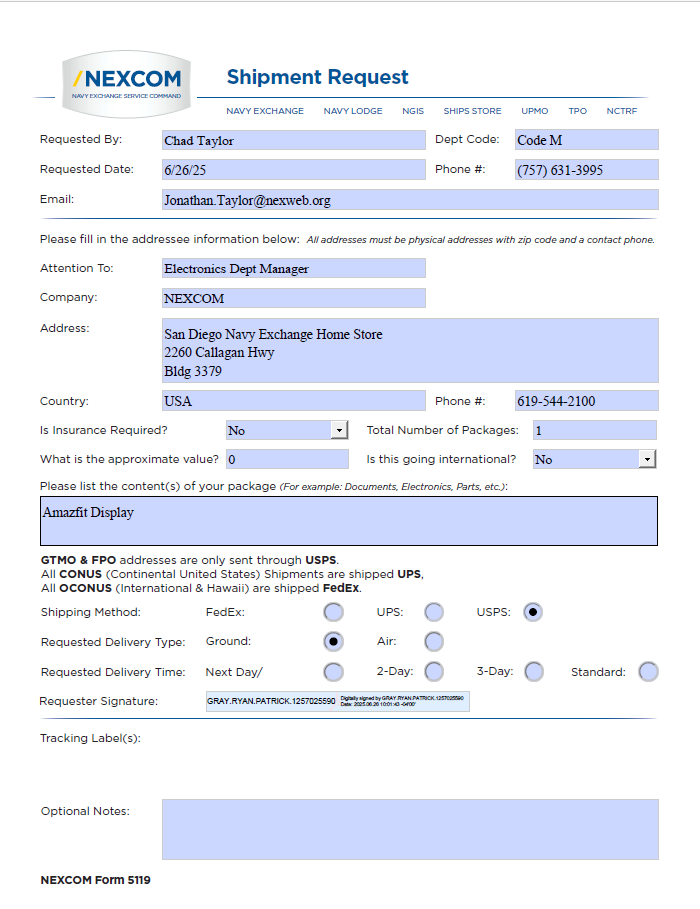
Promotion Template
Promotion TemplateSee below example:
| Promotion Header | Promotion Component Details | ||||||||||||||||||||||||||||||
|---|---|---|---|---|---|---|---|---|---|---|---|---|---|---|---|---|---|---|---|---|---|---|---|---|---|---|---|---|---|---|---|
| Promo Start Date |
Promo End Date |
Promotion Name | Attribute 1 Page # |
Attribute 2 Submitter ID |
Attribute 3 Buyer ID |
DTL Start Date |
DTL End Date |
Item Level | Dept ID | Class ID | Subclass ID | Item ID | DIFF ID | Item List ID | Location Type |
Zone Group ID |
Zone ID | Location ID | Change Type |
Amount Off (%) |
Amount Off ($) |
Fixed Price ($) |
Price Guide ID |
Apply To | Ignore Constraints |
Comments | Current Retail ($) |
Current Inv (U) |
Sales FCST(U) |
New Retail ($) |
Cost of Promotion ($) |
| 6/4/26 | 6/6/26 | 6.4.26-6.6.26 Apple June Promotion | username | 430 | 6/4/26 | 6/6/26 | Item | 19906603 | Zone | 3391 | Fixed Price | $1149.00 | Both Regular and Clearance | Apple 15-inch MacBook Air, Apple M5 Chip with 10-core CPU and 10-core GPU, 16GB Unified Memory Midni | $1299.00 | $1149.00 | $150.00 | ||||||||||||||
| 6/4/26 | 6/6/26 | 6.4.26-6.6.26 Apple June Promotion | username | 430 | 6/4/26 | 6/6/26 | Item | 19906604 | Zone | 3391 | Fixed Price | $1149.00 | Both Regular and Clearance | Apple 15-inch MacBook Air, Apple M5 Chip with 10-core CPU and 10-core GPU, 16GB Unified Memory Silve | $1299.00 | $1149.00 | $150.00 | ||||||||||||||
PO's
Send orders over $5000 to financial planners for approval Just delete it. I don't know.
Action
Buyer ID
PO Family ID
Vendor Order Num
PO Type
Order Type
EDI Indicator
Pre Mark Indica
Promo ID
Include On Orde
Supplier Site
Item ID
Item Description
NRF Color Code
Size
Unit Retail $
Unit Cost $
Not Before Date
mm/dd/yyyyNot After Date
mm/dd/yyyyOTB Date
gTot Retail $
Tot Cost $
Markup %
Total Qty
(U)Distribute d Qty
Location Type
Process Type
133
138
PO Comments
Create
430
257032000
0
BRB
Y
N
Y
2725
19906595
000
0000
3/20/2026
4/24/2026
$0
$0
0.0%
24
24
Warehouse
Cross Dock
12
12
Create
430
257032000
0
BRB
Y
N
Y
2725
19906597
000
0000
3/20/2026
4/24/2026
$0
$0
0.0%
2
2
Warehouse
Cross Dock
1
1
Create
430
257032000
0
BRB
Y
N
Y
2725
19906598
000
0000
3/20/2026
4/24/2026
$0
$0
0.0%
8
8
Warehouse
Cross Dock
4
4
Delete Item from PO
Price Change
Fill out price change template and send to pricing team: name@company.com
See example below:
| PRICE CHANGE TYPE | REASON CODE | ITEM TYPE | ITEM ID | DIFF_ID | LINK CODE ID | ITEM LIST | CURRENT RETAIL | CURRENT INV | ZONE GROUP_ID | LOCATION TYPE | ZONE_ID | LOCATION | EFFECTIVE DATE | Clearance OUT OF STOCK DATE | Clearance RESET DATE | CHANGE TYPE | FIXED PRICE | CHANGE $ AMOUNT | CHANGE % | NEW RETAIL | VALUE OF CHANGE | PRICE GUIDE ID | Corporate Ind (Y/N) | AUTO APPROVE IND | VENDOR FUNDED? | FUNDING_ TYPE | FUNDING AMOUNT $ | FUNDING % | DEAL_ID | DEAL_DETAIL_ID |
|---|---|---|---|---|---|---|---|---|---|---|---|---|---|---|---|---|---|---|---|---|---|---|---|---|---|---|---|---|---|---|
| Regular | Retail From Cost | Transaction | 19228807 | Zone Group | 6/15/26 | Regular-Fixed Price | $1,679.99 | $1,679.99 | $0 | N | Y | |||||||||||||||||||
| Regular | Retail From Cost | Transaction | 19228806 | Zone Group | 6/15/26 | Regular-Fixed Price | $999.99 | $999.99 | $0 | N | Y | |||||||||||||||||||
| Regular | Retail From Cost | Transaction | 19631787 | Zone Group | 6/15/26 | Regular-Fixed Price | $1,999.99 | $1,999.99 | $0 | N | Y | |||||||||||||||||||
| Regular | Retail From Cost | Transaction | 19631788 | Zone Group | 6/15/26 | Regular-Fixed Price | $1,549.99 | $1,549.99 | $0 | N | Y |
Person of Contact
Quick Reference Guides
Color Codes
| Code | Color |
| 000 | No Color |
| 001 | Black |
| 020 | Grey |
| 040 | Silver |
| 100 | White |
| 200 | Brown |
| 300 | Green |
| 400 | Blue |
| 500 | Purple |
| 600 | Red |
| 650 | Pink |
| 700 | Yellow |
| 710 | Gold |
New Vendor Web Brand UDA Request
Use Web Brand UDA request template. Attach template to email with induction items.
Examples on template
Web Naming Conventions
Buyer Numbers
Ranging Items
Serialization
Single Items — Serialization of a Single Item
- In RMS navigate to Tasks › Items › Manage Items
- Enter the Transaction Item Number (RIN#) and press Search.
- Review Results, click on the RIN# to open the details screen.
- Navigate to "More Actions" › "Locations".
- Review the "Item Locations" Screen for all necessary locations.
- If a location needs to be Added, select the Green + and proceed with step 7. Otherwise skip to step 10.
- In "Add Location" screen, select the level of location (typically "Store" or "Location List").
- Enter the appropriate store number or location list. Select "OK" or "OK and Add Another".
- Once all locations are added, you'll return to "Item Locations" Screen.
- Select "More Actions" › "Mass Change" › "Location Attributes".
- On the "Apply Updates to" panel, click the Green + and select the appropriate location scope.
- In the Location section, select "Location List" (preferred), "All Stores", or a single "Store".
- Click "OK".
- On the right panel, scroll to the "UIN" Section.
- Under UIN Type, select "Serial Number".
- Under UIN Label, select "Serial Number".
- Capture Time: select "Sale".
- Click "Save and Close".
- If a Warning Pop-up appears, select "Yes".
- Select "Save and Close" a second time.
- Select "Save and Close" a third time.
- Select "Done" at the Item Search Page. END.
Mass Items
- In RMS, navigate to Foundation Data › Items › Manage Item List.
- Enter the Item list number and press "Search".
- Locate the item list in Results. Example # 642902.
- Highlight the row. Do not open the item list by selecting the Item List number.
- Select the "Actions" button above the Item List column header.
- Navigate to "Mass Change" › "Item / Locations".
- "Apply Updates to" screen will open. Click the Green +.
- Select the appropriate location scope (Location List preferred; All Stores, Store if needed).
- Select "OK".
- Stores will populate on the left-hand side.
- On the right panel, locate "Primary Supplier Site" and "Primary Country".
- Enter the Primary Supplier Number — critical: if incorrect, Serialization will not work.
- Enter the Primary Country for the Supplier.
- Navigate down to the "UIN" Section.
- UIN Type → Serial Number
- UIN Label → Serial Number
- Capture Time → Sale
- Click "Save and Close" to save all adjustments.
- Click "Done" at the Item List Search Screen.
Store Locations
| SHIP TO / ID | LOCATION NAME / DC NAME | ADDRESS / DC ADDRESS | CITY | STATE | POSTAL CODE | DEFAULT WH / POC | PHONE |
|---|---|---|---|---|---|---|---|
| STORE LOCATIONS | |||||||
| 2 | NORF PACKAGE STORE | NAVAL BASE BLDG CD10 MALL DRIVE | NORFOLK | VA | 23511 | 9840 | |
| 5 | NORF CCC | NEX NORFOLK P 64 AUTOPORT BLDG U-126 | NORFOLK | VA | 23511 | 9840 | |
| 7 | HUNTINGTON HALL MM | NAVAL BASE 3100 HUNTINGTON AVENUE | NEWPORT NEWS | VA | 23607 | 9840 | |
| 8 | NORF V55 MM/GAS | NAVAL AIR STATION NORFOLK 420 AIRCRAFT TOW WAY, BLDG V55 | NORFOLK | VA | 23511 | 9840 | |
| 9 | NORF CEP 76 MM/GAS | NEX MINI MART 1935 B AVENUE | NORFOLK | VA | 23511 | 9840 | |
| 10 | NORF MAIN STORE | NAVAL BASE BLDG CD13 1560 MALL DRIVE | NORFOLK | VA | 23511 | 9840 | |
| 13 | NORF LT PARKING | NAVAL BASE HAMPTON BLVD | NORFOLK | VA | 23511 | 9840 | |
| 15 | NORF N LODGE STORE | 7811 HAMPTON BLVD | NORFOLK | VA | 23505 | 9840 | |
| 16 | YORKTOWN MM/GAS | NAVAL WEAPONS STATIONBLDG 2072 LEBANNON CHURCH ROAD | NEWPORT NEWS | VA | 23603 | 9840 | |
| 20 | LCREEK MAIN STORE | JEB LITTLE CREEK/FORT STORY 1170 AMPHIBIOUS DR, BLDG 3443 | VIRGINIA BEACH | VA | 23459 | 9840 | |
| 21 | CHEATHAM ANNX MM/GAS | BLDG 130 NAVAL WEAPONS STATIONSANDA DRIVE | WILLIAMSBURG | VA | 23185 | ||
| 23 | OCEANA GAS | NAVAL AIR STATIONBLDG 295 | VIRGINIA BEACH | VA | 23460 | ||
| 24 | NSA HAMPTON ROADS MM | NEX NAVAL SUPPORT ACTIVITY MM1467 Ingram Avenue | NORFOLK | VA | 23551 | ||
| 27 | PORTSMOUTH GAS | NORFOLK NAVAL SHIPYARDBLDG 1489 SCOTT CENTER | PORTSMOUTH | VA | 23709 | ||
| 28 | PORTS SOTT CTR MAIN | NNSY Scott Ctr Navy ExchangeCLUVERIUS STREET BLDG 1560 | PORTSMOUTH | VA | 23709 | ||
| 29 | PORTS VA NMC MAIN | NAVY EXCHANGE PORTS HOSP MAIN620 JOHN PAUL JONES CIR BLDG 3 | PORTSMOUTH | VA | 23708 | ||
| 30 | PORTS VA NMC MM | NAVAL REGIONAL MEDICAL CENTERBLDG 256 | PORTSMOUTH | VA | 23708 | ||
| 31 | OCEANA PACKAGE STORE | NAVAL AIR STATION1449 TOMCAT BLVD BLDG 294 | VIRGINIA BEACH | VA | 23460 | ||
| 32 | OCEANA MM / UNIFORMS | NAVAL AIR STATION524 E STREET | VIRGINIA BEACH | VA | 23460 | ||
| 33 | OCEANA GAS/CCC | NAVAL AIR STATION889 AVENUE E BLDG 541 | VIRGINIA BEACH | VA | 23460 | ||
| 34 | OCEANA MAIN STORE | 1449 TOMCAT BLVDBLDG 292 | VIRGINIA BEACH | VA | 23460 | ||
| 35 | DAMNECK PACKAGE ST | DAM NECK ANNEX | VIRGINIA BEACH | VA | 23461 | ||
| 36 | DAMNECK MM/GAS | DAM NECK ANNEX BLDG 5751813 Terrier Ave | VIRGINIA BEACH | VA | 23461 | ||
| 37 | DAMNECK MAIN STORE | DAM NECK ANNEXBLDG 524 1977 TERRIER AVE | VIRGINIA BEACH | VA | 23461 | ||
| 39 | LCREEK MM/GAS | JEB LITTLE CREEK FORT STORY1251 D STREET BLDG 3093 | VIRGINIA BEACH | VA | 23459-3297 | ||
| 40 | LCREEK W ANNX MM/GAS | JEB Little Creek Fort Story1611 Midway Rd, Bldg 1611 | Virginia Beach | VA | 23459-3297 | ||
| 43 | LCREEK HOME GALLERY | JOINT EXPEDITIONARY BASE LT1240 GATOR BLVD, BLDG 3126 | VIRGINIA BEACH | VA | 23459-3297 | ||
| 50 | NEWPORT MINI MART | NAVAL EDUCATION & TRAINING CNTBLDG 1283 GREENE LANE | NEWPORT | RI | 2840 | ||
| 51 | NEWPORT BOOKSTORE | NAVAL EDUCATION & TRAINING CNT1250 HACKER AVENUE | NEWPORT | RI | 2841 | ||
| 52 | PORTS VA MINI MART | NNSY MINI MART403 BERRIEN STREET BLDG 403 | PORTSMOUTH | VA | 23709 | ||
| 53 | NEWPORT MM/GAS | BLDG 1285 WHIPPLE STREET | NEWPORT | RI | 2840 | ||
| 54 | NEWPORT UNIFORMS | NAVAL EDUCATION & TRAINING CNTBLDG 1903 PEARY STREET | NEWPORT | RI | 2841 | ||
| 55 | NEWPORT MAIN STORE | NAVAL EDUCATION & TRAINING CNTBLDG 1250 HACKER AVENUE | NEWPORT | RI | 2841 | ||
| 56 | NEWPORT N LODGE ST | NAVAL EDUCATION & TRAINING CNT1354 WHIPPLE STREET | NEWPORT | RI | 2841 | ||
| 57 | MITCHEL FIELD MAIN | NAVAL STATIONBLDG 16 | GARDEN CITY | NY | 11530 | ||
| 60 | NEW LONDON LOWER MM | NAVY EXCHANGE BLDG 88NAVAL SUB BASE NEW LONDON | GROTON | CT | 6349 | ||
| 61 | NEW LONDON DOLPHN MM | NEX NEW LONDON DOLPHIN MM22 SAILFISH DRIVE BLDG 1005 | GROTON | CT | 6340 | ||
| 65 | NEW LONDON MM/GAS | NAVAL SUBMARINE BASEBLDG 428 | GROTON | CT | 6349 | ||
| 67 | NEW LONDON MAIN ST | NAVAL SUBMARINE BASEBLDG 484 | GROTON | CT | 06349-5021 | ||
| 68 | NEW LONDN N LODGE ST | NAVAL SUBMARINE BASEBLDG 77 DEWEY AVENUE | GROTON | CT | 6349 | ||
| 78 | PHILADELPHIA MM | NAVAL AVIATION SUPPLY OFFICEBLDG 90 700 ROBBINS AVENUE | PHILADELPHIA | PA | 19111 | ||
| 79 | MECHANICSBURG MAIN | NAVAL SHIPS PARTS CONTROL CNTRBLDG 214 | MECHANICSBURG | PA | 17055 | ||
| 80 | LAKEHURST MINI MART | NAVAL AIR ENGINEERING STATIONBLDG 485 | LAKEHURST | NJ | 8733 | ||
| 82 | COLTS NK MAIN STORE | NAVAL WEAPONS STATION EARLE201 NJ HWY 34, BLDG C29 | COLTS NECK | NJ | 7722 | ||
| 83 | BETHESDA MM/GAS | NATIONAL NAVAL MEDICAL CENTERBLDG 51 | BETHESDA | MD | 20889 | ||
| 86 | BETHESDA NAVY LODGE | NNMCBLDG 52 | BETHESDA | MD | 20889 | ||
| 87 | WASH DC MINI MART | 1334 PARSONS AVENUE SEBLDG 184 | WASHINGTON NAVY YARD | DC | 20374-5082 | ||
| 88 | WASH DC N LODGE ST | WASHINGTON NAVY YARDBOWLING GREEN | WASHINGTON | DC | 20374 | ||
| 90 | ARLINGTON UNIFORMS | 1555 SOUTHGATE RD | ARLINGTON | VA | 22214 | ||
| 92 | PAX RIVER MM/GAS | NAVAL AIR STATIONCUDDIHY ROAD | PATUXENT RIVER | MD | 20670 | ||
| 93 | PAX RIVER MAIN STORE | 22099 CUDDIHY ROADBLDG. 2369 | PATUXENT RIVER | MD | 20670 | ||
| 96 | INDIAN HD MAIN STORE | NAVAL SURFACE WARFARE CENTERBLDG 323 | INDIAN HEAD | MD | 20640 | ||
| 97 | DAHLGREN MAIN STORE | NSA SOUTH POTOMAC6210JenkinsRdSuite 212,Bldg109 | DAHLGREN | VA | 22448 | ||
| 104 | GREAT LKS STUDENT ST | BLDG 400540 CLUVERIUS AVE | GREAT LAKES | IL | 600885129 | ||
| 106 | GREAT LKS RECRUIT ST | Bldg. 13262601 A PAUL JONES STREET | GREAT LAKES | IL | 60088-5129 | ||
| 107 | GREAT LKS MM/GAS | 3350 Meridian DriveBldg #8150 | Great Lakes | IL | 60088-5129 | ||
| 109 | GREAT LKS DITTY BAG | BLDG 14052601 A PAUL JONES STREET | GREAT LAKES | IL | 60088-5129 | ||
| 110 | GREAT LKS (BURKY) MA | BLDG 3452GREEN BAY ROAD | GREAT LAKES | IL | 60088-5129 | ||
| 116 | CRANE MAIN/GAS | BLDG 1893NWSC | CRANE | IN | 47522 | ||
| 123 | NAPLES GRICIGNANO MM | NAVY EXCHANGEPSC 810 BOX 30 | FPO | AE | 9619 | ||
| 131 | SOUDA BAY NEXMART | NAVY EXCHANGEPSC 814 BOX 24 BUILDING 18 | FPO | AE | 09266-0003 | ||
| 133 | SOUDA BAY MAIN STORE | NAVY EXCHANGEPSC 814 BOX 24, BUILDING 17 | FPO | AE | 09266-0003 | ||
| 134 | NAS SIGONELLA MM/DEP | BLDG 549PSC 824 BOX 2620 | FPO | AE | 09627-0003 | ||
| 138 | SIGONELLA NAS1 MAIN | C. DA SIGONELLA SS 192NAS 1 GATE | Catania, Sicily | AE | 95040 | ||
| 147 | ROTA GAS/CCC | BLDG 178PSC 819 BOX 17 | FPO | AE | 09645-0003 | ||
| 148 | ROTA NLODGE STORE | NAVY EXCHANGEPSC 819 BOX 17 | FPO | AE | 09645-0003 | ||
| 149 | LISBON NEXMART | NAVY EXCHANGEPSC 83 BOX NEX | APO | AE | 09726-0001 | ||
| 150 | MORON NEXMART/GAS | NEXMART 210029UNIT 6583 | APO | AE | 09643-6553 | ||
| 153 | GRICIGNANO MAIN | NAVY EXCHANGEPSC 810 BOX 30 | FPO | AE | 9619 | ||
| 161 | JAXS CCC/GARDEN/GAS | NAVAL AIR STATIONBLDG 429 | JACKSONVILLE | FL | 32212 | ||
| 162 | CHARLESTON BRIG ST | NAVY EXCHANGE1050 REMOUNT ROAD BLDG 3107 | NORTH CHARLESTON | SC | 29406-3515 | ||
| 163 | JAX NEXPRESS MM | NAVAL AIR STATIONBLDG 931 | JACKSONVILLE | FL | 32212 | ||
| 164 | JAXS MAIN STORE | NAVAL AIR STATIONBLDG 987 | JACKSONVILLE | FL | 32212 | ||
| 165 | JAXS N LODGE ST | NAVY AIR STATIONMUSTIN ROAD BLDG 802 | JACKSONVILLE | FL | 32212 | ||
| 166 | MAYPORT FLT/FURN/ENT | NAVAL STATIONBLDG 1264 & 1397 | MAYPORT | FL | 32228 | ||
| 167 | MAYPORT MM/GAS | 3600 MAIN STBLDG 2039 | MAYPORT | FL | 32228 | ||
| 169 | MAYPORT MAIN ST/OPTL | 2292 MAYPORT RDBLDG 1900 | ATLANTIC BEACH | FL | 32233 | ||
| 170 | MAYPORT N LODGE ST | NAVAL STATIONBLDG 1980 | MAYPORT | FL | 32228 | ||
| 182 | KINGS BAY QUICK STOP | NAVAL SUBMARINE BASEBLDG 1024 | KINGS BAY | GA | 31547 | ||
| 183 | KINGS BAY MAIN STORE | NAVAL SUBMARINE BASEBLDG 1029 | KINGS BAY | GA | 31547 | ||
| 184 | KINGS BAY N LODGE ST | NAVAL SUBMARINE BASEBLDG 0158 | KINGS BAY | GA | 31547 | ||
| 186 | PENSACOLA MM/GAS/CCC | NAVAL AIR STATIONBLDG 470 | PENSACOLA | FL | 32508 | ||
| 188 | PCOLA MM/GAS SHERMAN | NAVAL AIR STATIONSHERMAN FIELD BLDG 1932 | PENSACOLA | FL | 32508 | ||
| 191 | PENSACOLA MAIN ST | NAVY EXCHANGE 060-070BLDG 3725 5600 HWY 98 W | PENSACOLA | FL | 32507 | ||
| 192 | PENSACOLA PACKAGE ST | 5600 HWY 98 WESTBLDG 3758 | PENSACOLA | FL | 32507 | ||
| 193 | PENSACOLA CCC | 5600 HWY 98 WESTBLDG 3778 | PENSACOLA | FL | 32508 | ||
| 194 | PENSACOLA FLEET ST | NAS PENSACOLABLDG 607, 250 SAUFLEY AVENUE | PENSACOLA | FL | 32508-5208 | ||
| 196 | PENSACOLA N LODGE | NAVAL AIR STATIONBLDG 3875 | PENSACOLA | FL | 32508 | ||
| 198 | PCOLA MM CORRY STATN | NAVAL TECHNICAL TRAININGCORRY STATION BLDG 540 | PENSACOLA | FL | 32511 | ||
| 200 | PANAMA MAIN STORE | COASTAL SYSTEMS STATIONBLDG 395 | PANAMA CITY | FL | 32407 | ||
| 210 | GUANTANAMO MARINE MM | PSC 1005 BOX 38BLDG 2155 | FPO | AA | 34009-0001 | ||
| 219 | GUANTANAMO LEEWRD MM | PSC 1005 BOX 38BLDG 2155 | FPO | AA | 34009-0001 | ||
| 220 | GUANTANAMO CP AMER | PSC 1005 BOX 38BLDG 2155 | FPO | AA | 34009-0001 | ||
| 221 | GUANTANAMO MAIN ST | PSC 1005 BOX 38BLDG 2155 | FPO | AA | 34009-0001 | ||
| 222 | GUANTANAMO FURN&TYLD | PSC 1005 BOX 38BLDG 2155 | FPO | AA | 34009-0001 | ||
| 224 | GUANTANAMO GAS | PSC 1005 BOX 38BLDG 2155 | FPO | AA | 34009-0001 | ||
| 225 | KEY WEST TRUMBO MM | NAVAL AIR STATIONBLDG C7 | KEY WEST | FL | 33040 | ||
| 226 | K WEST MM/GAS (Boca) | NAVAL AIR STATIONBLDG A322 | KEY WEST | FL | 33040 | ||
| 227 | K WEST MAIN/GAS SIGS | NAVAL AIR STATIONBLDG V4111 | KEY WEST | FL | 33040 | ||
| 228 | KEY WEST N LODGE ST | NAVY EXCHANGEBLDG V4114 | KEY WEST | FL | 33040 | ||
| 232 | CHARLESTON MM/GAS | NAVY EXCHANGE AUTOPORT724 BOONE AVENUE | GOOSE CREEK | SC | 29445 | ||
| 233 | WHITING FD PINES MM | WHITING PINES M/M COMM. CENTER573 MERRILL DRIVE | MILTON | FL | 32572 | ||
| 235 | GTMO UNIF/LAUND/BARB | PSC 1005 BOX 38BLDG 2155 | FPO | AA | 34009-0001 | ||
| 236 | CHARLESTON MAIN/PKG | NAVY EXCHANGE CHARLESTON,1765 RED BANK ROAD, STE 100 | GOOSE CREEK | SC | 29445 | ||
| 238 | BEAUFORT HOSP ST | NAVAL HOSPITALPICKNEY BLVD BLDG 1 | BEAUFORT | SC | 29902 | ||
| 239 | BEAUFORT QUICK STOP | NAVAL HOSPITALPICKNEY BLVD BLDG 101 | BEAUFORT | SC | 29902 | ||
| 241 | MERIDIAN GAS | NAVAL AIR STATIONBLDG 228 | MERIDIAN | MS | 39309 | ||
| 243 | MERIDIAN MAIN COMPLX | NAVAL AIR STATIONBLDG 212 | MERIDIAN | MS | 39309 | ||
| 246 | WHITING FD MAIN ST | NAVAL AIR STATIONWHITING FIELD BLDG 3044 | MILTON | FL | 32570 | ||
| 247 | GULFPORT QUICK STOP | NAVAL CONSTRUCTION BATTALIONBLDG 340 | GULFPORT | MS | 39501 | ||
| 251 | GULFPORT N LODGE ST | NAVAL CONSTRUCTION BATTALION | GULFPORT | MS | 39501 | ||
| 263 | MEMPHIS MAIN STORE | NAVAL SUPP ACTIVITY MID-SOUTHBLDG S752 | MILLINGTON | TN | 38054 | ||
| 265 | ORLANDO MCCOY ST | 7151 EARHEART DRIVEMCCOY ANNEX | ORLANDO | FL | 32827 | ||
| 266 | STENNIS MM/GAS | NAVY EXCHANGETRAILER#272 TRENT LOTT BLVD | STENNIS | MS | 39529 | ||
| 267 | MEMPHIS GAS/MM | 7345 SINGLETON AVEBLDG 935 NSA MID-SOUTH | MILLINGTON | TN | 38054 | ||
| 273 | CORPUS MM/GAS | NAVAL AIR STATIONBLDG 1290 | CORPUS CHRISTI | TX | 78419 | ||
| 274 | CORPUS MAIN STORE | 651 LEXINGTON BLVDBLDG 1744 | CORPUS CHRISTI | TX | 78419 | ||
| 276 | CORPUS CCC | 4008 SKYRAY DRIVEBLDG 4008 | CORPUS CHRISTI | TX | 78419 | ||
| 279 | CORPUS N LODGE ST | NAS CORPUS CHRISTIBLDG 1218C | CORPUS CHRISTI | TX | 78419 | ||
| 281 | KINGSVILLE MAIN/GAS | NAVAL STATIONBLDG 4734 | KINGSVILLE | TX | 78363 | ||
| 282 | NO ISLAND TOUCHGO MM | NAS NORTH ISLANDBKDG 244 | SAN DIEGO | CA | 92135 | ||
| 283 | NORTH ISLAND UNIFORM | 654 ROGERS ROADBUILDING 654 | SAN DIEGO | CA | 921357045 | ||
| 285 | NO ISLAND GAS/CCC | NAS NORTH ISLANDBLDG 484 | SAN DIEGO | CA | 92135 | ||
| 288 | NO ISLAND N LODGE ST | NAS NORTH ISLANDBLDG 1402 | SAN DIEGO | CA | 92135 | ||
| 289 | CORONADO GAS | NABBLDG 607 | CORONADO | CA | 92155 | ||
| 290 | CORONADO MM | NABBLDG 1017 | CORONADO | CA | 92155 | ||
| 291 | CORONADO MAIN ST | NABBLDG 18 | CORONADO | CA | 92155 | ||
| 292 | NO ISLAND MAIN ST | NAS NORTH ISLANDBLDG 2017 | SAN DIEGO | CA | 92135-7405 | ||
| 293 | IMPERIAL BCH MAIN ST | NAVY EXCHANGEBLDG 36 | OLF IMPERIAL BEACH | CA | 91932 | ||
| 296 | SAN DIEGO MURPHY MM | 3401 Santo Road | SAN DIEGO | CA | 92124 | ||
| 298 | SAN DIEGO PACKAGE | 2260 Callagan HwyBldg 3187B Naval Base | SAN DIEGO | CA | 92136 | ||
| 301 | SAN DIEGO FLEET | Bldg 3301 Cummings RoadBldg 3301 Naval Station | SAN DIEGO | CA | 92136 | ||
| 302 | S DIEGO CABRILLO MM | 3292 AFTON RD | SAN DIEGO | CA | 92123 | ||
| 304 | SAN DIEGO BAYVIEW MM | 6126 Ridgewood Dr | SAN DIEGO | CA | 92139 | ||
| 305 | SAN DIEGO MAIN | 2260 Callagan HwyBldg 3187A Naval Base | SAN DIEGO | CA | 92136 | ||
| 306 | SAN DIEGO GAS/CCC | Norman Scott Road32nd St and Harbor Drive | SAN DIEGO | CA | 92136 | ||
| 308 | PT HUENEME MM/GAS | NAVY EXCHANGEBLDG 797 | PORT HUENEME | CA | 93043 | ||
| 310 | SAN DIEGO HOSP GIFT | NAVY EXCHANGE34800 BOB WILSON DRIVE BLDG 1G | SAN DIEGO | CA | 92134-5000 | ||
| 311 | SAN DIEGO HOSP MM | NMCBDLG 26 - 1 ST FLOOR | SAN DIEGO | CA | 92134-5000 | ||
| 312 | POINT LOMA GAS/CCC | NAVAL TRAINING CENTERBLDG 344 | SAN DIEGO | CA | 92133 | ||
| 313 | POINT LOMA MM | 140 FRANK CRAWFORD WAYBLDG 4 | SAN DIEGO | CA | 92106 | ||
| 314 | SAN DIEGO NTC MM | 2912 Nimitz BlvdBldg 472 | SAN DIEGO | CA | 92106 | ||
| 318 | POINT LOMA MAIN/GAS | NAVAL SUBMARINE BASE140 SYLVESTER RD BLDG 542 | SAN DIEGO | CA | 92106 | ||
| 323 | SDiego Mariners MM/G | 2375 CALLAGAN HWYBLDG 3674 | San Diego | CA | 92136 | ||
| 329 | EL CENTRO MAIN/GAS | NAF/NEXBLDG 201 | EL CENTRO | CA | 92243 | ||
| 335 | PT HUENEME MAIN ST | NAVY EXCHANGEBLDG 1512 | PORT HUENEME | CA | 93043-4429 | ||
| 337 | PT HUENEME MM (SEAL) | 800 Seal Beach BlvdBldg 33 | SEAL BEACH | CA | 90740 | ||
| 338 | PT HUENEME N LODGE S | NAVY EXCHANGEBLDG 1172 | PORT HUENEME | CA | 93043 | ||
| 342 | POINT MUGU MAIN/GAS | NAVAL AIR WEAPONS SERVICEBLDG 16 | POINT MUGU | CA | 93042 | ||
| 343 | SAN DIEGO SRVCS ANNX | BLDG 31872260 CALLAGAN HIGHWAY | SAN DIEGO | CA | 92136-8036 | ||
| 349 | CHINA LAKE GAS | NWCBLDG 1094 | CHINA LAKE | CA | 93555 | ||
| 350 | CHINA LAKE MAIN ST | NWCBLDG 19 | CHINA LAKE | CA | 93555 | ||
| 365 | MONTEREY N LODGE ST | NPGS MONTEREY | MONTEREY | CA | 93943 | ||
| 366 | LEMOORE MAIN COMPLX | NAVY EXCHANGE796 REEVES BLVD | LEMOORE | CA | 93245 | ||
| 374 | LEMOORE MM(JET MART) | NAS LEMOOREBLDG 977 | LEMOORE | CA | 93245 | ||
| 377 | LEMOORE QUICKMART | BLDG 860 | LEMOORE | CA | 93245 | ||
| 381 | LEMOORE OPS MM/GAS | NAS LEMOOREBLDG 58 | LEMOORE | CA | 93245 | ||
| 384 | FALLON MAIN STORE | NASBLDG 341 | FALLON | NV | 89406 | ||
| 385 | FALLON N LODGE ST | N.A.S. | FALLON | NV | 89406 | ||
| 386 | LEMOORE FURN UNIFORM | NAS LEMOORE825 HANCOCK CIRCLE | LEMOORE | CA | 93245 | ||
| 388 | MONTEREY LAMESA MM | Bldg 336 Leahy Rd | MONTEREY | CA | 93940 | ||
| 389 | MONTEREY GAS/CCC | NAVAL POSTGRADUATE SCHOOL1650 LAKE DEL MONTE DRIVE | MONTEREY | CA | 93943 | ||
| 390 | MONTEREY MAIN ST | NAVAL POSTGRADUATE SCHOOL1650 LAKE DEL MONTE DRIVE | MONTEREY | CA | 93943 | ||
| 391 | WHIDBEY FLEET STORE | NAVY EXCHANGE1065 LEXINGTON AVE BLDG 2749 | OAK HARBOR | WA | 98278-4500 | ||
| 392 | WHIDBEY AULT GAS/CCC | NAVY EXCHANGE1015 W MIDWAY BLDG 2595 | OAK HARBOR | WA | 98278-0629 | ||
| 393 | WHIDBEY MAIN SEAPLN | WHIDBEY ISLAND NAVAL AIR STAT2110 N CORAL SEA AVE BLDG 17 | OAK HARBOR | WA | 98278-4500 | ||
| 397 | WHIDBEY HOME GALLERY | NAVY EXCHANGE235 TULAGI AVE BLDG 21 | OAK HARBOR | WA | 98277 | ||
| 398 | BREMERTON MAIN ST | BLDG 863 MAIN STORE120 DEWEY STREET | BREMERTON | WA | 98314 | ||
| 399 | BREMERTON JCKPK MMPK | 5885 CHINOOK PASS STREETBLDG 371 | BREMERTON | WA | 98312 | ||
| 404 | BANGOR MINI MART | BANGOR SUBBASEBLDG 2905 | SILVERDALE | WA | 98315 | ||
| 405 | BANGOR GAS/CCC | NAVAL SUBMARINE BASEBLDG 2950 | SILVERDALE | WA | 98315 | ||
| 406 | BANGOR INDIAN ISL MM | C/O KEYPORT MINI MARTNAVAL UNDERSEA WARF ENG STA | KEYPORT | WA | 98345 | ||
| 407 | BANGOR MAIN STORE | 2600 OHIO STREET | SILVERDALE | WA | 98315 | ||
| 409 | EVERETT MAIN ST | NAVY EXCHANGE13904 45TH AVE NE | MARYSVILLE | WA | 98271 | ||
| 410 | EVERETT FLEET ST | 2000 W MARINE VIEW DRBLDG 1800 | EVERETT | WA | 98207-2300 | ||
| 412 | PEARL HOME ST | BLDG 16844888 BOUGAINVILLE DR | HONOLULU | HI | 96818 | ||
| 413 | PEARL FORD ISL MM | NAVY EXCHANGE BLDG 75BOX 133 | PEARL HARBOR | HI | 96860 | ||
| 417 | PEARL CTY MM/GAS | NAVY EXCHANGE BLDG 794BOX 133 | PEARL HARBOR | HI | 96860 | ||
| 418 | PEARL MAKALAPA MM | NAVY EXCHANGEBLDG 360 | PEARL HARBOR | HI | 96860 | ||
| 421 | PEARL JBPHH GAS | NAVY EXCHANGE BLDG. 228BOX 133 | PEARL HARBOR | HI | 96860 | ||
| 423 | PEARL NB CAR CARE CT | 996 Namur RoadBldg 82 | Honolulu | HI | 96818 | ||
| 425 | PEARL MALL GAS | NAVY EXCHANGE BLDG. 1206BOX 133 | PEARL HARBOR | HI | 96860 | ||
| 427 | PEARL HALSEY MM/GAS | NAVY EXCHANGE BLDG 6830BOX 133 | PEARL HARBOR | HI | 96860 | ||
| 429 | PEARL BRBRS P MM/GAS | TOUCH N GO MINI-MARTSARATOGA AVENUE, BLDG #1928 | KAPOLEI | HI | 96706 | ||
| 431 | PEARL IRQUOS MM/GAS | 6882 COMMORANT AVENAVY EXCHANGE BLDG 6882 | EWA BEACH | HI | 96706 | ||
| 434 | KAUAI B SANDS MM/GAS | P.O. BOX 128 TALOS DR BLDG1260BARKING SANDS | KEKAHA | HI | 96752 | ||
| 435 | PEARL WAHIAWA MM/GAS | NCTAMSBLDG 198 | WAHIAWA | HI | 96786 | ||
| 437 | PEARL HARBOR MALL | ATTENTION RECEIVING4725 BOUGAINVILLE DR | HONOLULU | HI | 96818 | ||
| 438 | PEARL HOLOMOKU MM | NORTH ROADBLDG 2186 | PEARL HARBOR | HI | 96860-4677 | ||
| 440 | MARIANNAS MAIN (258) | BLDG 258 NAVY EXCHANGE RDPSC 455 BOX 178 | FPO | AP | 96540-1000 | ||
| 441 | MARIANNAS HOMECENTER | U.S. NAVAL ACTIVITIES BLDG 700PSC 455, BOX 178 | FPO | AP | 96540-1000 | ||
| 442 | MARIANNAS FURN (256) | U.S. NAVAL ACTIVITIES BLDG 256PSC 455 BOX 178 | FPO | AP | 96540-1000 | ||
| 444 | MARIANNAS MM (APRA) | BLDG 4176PSC 455 BOX 178 | FPO | AP | 96540-1000 | ||
| 451 | GUAM CCC | U.S. NAVAL ACTIVITIES BLDG 151PSC 455 BOX 178 | FPO | AP | 96540-1000 | ||
| 452 | NSA MCB CAMP BLAZ MM | ROWCLIFF STBLDG 206 | DEDEDO | GU | 96912 | ||
| 455 | NSA MCB CAMP MM/GAS | BULLARD AVEBLDG 303 | DEDEDO | GU | 96912 | ||
| 457 | GUAM HOSP MM/PCK STR | BLDG 6PSC 455 BOX 178 | FPO | AP | 96540-1000 | ||
| 458 | GUAM HOSP GAS/CCC | BLDG 5PSC 455 BOX 178 | FPO | AP | 96540-1000 | ||
| 459 | SINGAPORE MAIN ST | BLDG 74PSC 470 BOX 2600 | FPO | AP | 96534-2100 | ||
| 461 | YOKO NEX DEPOT | NAVY EXCHANGEPSC 473 BOX 70 | FPO | AP | 96349-0003 | ||
| 462 | YOKO HOME GALLERY | NAVY EXCH YOKOSUKA BLDG 61559PSC 473 BOX 70 | FPO | AP | 96349-0003 | ||
| 463 | YOKO MM/GAS/CCC | NAVY EXCH YOKOSUKA BLDG J1314PSC 473 BOX 70 | FPO | AP | 96349-0003 | ||
| 464 | YOKO MAIN STORE | NAVY EXCH YOKOSUKA BLDG H20PSC 473 BOX 70 | FPO | AP | 96349-0003 | ||
| 465 | YOKO BAZAAR STORE | NAVY EXCH YOKOSUKA BLDG A33PSC 473 BOX 70 | FPO | AP | 96349-0070 | ||
| 467 | YOKO PACK n WRAP | BLDG 1823YOKOSUKA NAVAL BASE | FPO | AP | 96349 | ||
| 468 | YOKO ELEC REPAIR | NAVY EXCH YOKOSUKA BLDG 627PSC 473 BOX 70 FPO | YOKOSUKA | 96349-0003 | |||
| 473 | ATSUGI MM/PCKG STORE | BLDG 963PSC 477 BOX 10 | FPO | AP | 96306-0003 | ||
| 474 | ATSUGI HOME ST | NAVY EXCH DET ATSUGI BLDG 81PSC 477 BOX 10 | FPO | AP | 96306-0003 | ||
| 478 | ATSUGI SERVICES MALL | NAVY EXCH DET ATSUGI BLDG 34PSC 477 BOX 10 | FPO | AP | 96306-0003 | ||
| 481 | ATSUGI MAIN STORE | NAVY EXCH DET ATSUGI BLDG 958PSC 477 BOX 10 | FPO | AP | 96306-0003 | ||
| 482 | ATSUGI GAS/CCC | NAVY EXCH DET ATSUGI BLDG 29PSC 477 BOX 10 | FPO | AP | 96306-0003 | ||
| 484 | SANNO HARDY B MM/GAS | NEW SANNO HOTEL NEXUNIT 45003 BOX 31 | APO | AP | 96337-5003 | ||
| 485 | SANNO MAIN STORE | NAVY EXCH DET NEW SANNONEW SANNO HOTEL | FPO | AP | 96337 | ||
| 486 | YOKO IKEGO MM/GAS | IKEGO U.S. NAVY HOUSING AREAIKEGO ZUSHI SHIJKANAGAWA | FPO | AP | 96349 | ||
| 488 | SASEBO MM/CCC | NAVY EXCH DET SASEBO BLDG 1625PSC 476 BOX 30 | FPO | AP | 96322-0003 | ||
| 489 | SASEBO FLEET/FURN | NAVY EXCH DET SASEBO BLDG 132PSC 476 BOX 30 | FPO | AP | 96322-0003 | ||
| 490 | SASEBO MAIN STORE | NAVY EXCH DET SASEBO BLDG 110PSC 476 BOX 30 | FPO | AP | 96322-0003 | ||
| 492 | SASEBO N LODGE ST | NAVY EXCH DET SASEBO BLDG 1602PSC 476 BOX 30 | FPO | AP | 96322-0003 | ||
| 493 | HARIO MM/GAS | NAVY EXCH DET SASEBO BLDG 5118PSC 476 BOX 30 | FPO | AP | 96322-0003 | ||
| 496 | YOKO HOME ACCENTS | NAVY EXCHANGEPSC 473 BOX 70 BLDG 3316 | FPO | AP | 96349-0003 | ||
| 497 | YOKO FLEET REC | NAVY EXCHANGE YOKOSUKAPSC 473 BOX 70 | FPO | AP | 96349-0003 | ||
| 498 | SASEBO NEX DEPOT | NAVY EXCHANGEPSC 473 BOX 30 | FPO | AP | 96322-0003 | ||
| 505 | USMMA MM | 300 STEAMBOAT ROADDELANO HALL | Kings Point | NY | 11024-1699 | ||
| 510 | SIGONELLA NL STORE | US NAVAL AIR STATIONPSC 824 BOX 2620 | FPO | AE | 09627-2620 | ||
| 511 | YOKO N LODGE ST | PSC 473 BOX 70US NAVY EXCHANGE | FPO AP | AP | 96349-0003 | ||
| 522 | CHINHAE KOREA GAS | NAVSUP FLC SITE CHINHAE KOREA#1HYUN-DONG CHINHAE-GU | CHANGWON-SI,GYEONGAM | 645016 | |||
| 524 | PENTAGON VENDING | ROOM RDF-1K686AREMOTE DELIVERY AREA, ROUTE 27 | ARLINGTON | VA | 22202 | ||
| 525 | NORF SVCS CPLX (BEV) | BLDG C9 COMPLEXNAVAL STATION NORFOLK | NORFOLK | VA | 23511 | ||
| 527 | CAPO NEXMART | NAVY EXCHANGE CAPOPSC 817 BOX 1 | FPO | AE | 9622 | ||
| 528 | SIGONELLA CCC | US NAVAL AIR STATIONPSC 824 BOX 2620 | FPO | AE | 09627-2620 | ||
| 529 | PEARL OUTDOOR LIVING | C/O NEXCEN PEARL HARBOR1475 PIERCE ST | PEARL HARBOR | HI | 96860-4677 | ||
| 541 | WHIDBEY GAS | BUILDING # 28132110 N. CORAL SEA AVENUE | OAK HARBOR | WA | 98278 | ||
| 542 | FALLON GAS | BUILDING 348NAS FALLON | FALLON | NV | 89406 | ||
| 543 | EVERETT GAS | BUILDING # 21532000 W. MARINE VIEW DRIVE | EVERETT | WA | 98207-5001 | ||
| 544 | EVERETT MARYSVLE GAS | NAVY EXCHANGE13906 45TH AVENUE NE | MARYSVILLE | WA | 98271-7653 | ||
| 545 | MADRID MM | NAVY EXCHANGEUNIT 8500 BOX 2400 | FPO | AE | 6642 | ||
| 560 | GREAT LKS PHOTO SHP | 2601 E. PAUL JONES STREETBLDG 7626 | GREAT LAKES | IL | 60088 | ||
| 562 | GREAT LKS TAILOR SHP | BLDG 35032601 A PAUL JONES STREET | GREAT LAKES | IL | 60088-5129 | ||
| 634 | NORF FLEET STORE | Naval Station Norfolk Bldg W3131983 H Street | NORFOLK | VA | 23511 | ||
| 636 | GUANTANAMO TK MM | PSC 1005 BOX 38BLDG 2155 | FPO | AA | 34009-0001 | ||
| 643 | BANGOR UNIFORM STORE | 2500 OHIO ST | SILVERDALE | WA | 98315 | ||
| 650 | NAPLES EXCHANGE MAIN | CONTRADA BOSCARIELLOPAL 2091-B | FPO | AE | 81030 | ||
| 652 | BAHRAIN MAIN STORE | PSC 851 BOX 840ATTN 652 | FPO | AE | 09834-0009 | ||
| 655 | DISASTER STORE | TEMP LOC | NEW ORLEANS | LA | 70143 | ||
| 658 | EXPENSE STORE | TEMP LOC | NEW ORLEANS | LA | 70143 | ||
| 660 | LCREEK DESERT CV GAS | BLDG 3860DESERT POINT ROAD | NORFOLK | VA | 23521 | ||
| 664 | GITMO CAMP JUSTICEMM | PSC 1005 BOX 38 | FPO | AE | 09593-0001 | ||
| 690 | YOKO SRF MM | 1 CHOME HONCHBEIKAIGUN KICHI NAI BLDG 2043 | FPO | AP | 2380041 | ||
| 698 | YOKO Svcs Rental Ctr | BLDG J 196PSC 473 BOX 70 | FPO | AP | 96349-0070 | ||
| 700 | YOKO Services Center | BLDG G 27PSC 473 BOX 70 | FPO | AP | 963490070 | ||
| 704 | CHARLESTON UNIFORM | WPNSTA CHARLESTON156 Fletcher STREET | GOOSE CREEK | SC | 29445 | ||
| 705 | PEARL FORD ISL NL MM | NAVY EXCHANGE1275 Saratoga Avenue | Honolulu | HI | 96818 | ||
| 707 | PEARL FORD LODGE | NAVY EXCHANGE1275 Saratoga Avenue | Honolulu | HI | 96818 | ||
| 708 | NEX YOKO SUBWAY | PSC 473 BOX 70 | FPO AP | AP | 96349-0070 | ||
| 710 | BAHRAIN TQ MART | PSC 451 BOX 840 | FPO | AE | 9834 | ||
| 711 | BAHRAIN DEPOT | PSC 451 BOX 396 | FPO | AE | 09834-2800 | ||
| 712 | GUAM POLARIS PT | PSC 455, Box 178 | FPO | AP | 96540 | ||
| 714 | NEWPORT KINGHALL | NAVAL ED AND TRAINING CNTR1903 PEARY STREET | NEWPORT | RI | 2841 | ||
| 715 | DJIBOUTI | PSC 831PO BOX 0049 | FPO | AE | 09902-9998 | ||
| 716 | ROTA GATEWAY MALL | PSC 819 BOX 17 | FPO AE | AE | 09645-0017 | ||
| 717 | WNY OUT TAKES | 1244 PATTERSON AVE SE BLDG 22WASHINGTON NAVY FOOD COURT | WASHINGTON DC | DC | 20003 | ||
| 718 | GAETA MM | PSC 811BOX 1 | FPO | AE | 9609 | ||
| 720 | SAN DIEGO HOMESTORE | 2260 CALLAGAN HIGHWAYBLDG #3379 | SAN DIEGO | CA | 92136 | ||
| 722 | GULFPORT MAIN | 5303 CBC 2nd StreetBldg #448 | Gulfport | MS | 39501 | ||
| 724 | GLAKES DB BARBER | 3600 OHIO STBLDG 7104 | GREAT LAKES | IL | 60088 | ||
| 725 | SARATOGA MAIN STORE | 19 JF KING DRIVEBLDG #118 | SARATOGA SPRINGS | NY | 12866 | ||
| 726 | JAX HOME & GARDEN ST | CHILD STREETNAS JAX BLDG #570 | JACKSONVILLE | FL | 32212 | ||
| 727 | PEARL FLEET STORE | 810WILLAMETT STREETBLDG #1786 | PEARL HARBOR | HI | 96850 | ||
| 728 | MEMPHIS FURNITURE | NSA MID SOUTH4722 INTEGRITY DR BLDG #1776 | MILLINGTON | TN | 38054 | ||
| 729 | BAHRAIN AV UNIT MM | NEX BAHRAINPSC 451 BOX 840 BLDG #466R | FPO | AE | 9834 | ||
| 730 | BELLE CHASSE MAIN/GS | NEX BELLE CHASSE MAIN STORE400 RUSSELL AVE BLDG #502A | BELLE CHASSE | LA | 70037 | ||
| 731 | NSA HR IOWA ESTATES | 8100 DIVEN ARCH | NORFOLK | VA | 23505 | ||
| 732 | BAHRAIN SHAIKHISA SM | PSC 451 BOX 840 | FPO | AE | 9834 | ||
| 733 | IMPERIAL BEACH GAS | NEX AUTOPORTBLDG #204 | IMPERIAL BEACH | CA | 91932 | ||
| 734 | GULFPORT RETIREE MM | 1800 BEACH DRIVEROOM #1255 | GULFPORT | MS | 39507 | ||
| 735 | SAN DIEGO 28TH S GAS | NAVAL STATIONBLDG #3156 | SAN DIEGO | CA | 92136 | ||
| 736 | BAHRAIN NEXPRESS MM | WALKUP WINDOW | FPO | AE | |||
| 738 | SD NORM SCOTT RD MM | 3657 NORMAN SCOTT RD | SAN DIEGO | CA | 92136 | ||
| 740 | BAHRAIN JEBEL ALI MM | TRAILER BY SHIP | FPO | AE | 9834 | ||
| 741 | SOUDA ATHENS STORE | 91 VAS SOPHIAS | ATHENS | 10160 | |||
| 742 | STENNIS CCC | 3219 J ROADBLDG #3219 | STENNIS SPACE CENTER | MS | 39529 | ||
| 743 | NORTHWEST REGN BRIG | WILDERNESS RD, ROOM 1J67BLDG #500 | CHESAPEAKE | VA | 23322 | ||
| 745 | BETHESDA MAIN STORE | NAVAL SUPPORT ACTIVITY8901 WISCONSIN AVE BLDG 82 | BETHESDA | MD | 20889 | ||
| 746 | NAPLES ROME EMBASSY | VIA VITTORIO VENETO | FPO | AE | 187 | ||
| 747 | DJIBOUTI CLU MART | PSC 831PO BOX 49 | DJIBOUTI | AE | 9363 | ||
| 750 | BAHRAIN PIERSIDE MM | PSC 851 BOX 840BLDG 777 | FPO | AE | 09834-0084 | ||
| 751 | ANNAPOLIS MAIN/GAS | ANNAPOLIS MIAN STORE693 KINKAID ROAD/ NA693 | ANNAPOLIS | MD | 21402 | ||
| 752 | KITTERY | PORTSMOUTH NAVAL SHIPYARDCODE 805, BLDG 168 | KITTERY | ME | 3904 | ||
| 753 | WALLOPS ISLAND MM | BLDG V10 | WALLOPS ISLAND | VA | 23337 | ||
| 754 | DJIBOUTI WEBSTORE | 1000 KENYON COURT | SUFFOLK | VA | 23434 | ||
| 755 | DJIBOUTI SRVS MALL | C/O COMMANDING OFFICERCITF HOA CAMP LEMONEIR | FPO | AE | 9363 | ||
| 756 | GUAM MM/GAS | NAVY EXCHANGE NAVAL BASE GUAMBLDG 1760 & 1763 | SANTA RITA | GU | 96915 | ||
| 757 | CHARLESTON STUDENT S | 140 FLETCHER STBLDG 1696 | GOOSE CREEK | SC | 29445 | ||
| 758 | NOT IN USE (JAPAN) | PSC 473 BOX 70 | FPO | AP | 96349-0070 | ||
| 760 | CHRLSTN SERVICES ANX | 1945 FLETCHER STREETBLDG 771 | GOOSE CREEK | SC | 29445 | ||
| 761 | SAN DIEGO N LODGE MM | NAVY LODGE NAVAL BASE SA2725 LEHARDY BLDG 3526 | SAN DIEGO | CA | 92136 | ||
| 762 | NSA NORTHWEST | 1315 BALLAHACK ROAD | CHESAPEAKE | VA | 23322-2440 | ||
| 763 | LITTLE CREEK CCC | 1183 AMPHIBIOUS DRBLDG 3449 | VIRGINIA BEACH | VA | 23459 | ||
| 764 | NORFOLK MM/GAS CD 33 | 1565 MALL DRIVECD 33 | NORFOLK | VA | 23511 | ||
| 769 | BAHRAIN SHAIKHISA MM | PSC 851 BOX 840BLDG 7070 | FPO | AE | 9834 | ||
| 775 | DJIBOUTI EE CLU MART | PSC 831 BOX 49BLDG 720A | FPO | AE | 09902-0049 | ||
| 776 | POLAND MAIN | PSC 826 BOX 1 | FPO | AE | 09761-0001 | ||
| 777 | PENSA USC ORDER PWR | UNIFORM DISTRIBUTION CENTERAA CUNNINGHAM ST BLDG 781-G | PENSACOLA | FL | 32508 | ||
| 778 | BETHESDA N LODGE MM | WALTER REED NMMC BETHESDA8901 WISCONSIN AVE, BLDG 52 | BETHESDA | MD | 20889 | ||
| 779 | ROMANIA MAIN STORE | PSC 825BOX 5 | FPO | AE | 97120001 | ||
| 781 | MYNAVYEXCHANGE.COM | 419 PARK LOOP COURT | SHEPHERDSVILLE | KY | 40165 | ||
| 782 | HQ XSTORE | NEXCOM HQ3280 VIRGINIA BEACH BLVD | VIRGINIA BEACH | VA | 23452-5724 | ||
| 783 | NSI GREAT LAKES | 540 CULVERIUS AVEBLDG 400 | GREAT LAKES | IL | 60088 | ||
| DISTRIBUTION CENTERS & WAREHOUSES | |||||||
| 980 | NEX BAH WAREHOUSE | C/O DOCK BAH 1000 KENYON CT 1000 KENYON COURT | SUFFOLK | VA | 23434 | ||
| 981 | Norfolk HG CLSD | 1881 BAKER ST BLDG SDA-214 | NORFOLK | VA | 23511 | ||
| 983 | SE Retail Dist Ctr | BLDG 781 PAGE ROAD | PENSACOLA | FL | 32508 | Name Redacted | 850-455-8302 |
| 984 | NEX NE DC Suffolk | 1000 Kenyon Court | Suffolk | VA | 23434 | ||
| 985 | WC Furniture Dist Ct | 401 WEST 8TH STREET | NATIONAL CITY | CA | 91950 | ||
| 987 | ECOMMERCE WAREHOUSE | BLDG 781 PAGE ROAD | PENSACOLA | FL | 32508 | ||
| 988 | SE Unifm Support DC | BLDG 781-K291 CUNINGHAM STREET | PENSACOLA | FL | 32508 | ||
| 990 | SE Furniture Dist | BLDG 781 PAGE ROAD | PENSACOLA | FL | 32508 | ||
Store Order Multiple (SOM) Change
- Find and click on item in RMS. (Example: Item 14738778 – j5create USB-C to 4K HDMI cable Gray)
- Find More Actions and click on Locations.
- Find More Actions again, click on Mass Change, then Location Attributes.
- Click "+" then select "All Locations" or whichever is applicable. You may just want warehouses. Click "OK".
- Find "Store Order Multiple" on the right panel and change to the desired outcome.
- Select Save and Close.
SQL (Structured Query Language)
Basic syntax: SELECT column1, column2 FROM table_name WHERE condition GROUP BY column1 HAVING condition ORDER BY column1
Simple Select Statement:
| name (character varying 255) | salary (double precision) |
|---|---|
| 1 Sienna Johnston | 5816 |
| 2 Robert Carroll | 2824 |
| 3 Belinda Moore | 60000 |
| 4 Julia Bennett | 1880 |
| 5 Amanda Harris | 5066 |
| 6 Amy Moore | 8972 |
| … (23 total rows) |
WHERE clause — used to filter rows based on conditions:
| name | salary |
|---|---|
| Robert Carroll | 2824 |
| Stuart Craig | 2295 |
| Kevin Hall | 4230 |
| … (23 total rows) |
ORDER BY — sort results:
| first_name | last_name | dob (date) |
|---|---|---|
| Sienna | Johnston | 2005-… |
| Maria | Taylor | 2005-… |
| Kevin | Hall | 2005-… |
| … (sorted descending) |
Vendor Allowances
-
OPEN RDW QUANTISENSE:
- Search 'Vendor Allowance - Item (w/o EOH) Gross Sales'
- Select dates of promotion
- in '2. Product' click "Item" then under "Search For" paste all item numbers and move over to right side "Selected" box
- Bottom left "Run Report"
- Export Report
- Open "Vendor Allowance Database"
- On 'Item Credit' tab select 'Get Items & Chargeback Header'
- Load report from RDW
- Select Correct Vendor DUNS
- Select Vendor POC and EMAIL
- Click "Get Items Now"
- Fill in item credit for each item
- When finished click "Input Chargeback Info"
- Fill out Start & End Dates
- Select "Margin Assistance"
- Select Authorization Document
- Fill out Notes as shown
- Verify "Distro Total" looks correct
- Submit to Database
- Go to View Tab
- Click "View CBs/Invoices" button and filter information
- Copy CB Number
- Go to "CB" Tab
- Select "Select & Print"
- Paste in CB Number
- Select "Update View"
- Window will populate select "Print This Record to PDF"
- From here "Save As" document to Team Folder
- Navigate to:
\\server\share\folder - Open Chargeback Tracker
- Click "Pull Data" Button
- Screenshot and Email to DMM
- Navigate to Teams Tab
- Click 'Ad Database' Button
- Information will populate from the ad database for the respective depts
- In the Allocation file received from the Inventory Planner…
- Select all cells in sections labeled 9830, 9840, 9950, Totals, and Direct. Include RINs and Pricing, but do NOT include sum total rows below or left of the tables.
- Use Ctrl+F to find all blank cells and replace them with “x.”
- Select all those cells again and replace all “x” with blank cells. This removes artifacts which will cause problems with importing later.
- Delete all blank rows with no RINs or allocation quantities.
- In the section labeled Direct:
Delete any column with a red “0” total below the table.
Delete any row with a red “0” total to the left of the table. - In the sum row below the section labeled 9830, copy the formula in column D to all of the other cells in that sum row (columns D-P)
- In the section labeled 9830:
Delete the columns for locations 437 and 715
Delete any columns with a red “0” total below the table.
Delete any row with a red “0” total to the left of the table.
NOTE: if you right click and select “delete row” to remove the data, make sure any surrounding data is returned to its original position before proceeding. - In the section labeled 9840:
Delete any rows or columns containing no allocation quantities
NOTE: the sum formulas below this section are not aligned! Move the formulas to the correct locations or ignore them entirely. - 10. In the section labeled 9950:
Delete any rows containing no allocation quantities - Apple POs for 226 and 257 must be processed on separate allocation templates to allow for appropriate tracking by group by the Financial Planner.
- Weekly Apple POs will be processed under buyer number 430 and Supplier Site 2725.
- All CONUS locations are DIRECT shipped, while OCONUS locations are Cross Docked according to the needs of the specific location.
- Unless told otherwise, no product from the Weekly Apple POs will be DC Stocked.
- A separate PO Family ID must be used for each Warehouse, but all Direct orders may use one ID. For example:
226062300 – 9830 XDK orders
226062301 – 9840 XDK orders
226062302 – 9950 XDK orders - The Not Before Date should be the date the PO is submitted. The Not After Date should be roughly 30 days later, but must always be a Friday to allow for the week end date to populate correctly.
- Buyer ID: 430
- PO Family ID: any nine-digit number
- PO Type: 1 for XDK orders (9830, 9840, and 9950), 0 for Direct
- Order Type: BRB
- EDI Indicator: Y
- Pre Mark Indicator: N
- Include On Order: Y
- Supplier Site: 2725
- Item ID: copy RINs from Allocation template
- NRF Color Code: 000
- Size: 0000
- Not Before Date: date of PO upload
- Not After Date: roughly 30 days in the future, always a Friday
- Total Qty: calculate from Allocation template
- Location Type: WAREHOUSE for XDK Orders, STORE for Direct Orders
- Process Type: Cross Dock for XDK Orders, leave blank for Direct Orders
- Ship to Warehouse: 9830, 9840, or 9950 for XDK Orders, leave blank for Direct Orders
- Copy the locations and allocated quantities from the Allocation template
- Once template has been filled out, save as an Excel Macro-Enabled Workbook to this folder: X:\shared\folder
- Return to PO Template and select Populate Template in the top left
- Review populated template sheets for accuracy and make any corrections needed
- Save as an Open Document Spreadsheet (.ods) in this folder: X:\shared\folder
- Upload the PO in RMSv16 to the RMS tables
- If the subsequent notification reads “data upload request completed with warnings,” the PO has uploaded successfully.
***If the notification reads “data upload request completed with errors,” there was a problem with the upload that will need to be addressed before approval - The most common error involves an order not meeting the MOQ. This can be resolved as follows:
Open the affected PO
Select the dropdown next to “More Actions”
Select “Inventory Management”
Scroll down to “Minimum Constraints” and change “Level” from “Order Level” to blank.
Confirm, then save and close the page and the PO.
For other errors, follow standard PO troubleshooting.
If the notification reads “data upload request completed successfully,” it did not. Usually this is because the template was not populated using the “Populate Template” button before uploading. - Select the notification to reach the “Data Loading Status” page, then select “View Issues” at the top of the page.
- On the subsequent page, export the table to excel using either the Actions menu or the Export button at the top of the screen.
- Open the exported file (an error will appear notifying that the file format does not match the file extension, select “Yes” to proceed)
- Utilize the “Remove Duplicates” function on the Data tab on column B to create a list of uploaded PO numbers
- Copy the list of PO numbers and email them to the Financial Planner for approval.
- Open Apple Price Match Tracker
- Add sheet
- Copy header to new sheet
- Navigate to Best Buy's Apple Promotions
- Click on promoted item copy the model number
- find the model using filter on Apple MSA
- copy the parent rin of the item and filter all items with that parent rin.
- Copy models where the promotion would apply to
- paste onto Tracker file and input $off amount
- Once finished copy rins and run through 'Promotion Macro'
- Save to Desktop folder (Copies)
- Delete Columns A&B&I
- Select Column D – Cut Column – Move to A
- Select Column D – Data › text to columns › next › next › finish
- (Select column D) Conditional Formatting → Highlight Cell Rules → Duplicate Values
- Filter Drop down on column D, Filter by Color
- Remove Duplicate Items
- Rin Inspect all items left. Select *Use Item/Loc Query
- Add Sheet. On new sheet, Delete Columns B, D, F-I, K-N, Q, U-Z, AB-AE
- Insert three new rows A-C.
- From Last week's weekly Buyer Report copy B1-B2 to M2. Paste to B1 of new B row.
- From Last week's report Sheet 1, copy column R&S and paste in same place on this week.
- A2 row → Data → Filter → Filter
- In the date(s) column b&c: Home → Date → short date
- Text to columns column E
- Column B (Start Date):
=Vlookup(Rin E3,'Sheet1'!A:C,2,False)— copy down - Column C (End Date):
=vlookup(Rin, E3, 'Sheet 1'!A:C,3,False)— copy down - Copy departments and department descriptor from last week's report. Paste off to the right on Sheet 1.
- Column I (Department):
=vlookup(Dept H3,'Sheet 1'!R:S,2,False)— copy down =vlookupreg price, sale price- Select Savings column filter, deselect all and select blanks. Delete all by selecting last row, Shift+click first row, Delete row.
- Filter Savings Low to High and delete all negative rows.
- Filter Reg. Price to pennies and delete all pennies priced items.
- Add SOH as of date to N2.
- Select entire table (minus title), Copy and paste as values only.
- With entire table selected, Ctrl+T to create table.
- Insert → Slicer → Filter to Store & Department
- Move Department Slicer to top left. Right click → Size & Properties. Position and layout: Button Height: 0.2"
- Adjust slicer length to show no scrollbar.
- Move Store Slicer below Department Slicer. Change Columns to 3, Button height to 0.2"
- Hide Column I. Make each column fit to text properly.
- Page layout → Print area. Select only the table (Do not include slicers).
- Print Setup: Landscape, Fit all columns on page, Narrow Margins
- From "Buyer Promotion Report" copy items.
- Paste items onto "Blank Fact tag template".
- =vlookup each column from "Fact tags all depts." to "blank fact tags template"
- Note "NA" items that need fact tags created.
- Remove NA from list.
- =Vlookup retail price, sale price, and dates back from buyer promo report
- Copy and paste content from "Blank fact tag template" to "fact tags."
- From Rin inspector, copy and paste UPC to the UPC column.
- Change UPC & Name column to "Text."
- Open QuantiSense
- Select “Shared Reports”
- Select "Weekly Retail Detail"
- Set “Attribute Qualification” to appropriate groups: 205, 208, 210, 211, 212, 214, 215, 218, 219, 226, 227, 244, 252, 255, 257 and run report (it will take a few minutes)
- Export report results to Excel, save report to X:\shared\folder
- Email to Name Redacted, Name Redacted, Name Redacted, and Name Redacted
- Separately, email to Name Redacted, Name Redacted, Name Redacted, Name Redacted, Name Redacted, and Name Redacted
- Open QuantiSense
- Search “username” to locate my folders
- Open “My Reports”
- Run “Weekly Vendor Sales Report” (you don’t have to change any filters or criteria)
- Select vendor from the dropdown menu
- Export to Excel (you can save it anywhere, you’ll just be copying and pasting the data)
- Adjust column width/heights for readability
- Find appropriate vendor file at X:\shared\folder
- Add tab to master report from file with correct dates
- Copy data from exported report to new tab
- Save and close, repeat with all vendors in file (see list below)
- Email each file to their respective vendor group as below
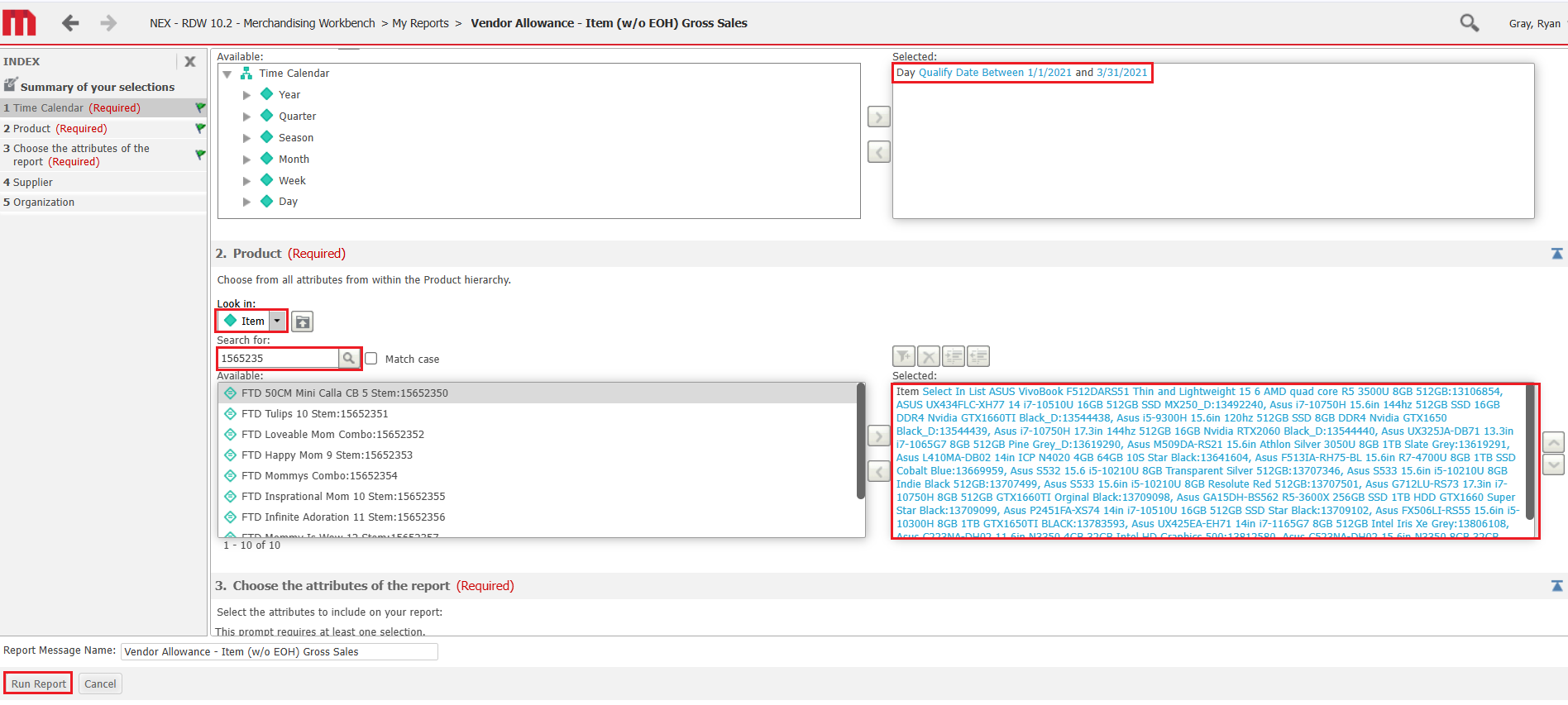
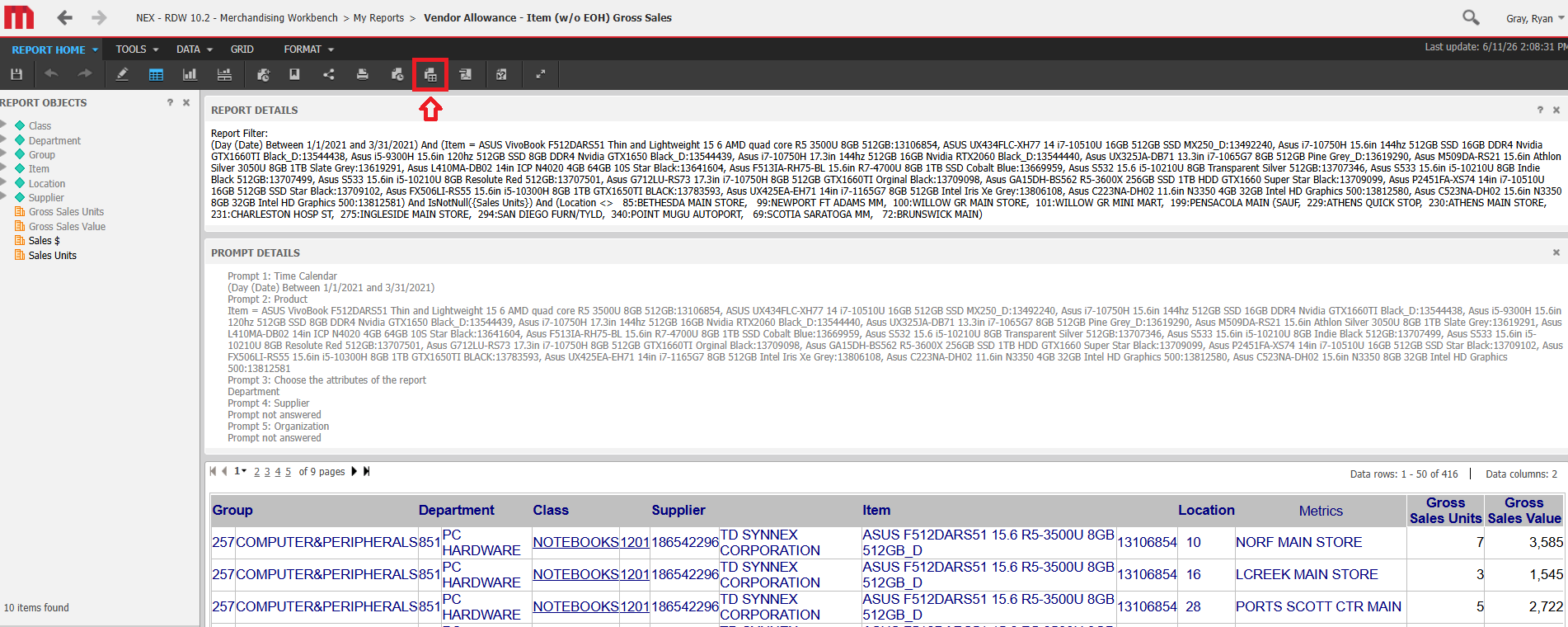
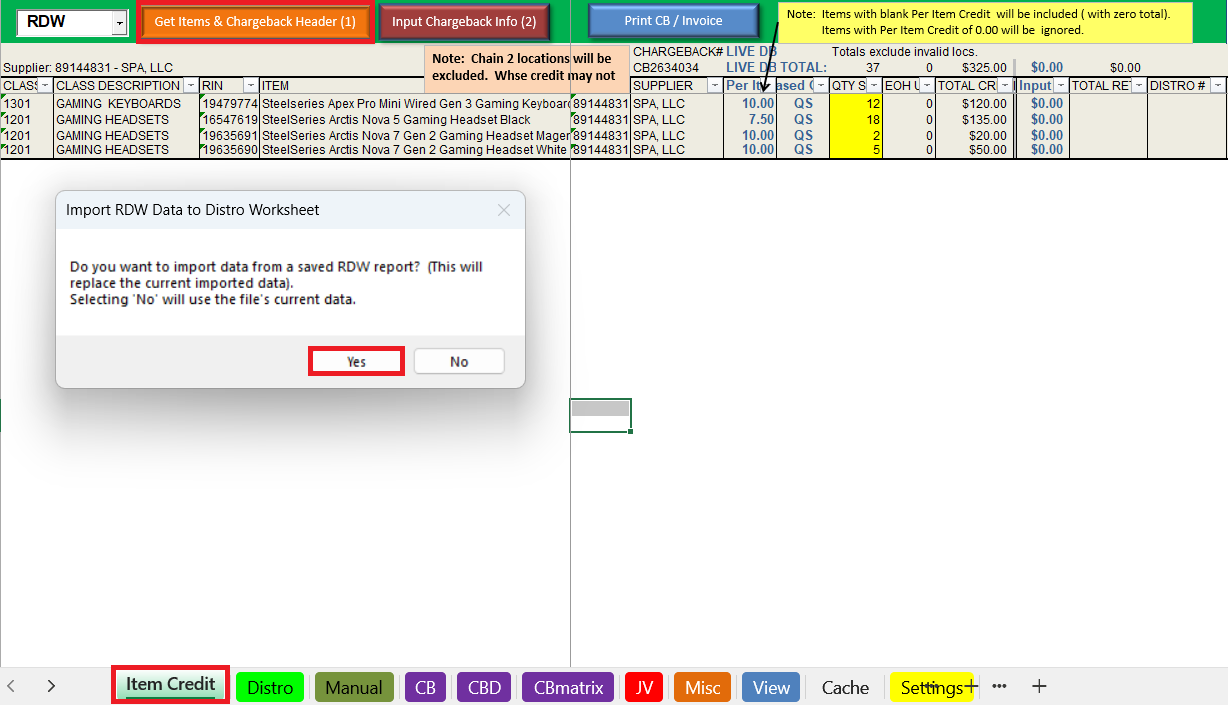
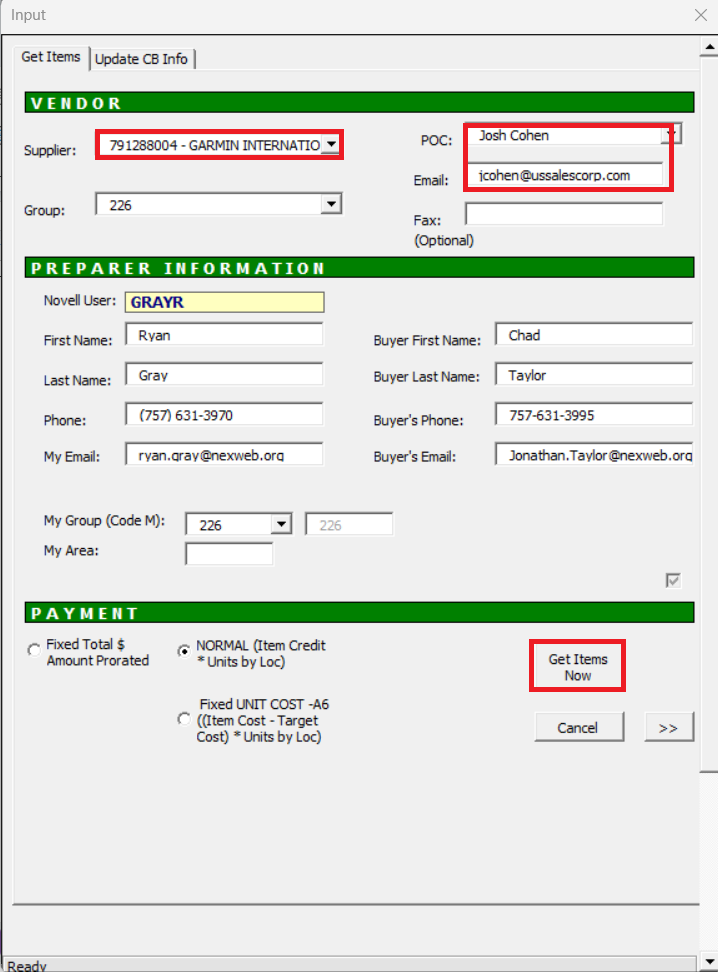

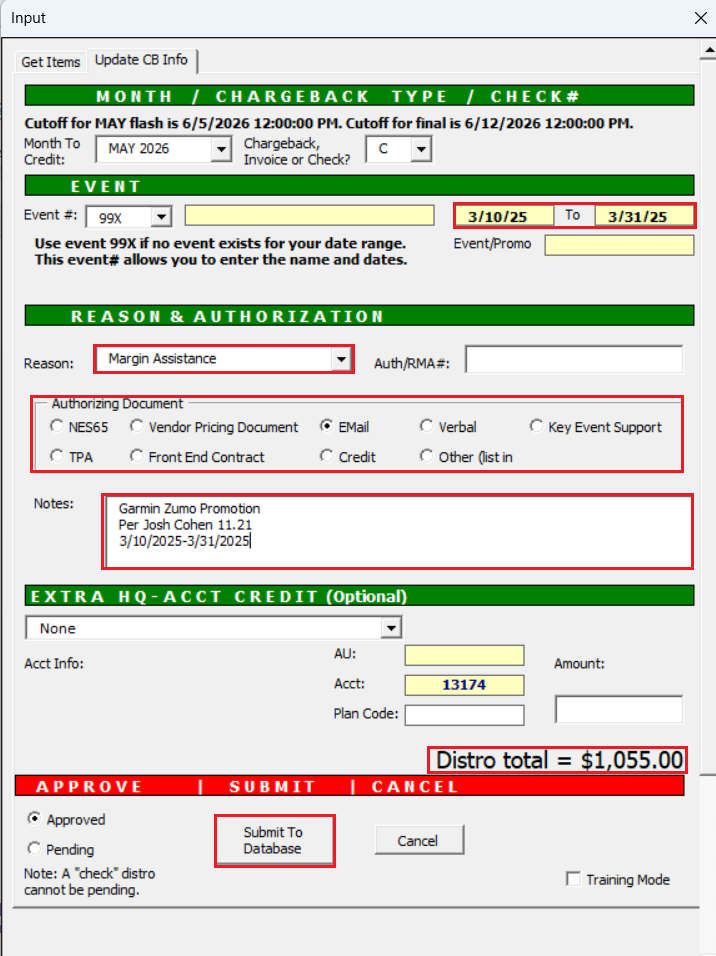
Export Chargeback PDF
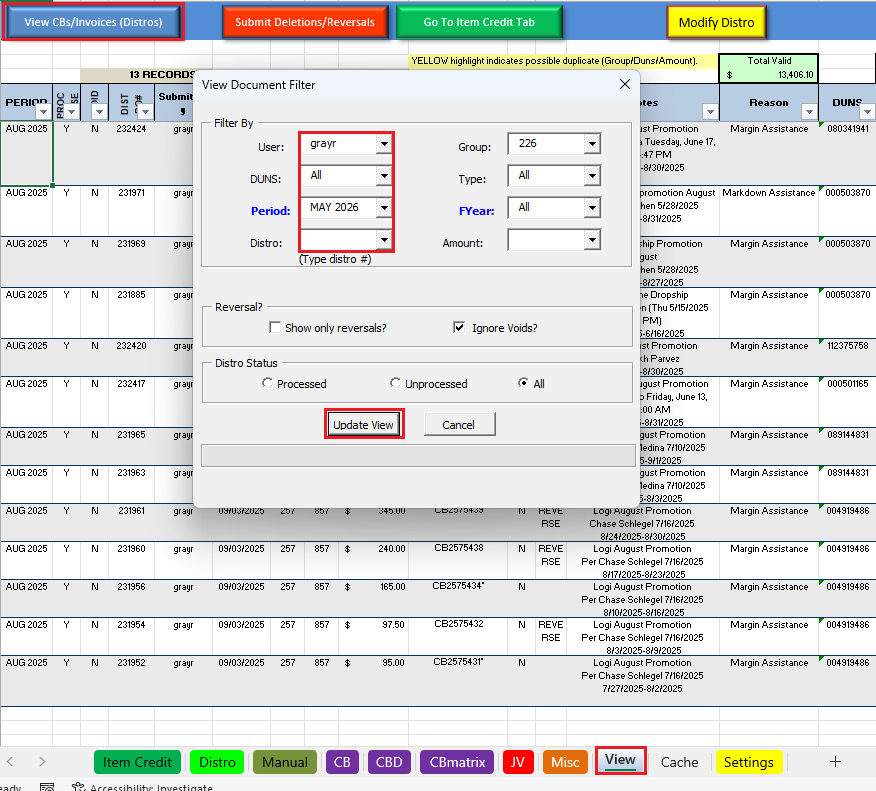

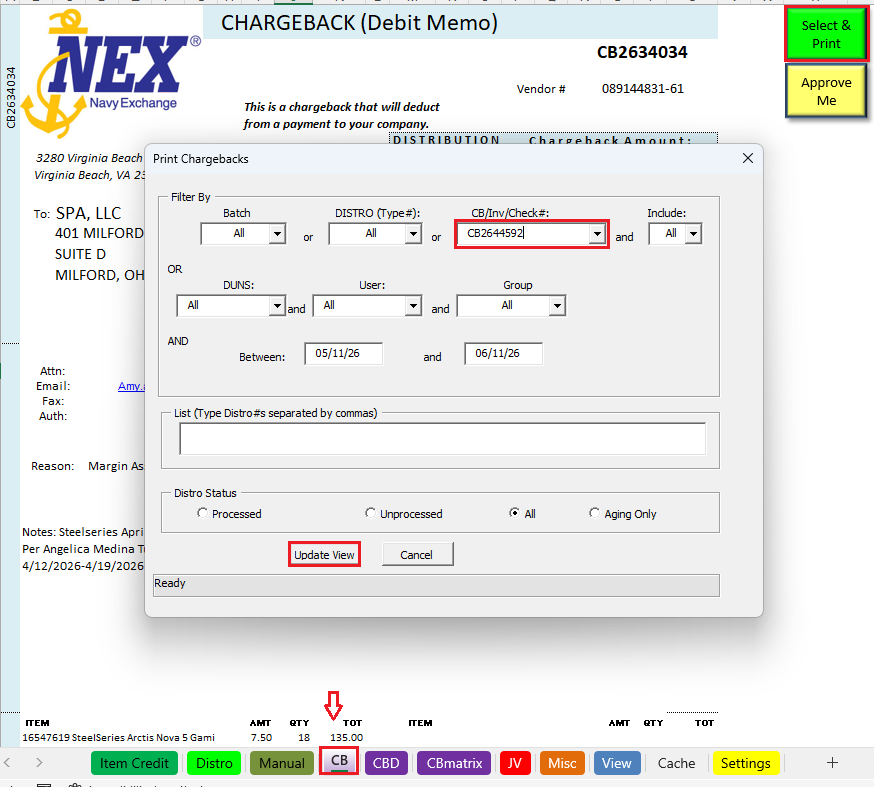
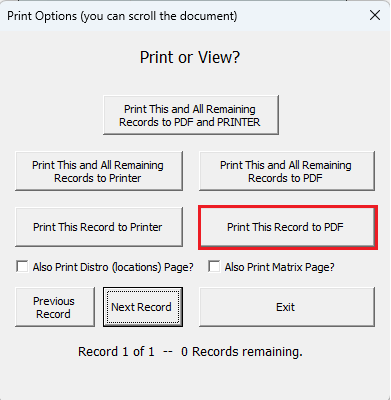
Email Chargeback
Report to DMM
Reach out to Ryan Gray if you want it built for your specific team
VADB POC List
| DUNS | VENDOR NAME | BRAND | POC | NOTES |
|---|---|---|---|---|
| 2725 | INGRAM MICRO | Apple (Cofunding, Sales Incentives) | * | ONLY for cofunding and sales incentives, NOT monthly Apple claims. For cofunding, submit as Invoice, then convert to CB when funding is finalized. |
| 7948 | SAMSUNG ELECTRONICS AMERICA | Samsung (Wearables, Tablets, Buds) | name@company.com | |
| 501165 | VOYETRA TURTLE BEACH, INC. | Turtle Beach (Peripherals, SIM Accy's) | name@company.com | |
| 502378 | D&H DISTRIBUTING CO. (WEB) | Lenovo, LG, Microsoft (drop ship) | name@company.com | claim web AND in-store DUNS if both are present on the RDW report! |
| 503870 | GARMIN INTERNATIONAL (WEB) | Garmin (drop ship) | name@company.com | double-check offers from Garmin - some TCs may be drop ship ONLY, or may have different claim amounts to the in-store offers. |
| 504865 | CENTON ELECTRONICS INC. | Centon | name@company.com | |
| 504969 | LIGHTHOUSE FOR THE BLIND (F) | Falcon Air | name@company.com | * DO NOT claim through DUNS 150582500. This DUNS number is for our dept and has different TPA agreements. |
| 491946 | INGRAM MICRO | Epson, Sandisk | * | DO NOT CLAIM LOGITECH THROUGH INGRAM. |
| 791120 | D&H DISTRIBUTING COMPANY | Asus (monitors ONLY), Cooler Master, CLX, Fitbit/Google, Lenovo, LG, Microsoft, Mobile Pixels, MSI | name@company.com | claim in-store AND web DUNS if both are present on the RDW report! |
| 9122532 | HP, INC | DO NOT USE | DO NOT USE | for claims directly to HP, use dummy DUNS 999999953. |
| 2076501 | BRAINSTORM CORPORATION | Skytech | name@company.com | |
| 4687184 | AMERICAN FUTURE TECHNOLOGY | iBuyPower | name@company.com | |
| 51492901 | ICE SERVICES LLC | Laut, Spigen | name@company.com | |
| 51983567 | WESTERN DIGITAL CORPORATION | Western Digital/WD, Sandisk Hard Drives | name@company.com | these are INVOICES, not CBs |
| 60704780 | APPLE INC. | Apple (Monthly Claims, Price Protection) | * | ONLY for monthly claims and price protections, NOT cofunding or sales incentives. Submit as INVOICES. |
| 66655143 | C R MCMULLEN CO, INC. | Zagg | name@company.com | |
| 68073601 | DEAL RISE LLC | Ultrahuman | name@company.com | |
| 78887436 | PHONESUIT INC. | Phonesuit | name@company.com | |
| 80341941 | ZEPP NORTH AMERICA, INC. | Amazfit | name@company.com | |
| 89144831 | SPA, LLC | Razer, SteelSeries | name@company.com | Razer product may populate with Synnex DUNS - manually change it to SPA in the RDW report before importing into VADB. |
| 111264784 | SPECULATIVE PRODUCT DESIGNS | Speck | name@company.com | |
| 112375758 | TD SYNNEX CORPORATION | Acer, Asus (Hardware), Amazon, HP, Dell/Alienware, Toshiba, HyperX | name@company.com | ~ Alienware product has a SELL-IN incentive - for every unit we BUY, we get a credit. Shannon will provide these credits on a ~30 day delay. ~ Synnex will sometimes offer credit through Qualcomm, AMD, etc. Claim these through Synnex only if directed by disti. ~ DO NOT use DUNS 186542296. This is outdated. If something populates with the old DUNS number, manually update it in the RDW report before importing into the VADB. |
| 150582500 | LIGHTHOUSE FOR THE BLIND | DO NOT USE | DO NOT USE | this DUNS is for other departments, our DUNS (504969) has different TPA agreements |
| 186542296 | TD SYNNEX CORPORATION | DO NOT USE | DO NOT USE | this DUNS is no longer valid for TD Synnex |
| 205547750 | SOLUTIONS 2 GO | Playseat, Thrustmaster | name@company.com | |
| 791288004 | GARMIN INTERNATIONAL INC. | Garmin (in-store) | name@company.com | double-check offers from Garmin - some TCs may be drop ship ONLY, or may have different claim amounts to the in-store offers. |
| 828766738 | LIFEWORKS TECHNOLOGY GROUP LLC | iHome | name@company.com | |
| 962930934 | KAIJET TECHNOLOGY INTL INC. | j5create | name@company.com | |
| 965642440 | GIGASTONE | Gigastone | name@company.com | |
| 999999934 | Microsoft | Microsoft (direct claims Only) | name@company.com | for direct claims ONLY - use as directed. Usually for sales incentives. |
| 999999953 | HP, INC (NOT IN LAWSON) | HP (direct claims ONLY) | name@company.com | only use this if directed - regular claims go through Synnex. Usually for check clears. |
| 999999955 | LOGITECH (Not in Lawson) | Logitech (ALL) | name@company.com; name@company.com; name@company.com |
also copy Name Redacted and Name Redacted. DO NOT claim Logitech through Ingram. Their invoices must be submitted as invoices directly to Logitech. |
| 999999997 | INTEL (Not in Lawson) | Intel (direct claims ONLY) | name@company.com | for direct claims ONLY - use as directed. |
| 999999999 | ADVANCED MICRO DEVICES, INC | AMD (direct claims ONLY) | * | for direct claims ONLY - use as directed. |
Website URLs
Who Can Help?
Consumer Tech Specific
AD Tracker
Navigate to: X:\shared\folder
Open the Ad Tracker File
Apple PO's
Data Cleanup
Transferring to the PO Induction Template
I am approaching this instruction assuming that you already know how to use the PO induction form. If you don’t, take that training before you attempt this. Before we begin:
Template Information: (GREEN items remain the same for the whole template, RED items will not)
Upload and Approval
Apple – Best Buy Price Match
Apple Best Buy Price Tracker: X:\shared\folder
Apple MSA: X:\shared\folder
Hardlines Buyer Promo Report
Report from START: X:\shared\folder
Sheet 1 Portion — Data Cleanup
Sheet 2 Start
VLookUp Portion
Filter Portion
Slicer Portion
Print Portion
Save to: \\server\share\folder
Upload to Hub: internal-link
Send to: name@company.com
Fact Tags for Hardlines Promotions
Save under naming convention → "Week 28 Unadvertised Electronics Fact Tag_99999_Promotion_SIGNS_HQ Distributed_20250810_20250816"
Send to Plus Sign team.
Weekly Reports
1. Weekly Retail Detail
Daily Reports updated through: Sat, 01-Oct-22
RDW/QS Sales updated through: Sat, 01-Oct-22
Missing Sales: None
DAILY SALES UPDATE:
MON, 22 JUN
Status Check
Business Impacts
2. Vendor Reports
Acer & Asus — subsets of Synnex. For these:
1. Filter row 6 in the Synnex report
2. Select filter in Cell B6, search for the appropriate brand
3. This should filter the results to only the brand
4. Copy to master report as before required
WD & Sandisk — subsets of Ingram Micro.
1. For WD:
Filter row 8 of the Ingram Micro report
Select filter in Cell A6
Filter to the below RINs:
19650397
19650398
19650399
19650400
19650401
13660370
Copy to master report as before
2. For Sandisk:
Select filter in Cell B6, search for “Sandisk” and copy to master report as before
ADDITIONALLY, search for “Western Digital” and copy to master as before
Amazfit – 80341941 (Zepp North America, Inc)
Asus – pull from Synnex
Centon – 504865
D&H – 7911209
iBuyPower – 46871849 (American Future Technology)
Ingram Micro – 4919486
Samsung – 7948
Sandisk – pull from Ingram Micro
SPA – 89144831
Starlink – 148265713 (Petra Industries, LLC)
Synnex - 112375758
Ultrahuman – 68073601 (Deal Rise, LLC.)
Western Digital – pull from Ingram Micro